Terminal
Use the Terminal mode to work in a command shell on the remote computer: Command Prompt or PowerShell on a Windows Host, bash, zsh or another installed shell on a macOS or Linux Host. The shell runs on the remote computer; the Viewer shows its output and sends your keystrokes, without a remote desktop session.
Terminal works from any Viewer to any Host:
- From: Viewer for Windows, macOS or Linux, and the mobile app for iOS and Android.
- To: Host 7.9 or later for Windows (Windows 10 and later), and Host 2.1.1 or later for macOS and Linux.
The Terminal mode must be allowed on the Host (Settings for Host → Modes) and for your user account. With an older Host, or when the mode is not allowed, the Viewer reports this right after you sign in and the terminal does not open.
Start Terminal Mode
- On the General tab select Terminal and double-click the target connection in your address book.
- Enter the access password and click OK.
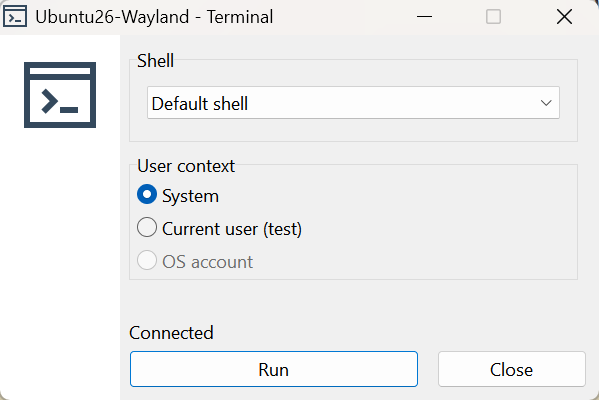
- The Terminal launcher appears. Choose the shell and the user context (see below) and click Run.
- The terminal window opens with the shell prompt. Type commands as you would in a local console.
Choose the Shell
The Shell list is reported by the Host, so it shows what is actually installed on the remote computer:
- Windows Host: Command Prompt, Windows PowerShell and, when it is installed, PowerShell 7.
- macOS and Linux Host: Default shell (the login shell of the account the terminal runs under) and the shells installed on the system, such as bash, zsh, sh or fish.
The choice is remembered per connection: a server you always manage from PowerShell opens in PowerShell next time.
Choose the User Context
The User context option decides which account the shell runs under:
- System—the account of the Host service itself: SYSTEM on Windows, root on macOS and Linux. Always available, even when nobody is logged on to the remote computer. This is a shell with full rights on the remote computer; be careful with the commands you run in it.
- Current user—the user logged on to the remote computer right now. The option shows the user name and is greyed out when nobody is logged on.
- OS account—enter the user name and password of any local or domain account on the remote computer. The shell runs under that account, with its profile and environment, whether the user is logged on or not. Use it when a script has to run as a specific service account, or when the session should leave the same traces as that user would.
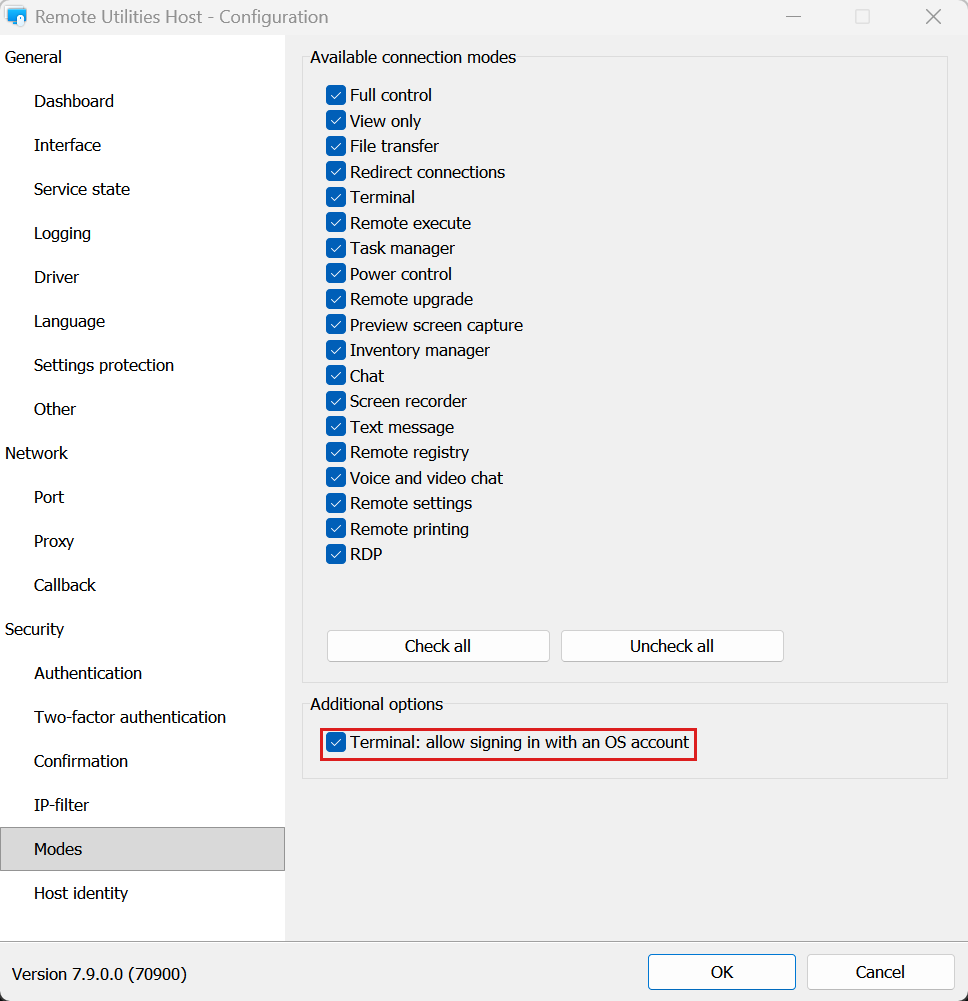
OS account is off by default. To enable it, open Settings for Host, go to Modes and select Terminal: allow signing in with an OS account. The option is not available on the Agent or in the mobile app.
The Terminal Window
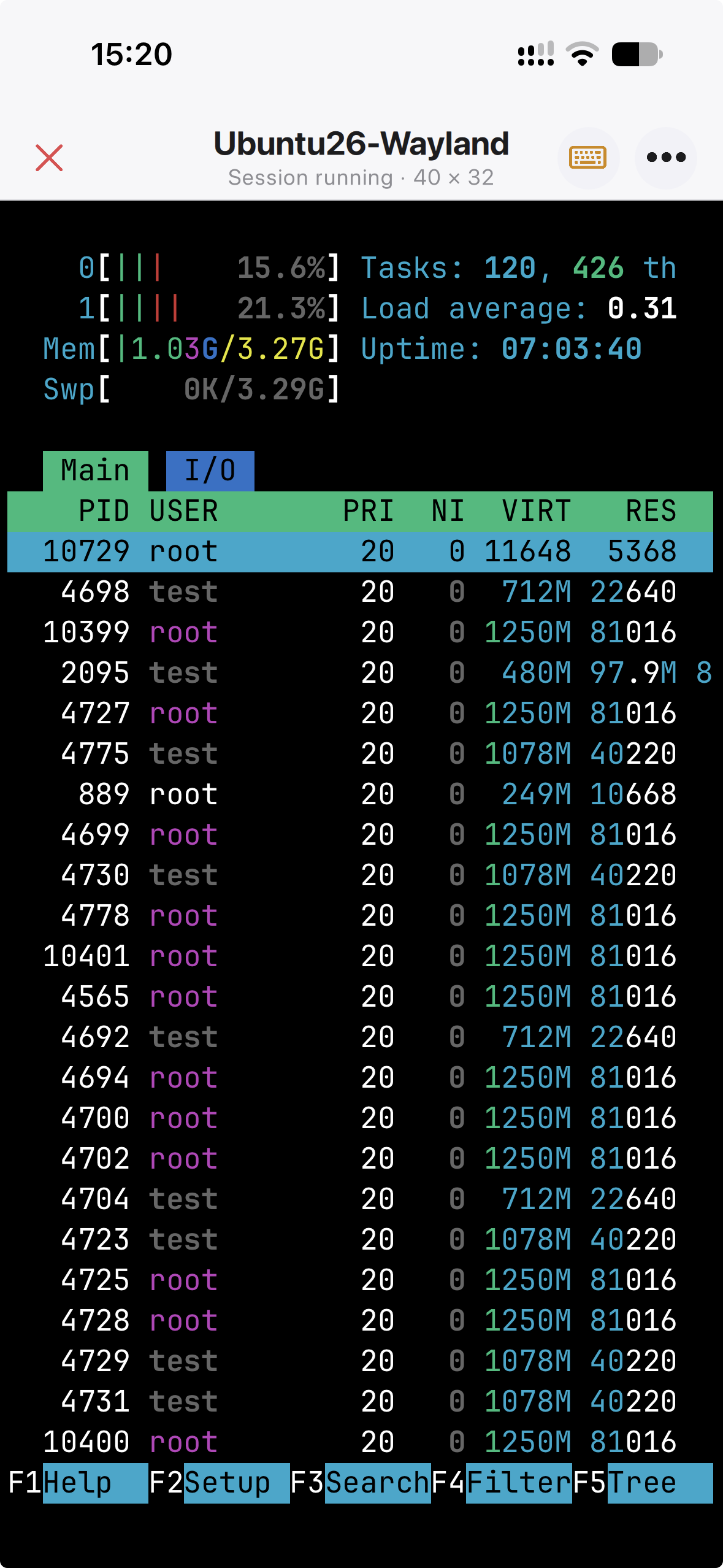
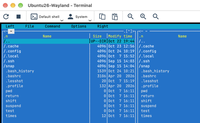
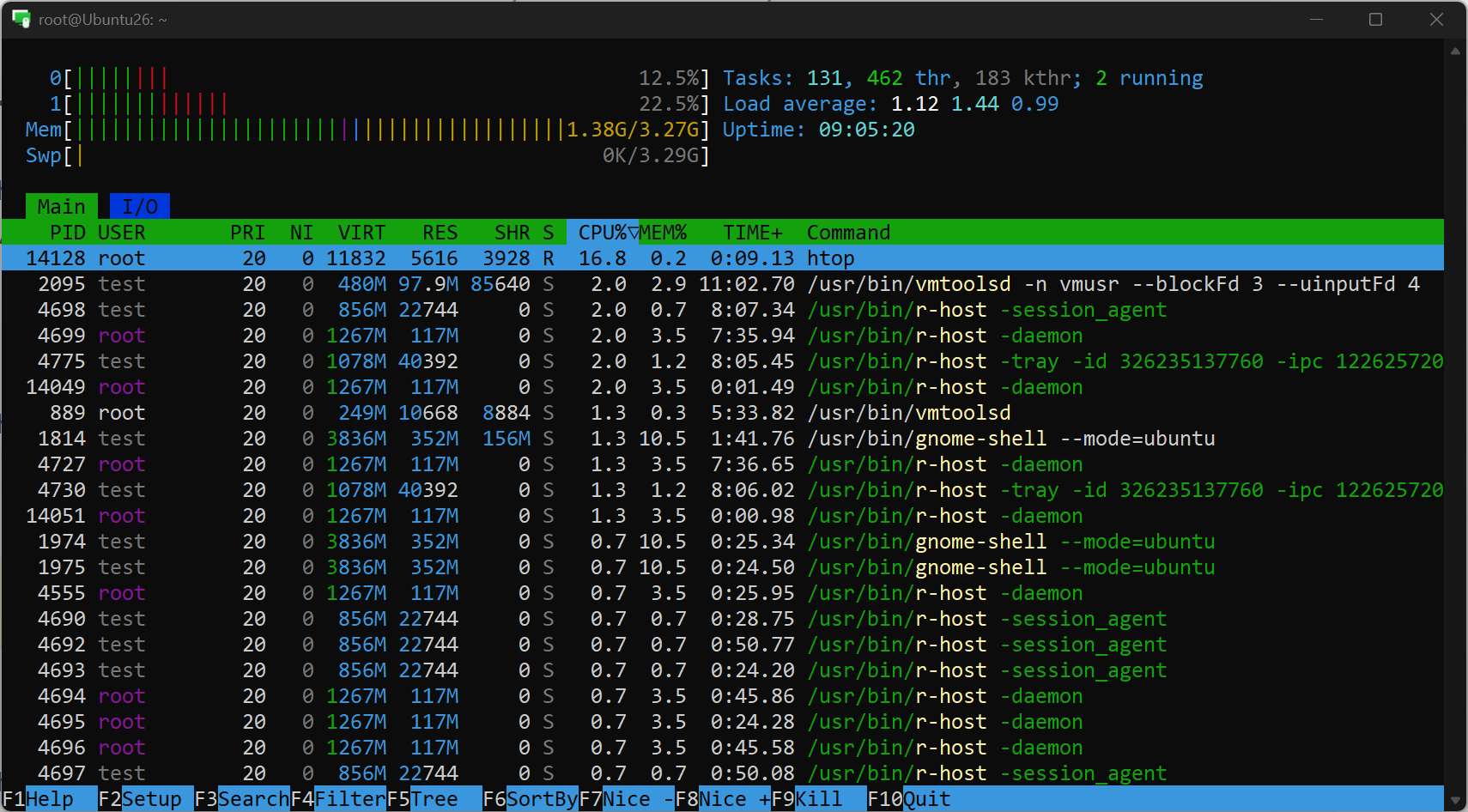
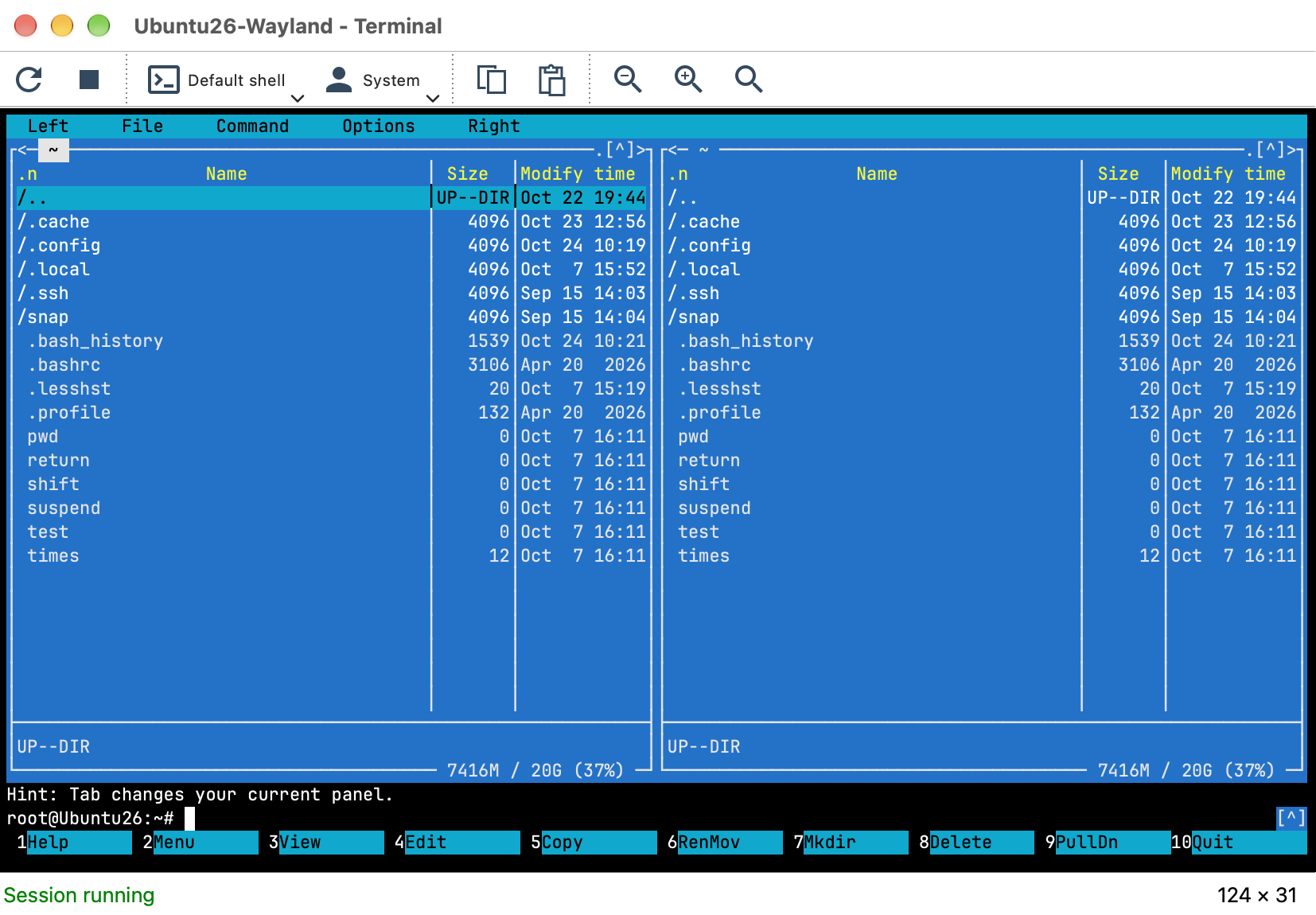
The terminal window shows the output of the shell and sends what you type. Console programs that draw on the whole screen or use the mouse, such as vim, mc, htop or FAR Manager, work as they would in a local terminal.
- Start, Restart and Stop control the shell. Stop ends the shell on the remote computer; the output stays on screen until you close the window. Restart starts a new shell with the current shell and user context, for example after the shell has exited or the connection was lost.
- Choosing another shell or user context restarts the session with the new settings.
- Copy and paste work with the clipboard of your computer. Select text with the mouse to copy it; paste types the clipboard text at the prompt.
- Zoom changes the text size; the terminal is resized to the new number of columns and rows and running programs redraw to fit.
- The window keeps 5000 lines of output history to scroll back through.
Closing the terminal window ends the shell on the remote computer, together with the programs started in it. To keep a program running on a macOS or Linux Host after you leave, start it inside tmux or screen and detach before closing.
Mobile App
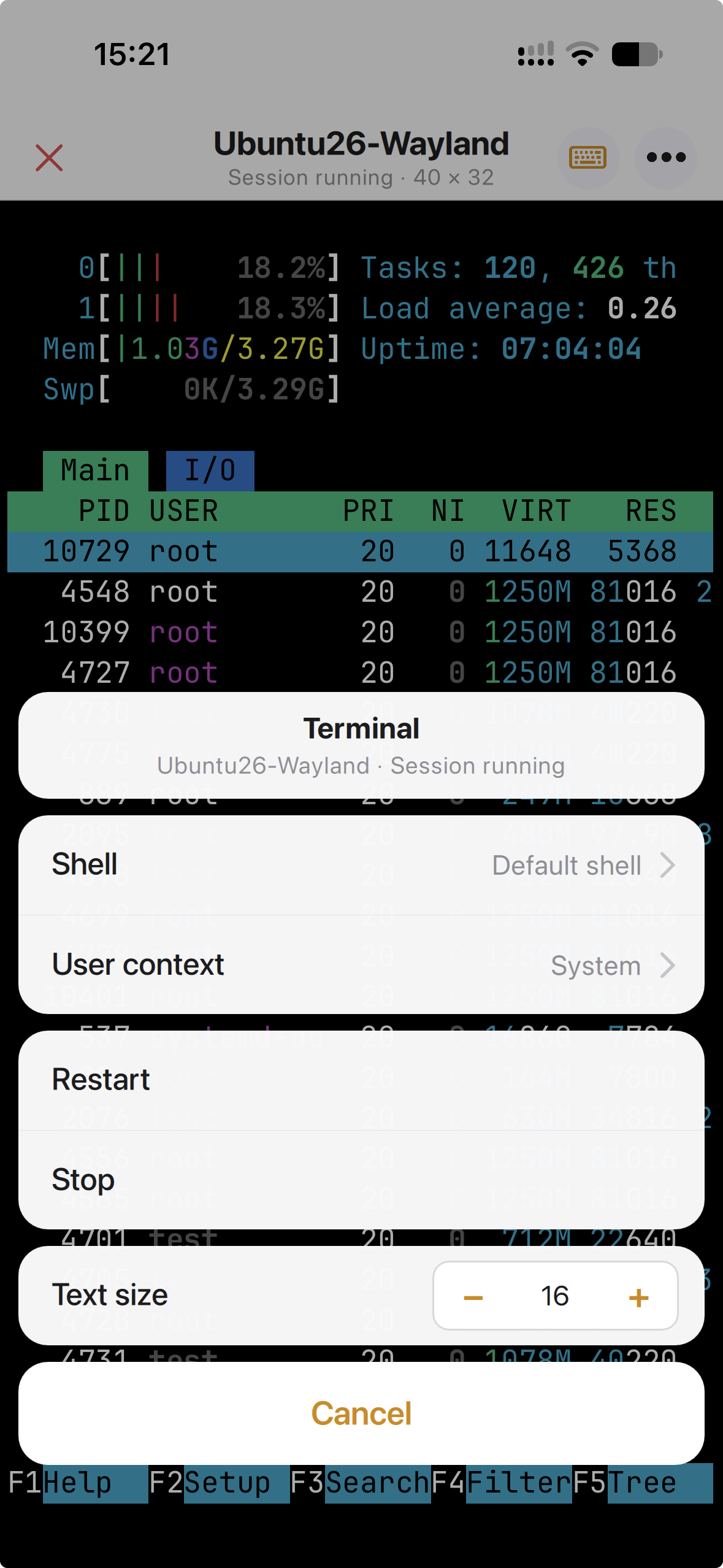
The mobile app has the same mode, adapted to a touch screen. A key bar above the on-screen keyboard adds the keys a phone does not have: Esc, Tab, Ctrl, Alt, the arrow keys, Home, End, Page Up and Page Down, Ctrl+C and the function keys. The output scrolls, a long press selects text for copying, a pinch changes the text size, and landscape orientation gives a 100-column terminal.
Terminal is in the connection mode menu of a connection, can be set as its default tap action, and is one tap away from the toolbar of a running Full Control session. The shell and the user context (System or Current user) are remembered per connection here too. The in-app help of the mobile app has a full Terminal chapter.