Full Control and View
Use the Full Control mode to view the remote screen, move the remote mouse pointer and send clicks/keystrokes.
Use the View Only mode to view the remote screen—the mouse and keyboard input transfer are disabled in the View Only mode.
Start Full Control mode
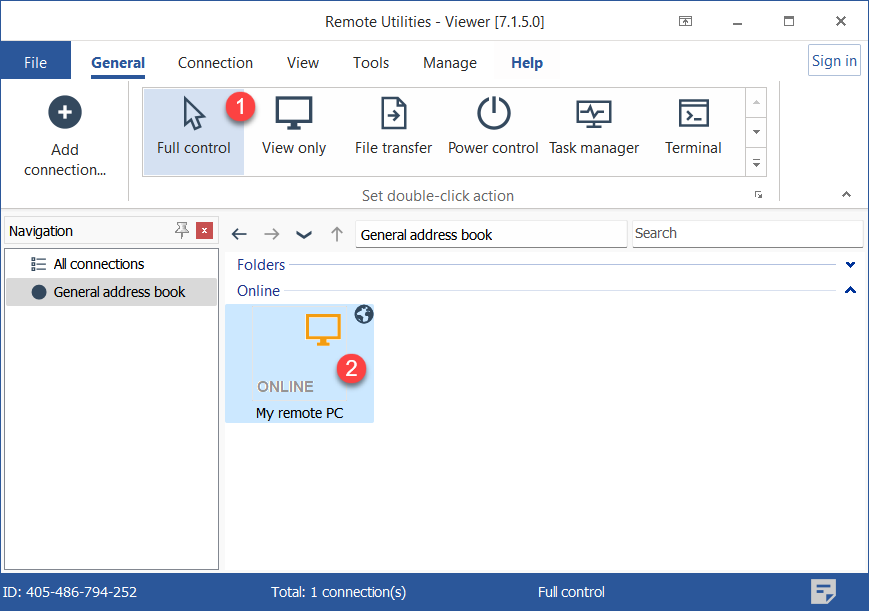
- Go to the General tab and select Full control.
- Double-click the target connection in your address book.
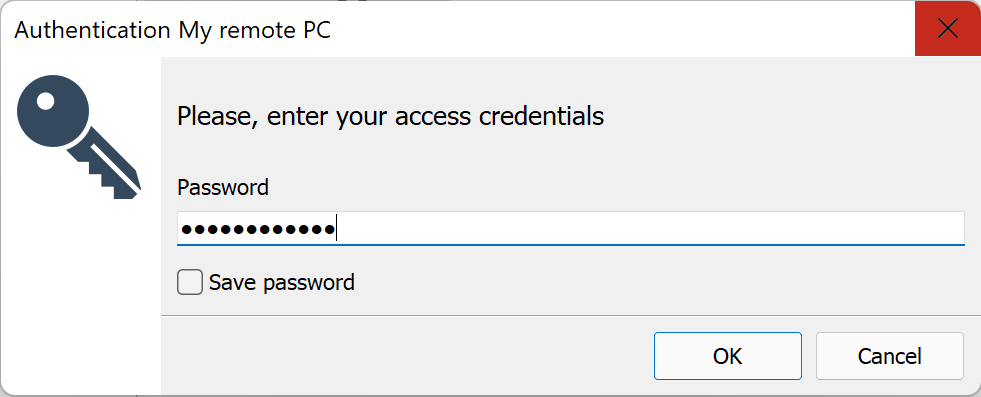
- Enter the access password and click OK:
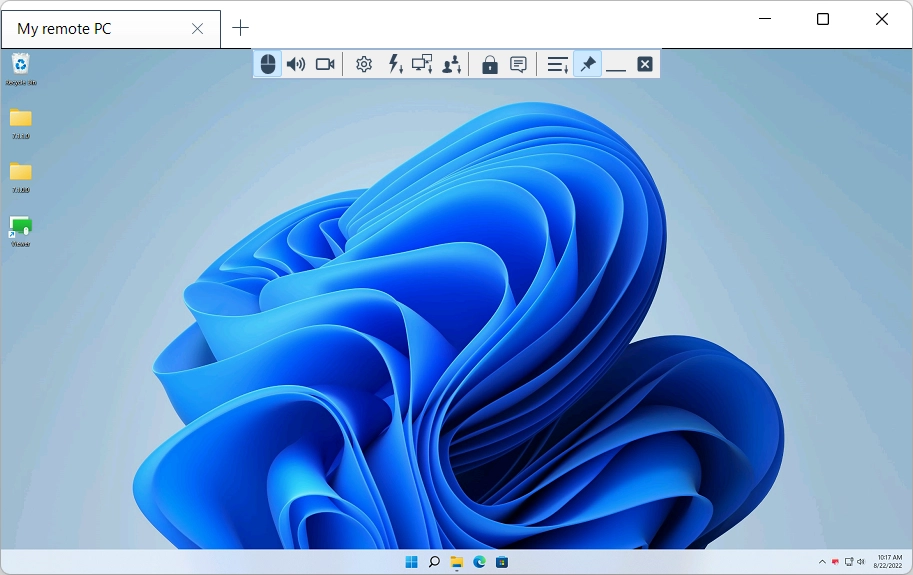
- The Full Control window will open:
Start View Only mode
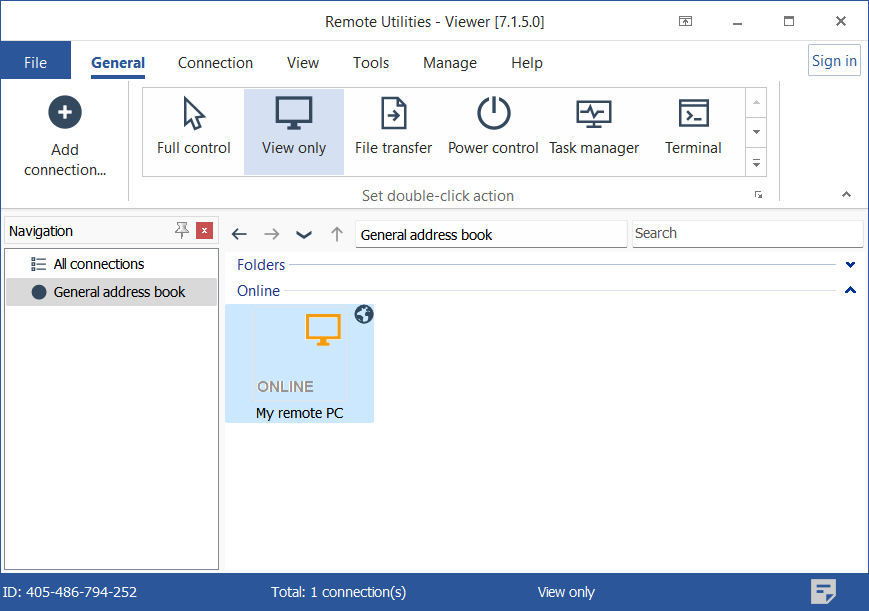
- Go to the General tab and select View only.
- Double-click the target connection in your address book.
- Enter the access password and click OK:
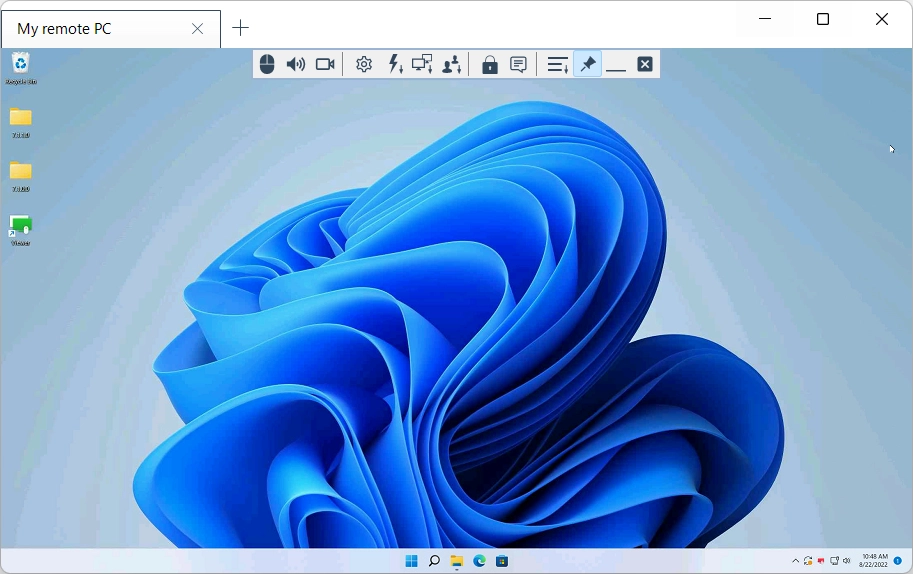
- The View Only window will open:
Switch between Full Control and View Only
Use the toggle icon (  ) on the toolbar to alternate between Full Control and View Only modes without closing the window.
Alternatively, you can use the Alt+F12 keyboard shortcut to switch between the Full Control and View Only modes.
Turn tabbed view on and off
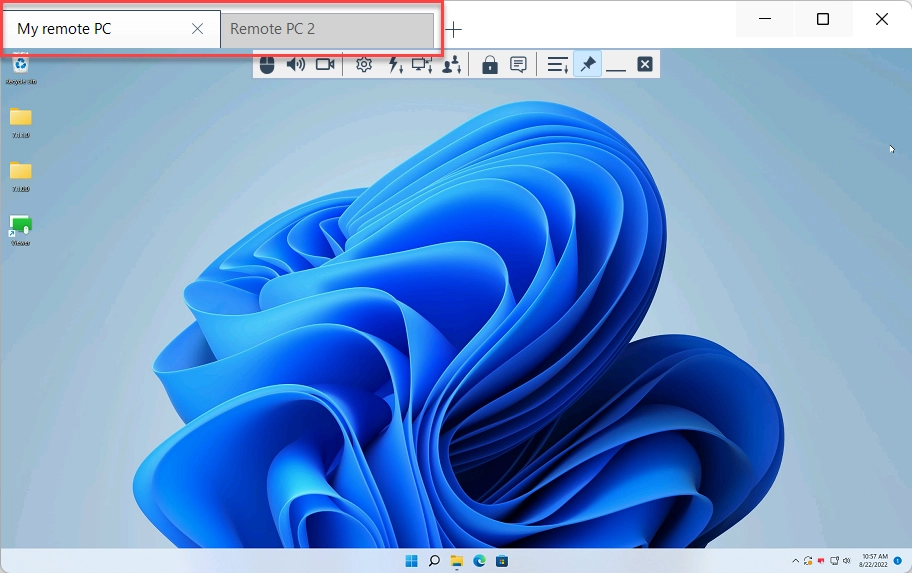
By default, when you start multiple remote sessions in the Full Control or View Only mode the remote desktops are shown in tabs:
You can turn off the tabbed view and have each remote desktop shown in its individual window.
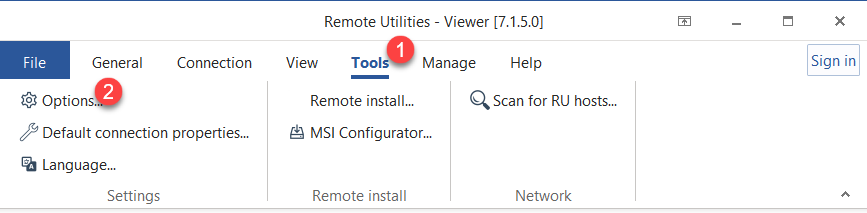
- Go to the Tools tab and click Options.
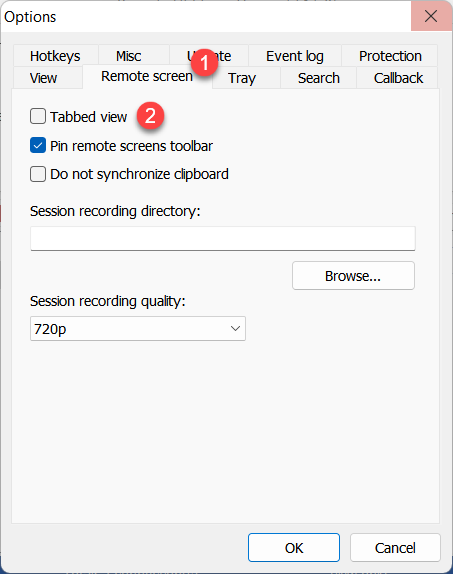
- Go to the Remote Screen tab and deselect the Tabbed view checkbox.
Toolbar
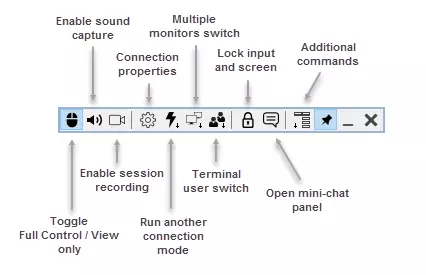
The toolbar contains frequently-used commands. To reveal the toolbar, hover your mouse pointer over the top edge of the Full Control window.
|
Mode switch—switch between Full control and View only modes. |
 |
Capture sound—turn this on to listen to audio played back on the remote PC. |
 |
Session recording—turn on session recording. |
 |
Connection properties—change the connection properties during a remote session. |
 |
Other modes—run another connection mode. |
 |
Remote monitors—switch to a specific remote monitor (for a multi-monitor setup). |
 |
Terminal sessions—if there is a Microsoft terminal server running on the remote PC, you can switch to a specific remote terminal session. |
 |
Lock input and screen—lock keyboard and mouse input for the remote user during the current session. |
 |
Text chat—enable the mini-chat panel (see "Turn Mini-chat on and off" below). |
 |
Additional commands menu—a dropdown menu with additional commands (see "Additional commands" below). |
 |
Pin—make the toolbar always visible at the top of the window. |
 |
Minimize—minimize the Full Control window. This button also works when in fullscreen mode. |
 |
Close—close the Full Control window and terminate the session. |
Additional commands
Click on the icon ( ) to invoke a menu with additional commands:
- Normal view—set screen mode to normal (actual pixels are shown and no scaling occurs).
- Stretch view—stretch or shrink the remote screen image to fit into the Full Control window.
- Fullscreen view—remove Full Control window border and use your entire screen for remote screen .
- Fullscreen stretch view—stretch or shrink the remote screen image to fit in your entire screen.
- Send Ctrl+Alt+Del—send a Ctrl+Alt+Del key combination to the remote PC.
- Send key—send a key or key combination to the remote PC .
- Make screenshot—take a screenshot of the Full Control window and save it on the local disc (the Windows "Save" dialog will appear).
- Restart Agent as...—restart the remote Agent as a different user (e.g. an administrator).
- Pause—put remote session on hold.
- Get remote clipboard—copy the contents of the remote clipboard to the local clipboard.
- Set remote clipboard—copy the contents of the local clipboard to the remote clipboard.
Turn Mini-chat on and off
Mini-chat is a simplified version of the Text Chat mode. The mini-chat panel opens alongside the Full Control window and allows you to chat with the remote user while simultaneously viewing their desktop.
To open the mini-chat panel click the chat icon ( ) on the toolbar. To send a message, enter the message in the text field and click Send or press the Enter key.
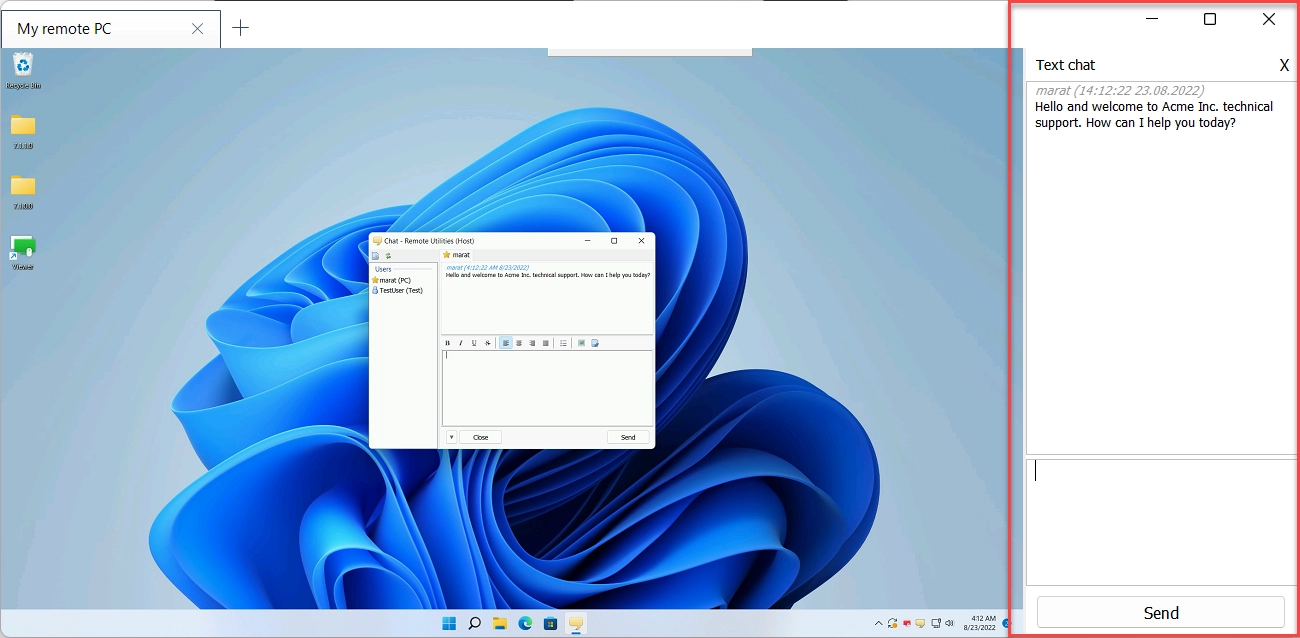
The remote user will see a regular Text Chat mode window and will be able to communicate back via the chat.
Hotkeys
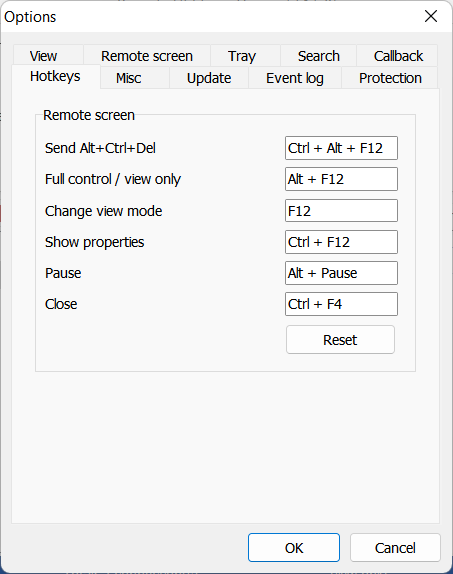
You can use the following hotkeys when in the Full Control mode:
- Ctrl+Alt+F12—Send a Ctrl+Alt+Del command to the remote PC.
- Alt+F12—Switch between Full Control and View Only mode.
- F12—toggle view modes (Normal, Stretch etc.).
- Ctrl+F12—show connection properties.
- Alt+Pause—put the current session on hold.
- Ctrl+F4—close the Full Control window.
You can edit the default hotkeys. In the main Viewer window go to Tools→Options and select the Hotkeys tab.
Additional hotkeys include:
- Alt+TAB—Cycle through windows on the remote PC.
- Q+Alt+TAB—Cycle through windows on the local PC.
See all hotkeys available in the program.
Drag and drop
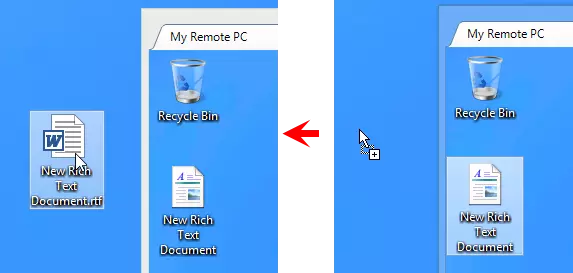
You can copy files and folders from/to a remote PC using drag and drop. For example, to copy a file from the remote PC to the local PC, click the file and drag it away from the Full Control window. Drop the file over the target window or the desktop on the local PC.