Clipboard Transfer
In a Full Control session the clipboard of your computer and the clipboard of the remote computer are kept in step. What you copy on one side becomes available for pasting on the other, in both directions: text, formatted text, images and, since Remote Utilities 7.9 for Windows and 2.1.1 for macOS and Linux, files and folders. Nothing is pasted by itself; the transfer only fills the clipboard on the other side, and you paste where you need it.
Clipboard transfer works between any combination of Windows, macOS and Linux on either side. It is available in Full Control mode only; in View Only mode nothing is transferred automatically.
Plain Text
Copy text on one side with Ctrl+C (Cmd+C on a Mac) or the program's Edit menu. Within a moment it is in the clipboard on the other side; switch to the program where you need it and paste with Ctrl+V (Cmd+V).
Only changes made during the session are transferred. Text that was already in the clipboard before you connected is not sent; copy it again, or use Set remote clipboard (see below).
Formatted Text
Text that has formatting keeps it. Bold text, headings, lists and links copied in Word, LibreOffice Writer, TextEdit or a web browser paste with their formatting on the other side, as far as the receiving program supports it. HTML copied on a Linux or macOS computer pastes correctly on Windows and vice versa. If you need plain text only, use the receiving program's Paste as plain text command (Ctrl+Shift+V in most programs).
Images
An image copied in one program can be pasted into a program on the other side: copy a picture in an image editor or an office document and paste it on the other computer. Image transfer was tested between Paint, Photoshop and GIMP in every direction, and with Preview on a Mac (File → New from Clipboard). Images are transferred automatically in the same way as text; no manual command is needed.
Files and Folders
You can copy files and folders in the file manager on one side and paste them in the file manager on the other, without opening the File Transfer mode:
- In a Full Control session, select the files or folders on one side, in File Explorer, Finder or your Linux file manager, and press Ctrl+C (Cmd+C on a Mac).
- Switch to the other side, open the destination folder and press Ctrl+V (Cmd+V).
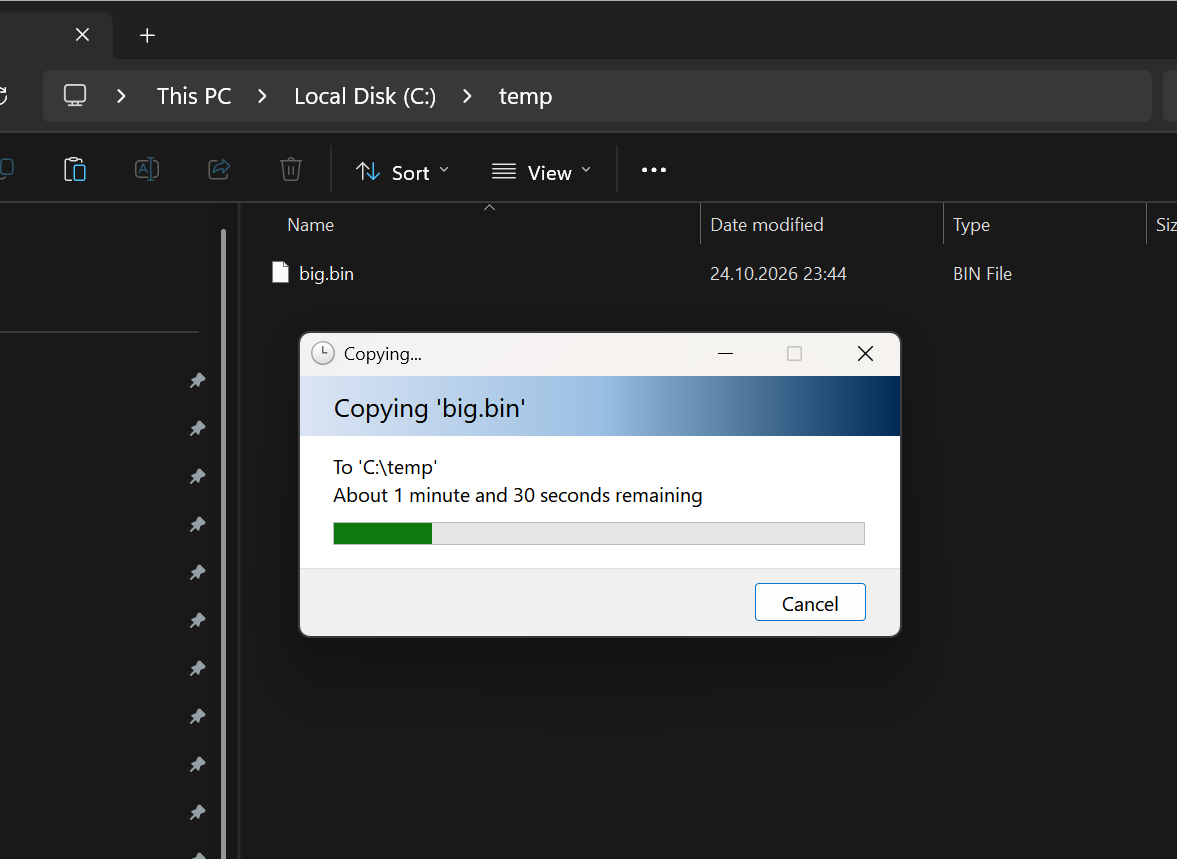
Folders are copied with their contents. The files travel from the Host to your computer and from your computer to the Host alike, and in any combination of Windows, macOS and Linux.
Requirements
- Both sides must be of the new version: Remote Utilities 7.9 or later on Windows, 2.1.1 or later on macOS and Linux. An older Viewer or Host simply never sees files in the clipboard; text and images keep working as before.
- The File Transfer mode must be allowed on the Host (Settings for Host → Modes), and the account you are connected with must have permission to use it. Files through the clipboard obey the same permissions and are written to the Host log the same way as a File Transfer session. If File Transfer is not allowed, the files are not offered to the other side, or the paste ends with an error.
- The Viewer for Linux needs the
fuse3package to receive files from a Host; the installer recommends it.
What travels, and when
Pressing Ctrl+C sends only the list of the copied items: names, sizes and dates. The contents are transferred when you paste, and only the files you actually paste. You can copy a large folder on the remote computer, change your mind, and nothing has crossed the network.
- Files pasted on your computer (Host to Viewer) come over the same connection the File Transfer mode uses, with the same encryption, permissions and speed.
- Files pasted on the Host (Viewer to Host) are requested by the Host over the session connection, piece by piece, with the piece size adapted to the link so that the remote screen stays responsive. A macOS or Linux Host shows a small notice in the corner of the screen while the files are coming in, so that the person at that computer knows why the file manager is busy.
Where you can paste
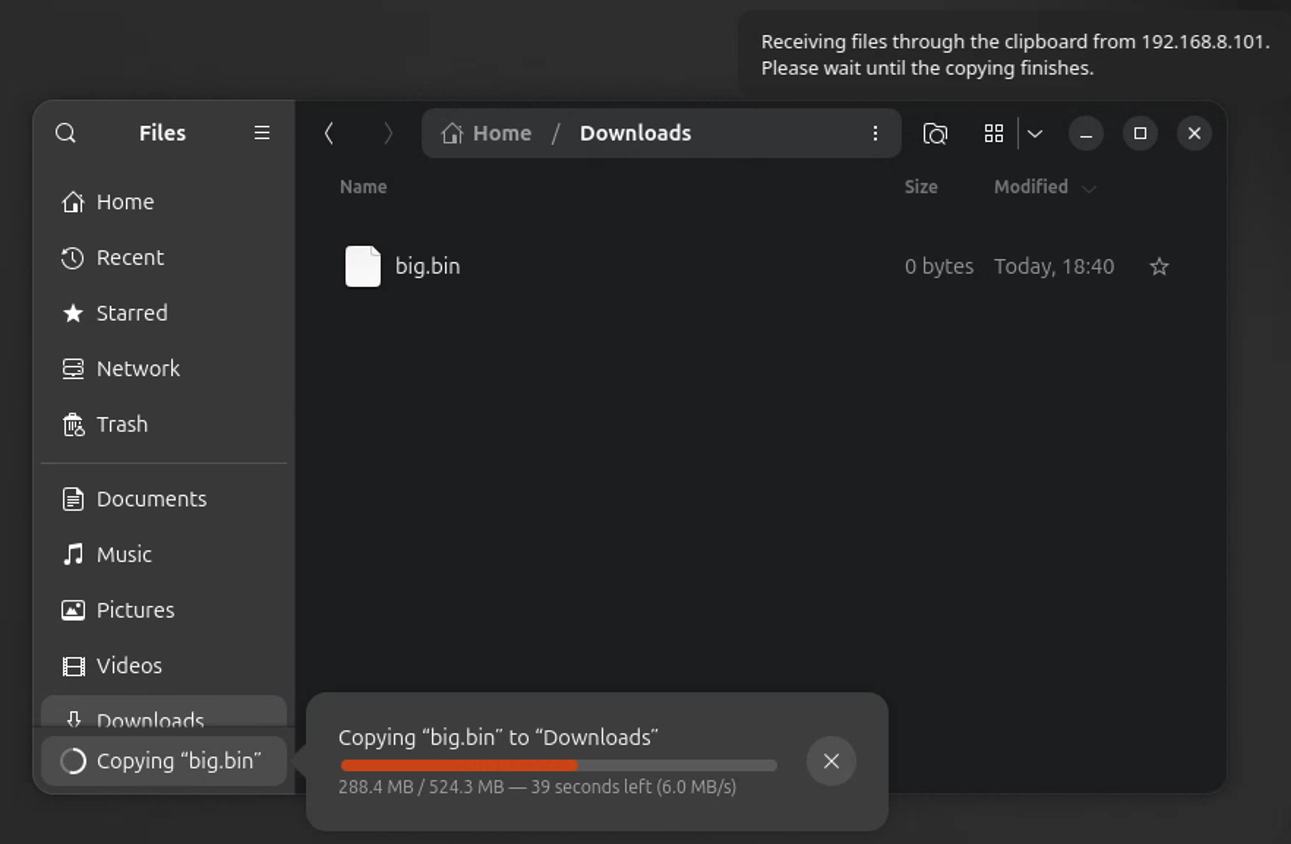
The receiving side does not get the files themselves at copy time. It gets a promise of them, which the operating system turns into real files at the moment of pasting. Each OS does this differently:
- Windows: paste in File Explorer, in a folder or on the desktop. Explorer shows its usual progress window with a Cancel button. Programs that only accept files already on disk, such as Telegram or WhatsApp, do not see files from the other side; paste them into a folder first and attach them from there. This is the same behaviour as with Windows Remote Desktop.
- macOS: paste in Finder. Finder shows "Preparing to copy" without a progress bar until the file has arrived; that is not a hang. A program that reads the pasted file by itself, such as Mail or a chat app, gets an empty file until the same files have been pasted in Finder once.
- Linux: paste in any file manager; Nautilus and others show their own progress. You can also open a file directly from the pasted set.
Rules and limits
- Files copied on your computer are offered to the Host only while the session window is active. Otherwise every Ctrl+C on your computer would expose files to every connected Host. Copying while another window has the focus is fine: the files are offered when you return to the session window.
- Pasting the same clipboard a second time takes the current state of the files at the source, including changes made since you copied. A file that is changed while it is being copied gives a read error rather than a corrupted copy.
- Cut (Ctrl+X) behaves as copy: nothing is deleted at the source.
- Names, sizes and modification times are transferred; permissions, owners and extended attributes are not. Symbolic links inside a copied folder are skipped.
- There is no resume after a broken connection: paste again.
- Files received from one Host are never passed on to another Host.
Get and Set the Remote Clipboard Manually
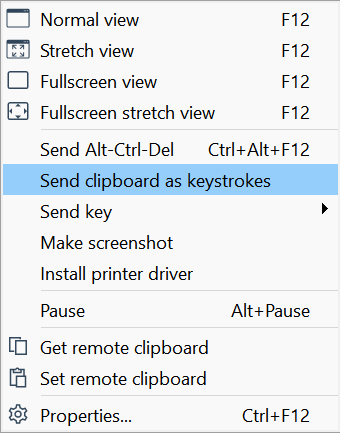
Two commands in the Full Control window menu (  ) move the clipboard by hand:
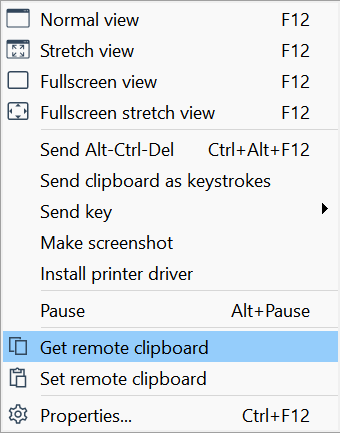
- Get remote clipboard—take what is in the clipboard of the remote computer right now and put it into the clipboard of your computer.
- Set remote clipboard—take what is in the clipboard of your computer and put it into the clipboard of the remote computer.
Both work with text, images and files alike. Use them when:
- The content was copied before the session started. Automatic transfer sends only what changes during the session; whatever was already in the clipboard when you connected, or when the Host or Viewer was started, stays where it is. If the text or the files are still in your clipboard, choose Set remote clipboard to send them; Get remote clipboard does the same for something copied on the Host before you connected.
- Automatic synchronization is turned off in the Viewer options (see below). The two commands are then the only way to transfer the clipboard, and nothing moves without your explicit action.
- You want to be sure what is on the other side right now, for example after switching from View Only back to Full Control.
One copy, several sessions: if you have several Full Control windows open, the content copied on your computer is offered to every connected Host, so you can paste the same text or files in each session in turn. (The exception is files copied while a particular session window was active; see the rules above.)
Turning Clipboard Transfer Off
In the Viewer
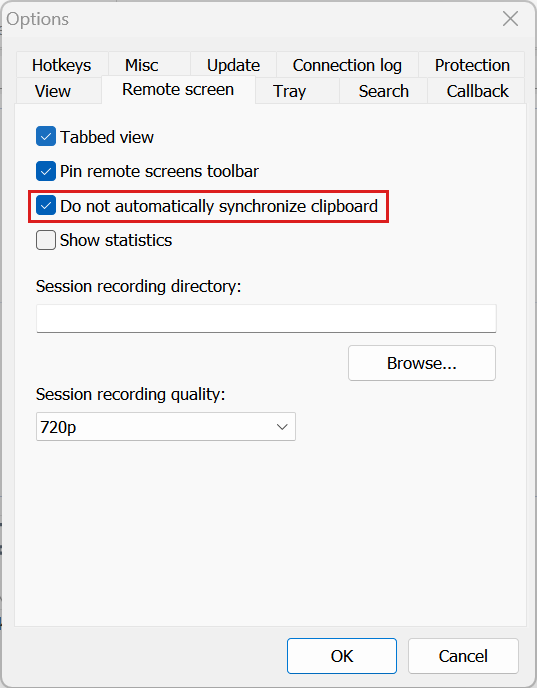
Automatic synchronization means that whatever you copy while a session window is active is offered to that remote computer. If you would rather decide case by case, go to Tools → Options → Remote screen in the Viewer and select Do not automatically synchronize clipboard (see Viewer options). Nothing then moves on its own, in either direction, while Get remote clipboard and Set remote clipboard keep working on request.
On the Host
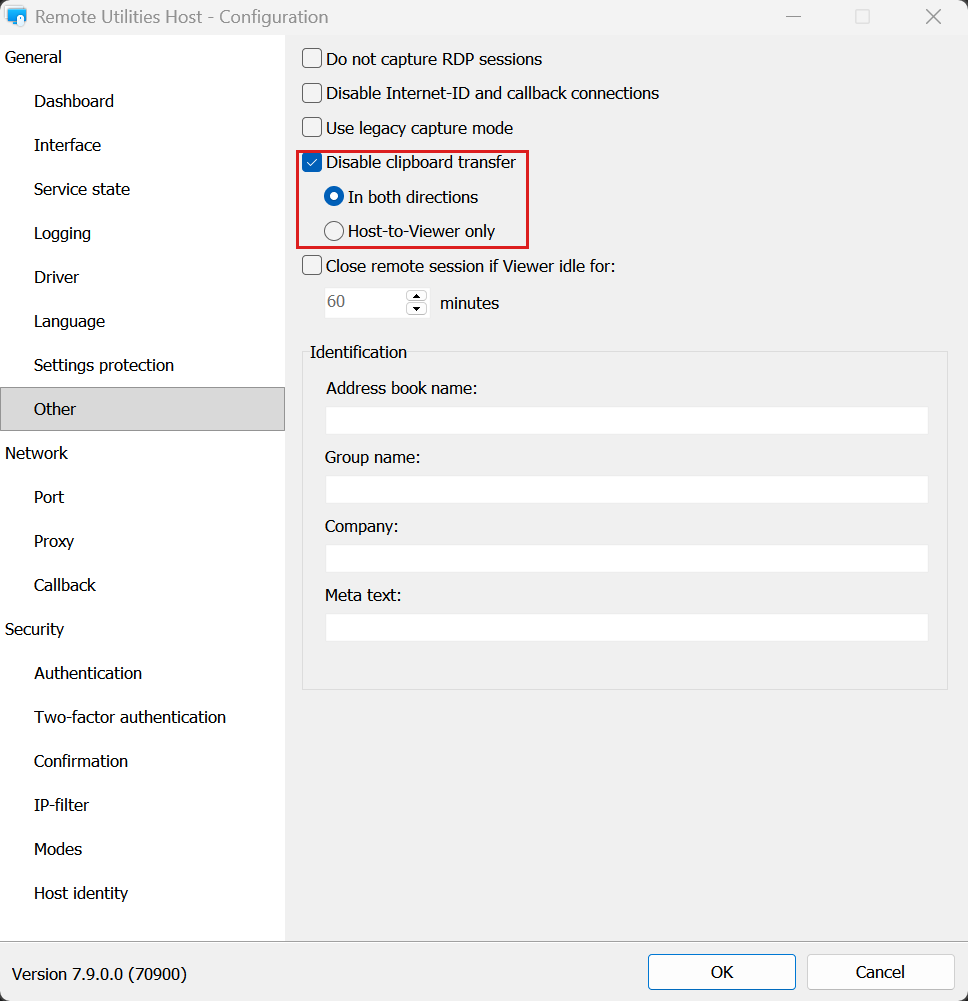
The owner of the remote computer has the final say. In Settings for Host, on the Other page, select Disable clipboard transfer and choose In both directions or Host-to-Viewer only. The second option lets the Viewer user paste on the Host but keeps anything copied on the Host from leaving it. In the blocked direction neither the automatic transfer nor the manual commands work. Files additionally require the File Transfer mode to be allowed on the Modes page, as described above.
Send Clipboard as Keystrokes
Some places on a remote computer do not accept pasting at all: the Windows sign-in screen, a UAC prompt, a program running as a different user, a virtual machine console or a BIOS-like text interface. For these, copy the text on your computer and choose Send clipboard as keystrokes in the Full Control window menu. The Viewer types the text into the remote computer character by character, as if you had typed it on the keyboard. This is the usual way to enter a long password on a remote Windows welcome screen.
Only plain text can be sent this way. Make sure the right input field on the remote computer has the focus before you choose the command.
Mobile App
The mobile app transfers text in both directions, including formatted text where the receiving program supports it. Images and files are not transferred; copying files through the clipboard is a feature of the desktop Viewer and Host. Text copied on the phone while the app was in the background is sent to the remote computer when you return to the session. The Get remote clipboard and Set remote clipboard commands are available under the lightning icon in the session toolbar.
Tips
- Give it a moment. The clipboard arrives on the other side a fraction of a second after you copy on a fast link, later on a slow one. If a paste produces the previous content, wait and paste again. On a Mac allow about five seconds before pasting.
- Large files. Pasting a large file through the clipboard takes as long as copying it in the File Transfer mode, and on a macOS Host longer. For many gigabytes, or when you want to see the progress and resume after a broken connection, use the File Transfer mode.
- Nothing arrives from your computer? Check that the session window was active when you copied, that Do not automatically synchronize clipboard is not selected in the Viewer options, and that clipboard transfer in that direction is not disabled on the Host.