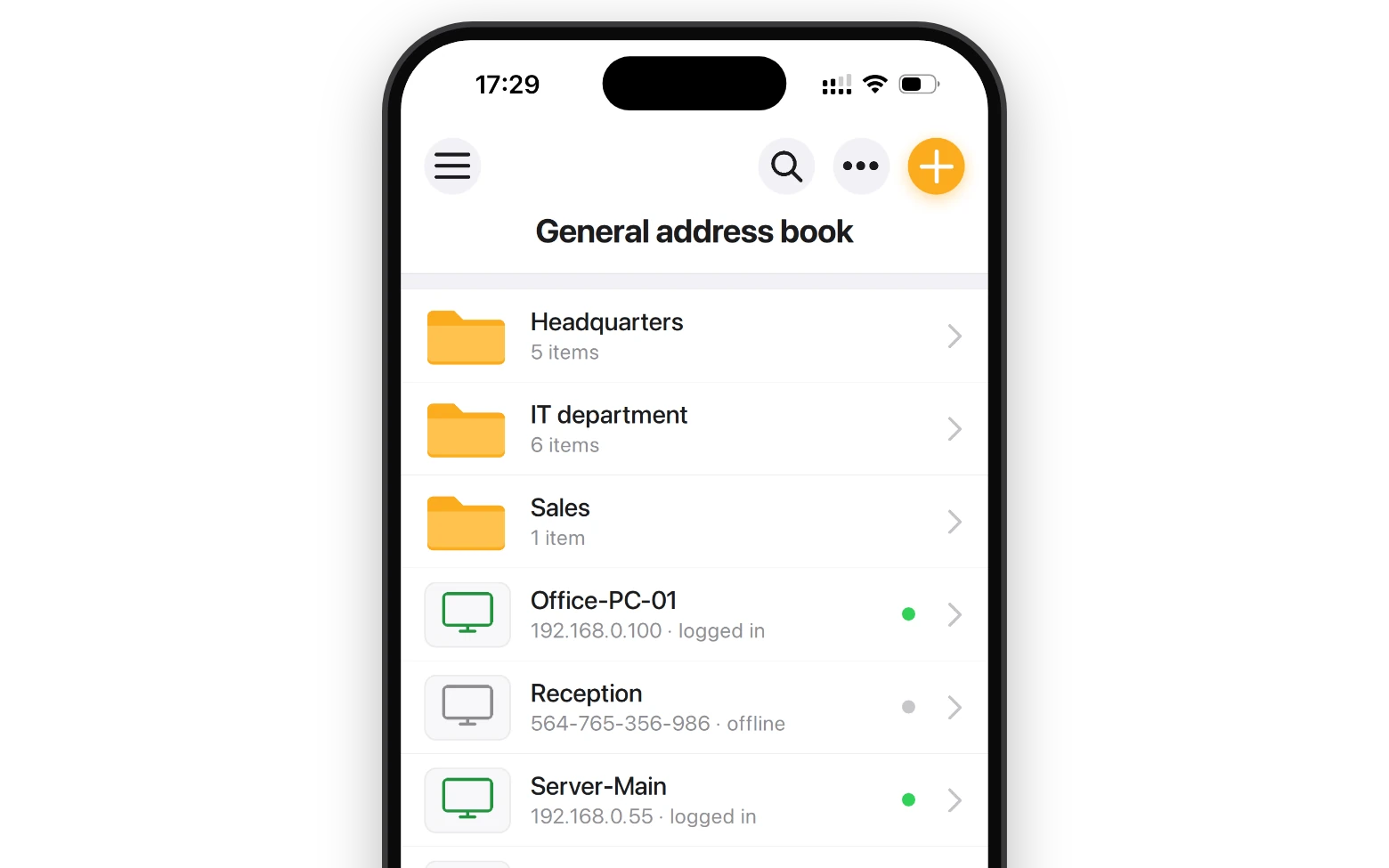
The 2026 release is a ground-up rewrite. The app that previously sat in the stores was a basic client with a flat list of connections; the new one is a proper mobile Viewer that works with your existing address books, self-hosted server, and authentication setup. If you tried the old app and gave up on it, this one deserves a second look.
Note: all screenshots below are from an Android phone. The iOS app looks and works identically.
Features at a glance
- Full address book compatibility—import your existing books or connect to a self-hosted server's synced book.
- Five connection modes: Full Control, View Only, File Transfer, Power Control, and Terminal.
- Two interaction modes in Full Control—Trackpad or Direct touch.
- Multi-monitor support—switch to a specific remote monitor or view all of them at once.
- Direct and Internet-ID connections, including through your self-hosted server.
- Authentication methods: Single password, Remote Utilities Security (login/password), and Custom Server Security.
- App lock: a PIN, Face ID, Touch ID or a fingerprint protects the app.
- Light and dark UI modes.
- Free, no limits, no ads.
- Localization into 23 languages (more to be added later).
How it works
The mobile app is a Viewer. It plays the same role as the desktop Viewer: it initiates sessions to remote computers running the Remote Utilities Host or Agent. Nothing changes on the remote side—any Host you already connect to from a desktop Viewer is reachable from the phone, with the same credentials and connection settings.
Currently there is no mobile Host. The app only connects outward to Windows, macOS, and Linux Hosts. A Host for Android devices is under way, however.
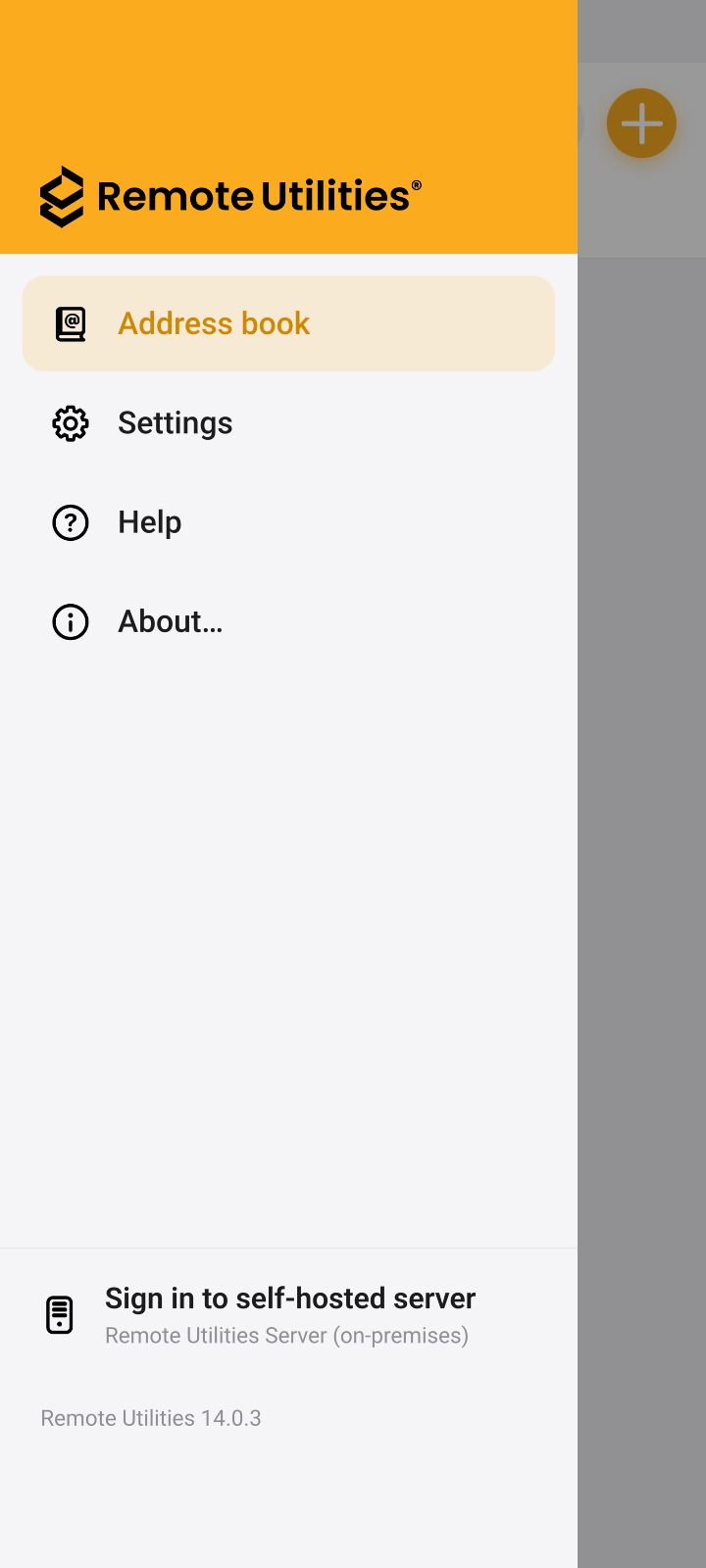
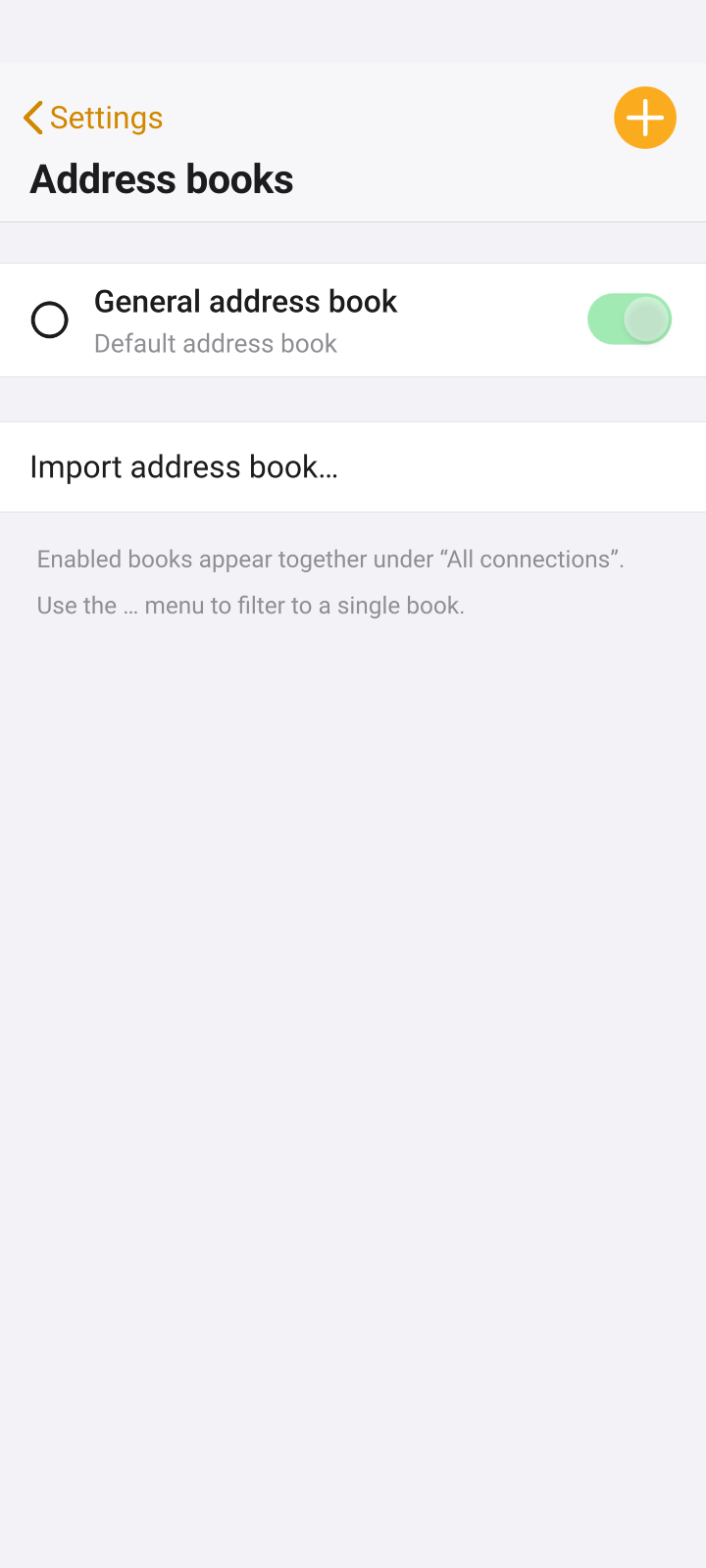
Address books
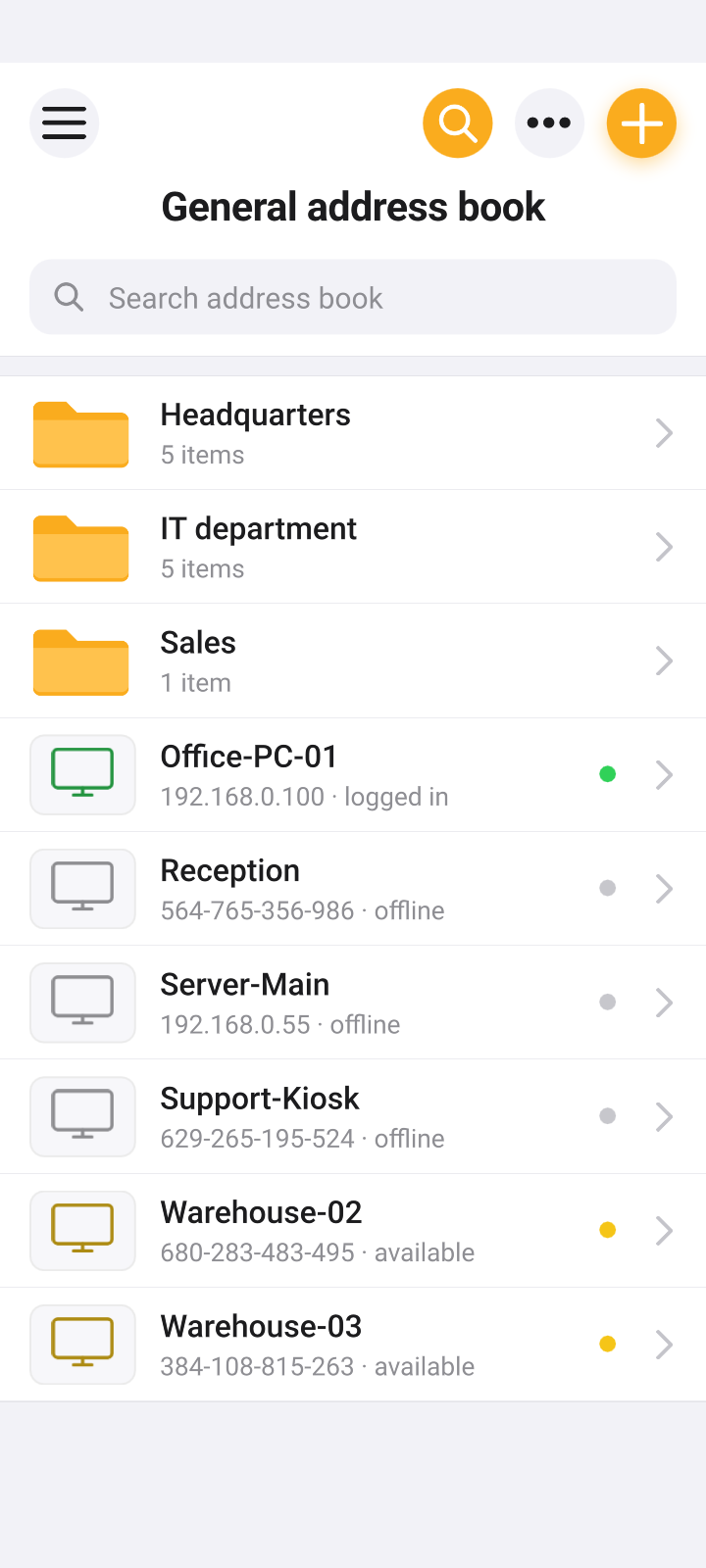
This is the biggest change from the old app. Instead of maintaining a separate list of connections on the phone, you bring over the address books you already have:
- Import a book—export an .xml file from the desktop Viewer and import it on the phone. There are two ways to do this:
- Via Settings → Address book manager, if you want to import it as a new address book.
- Directly into an existing book using the "..." (ellipsis) menu, which merges the two. This is the only way to add items to the General Address Book on the mobile app.
- Sync with a self-hosted server—if you run RU Server with address book sync, sign in to the server from the app and the book appears on the phone, kept in sync with every other Viewer in the organization.
Getting connected
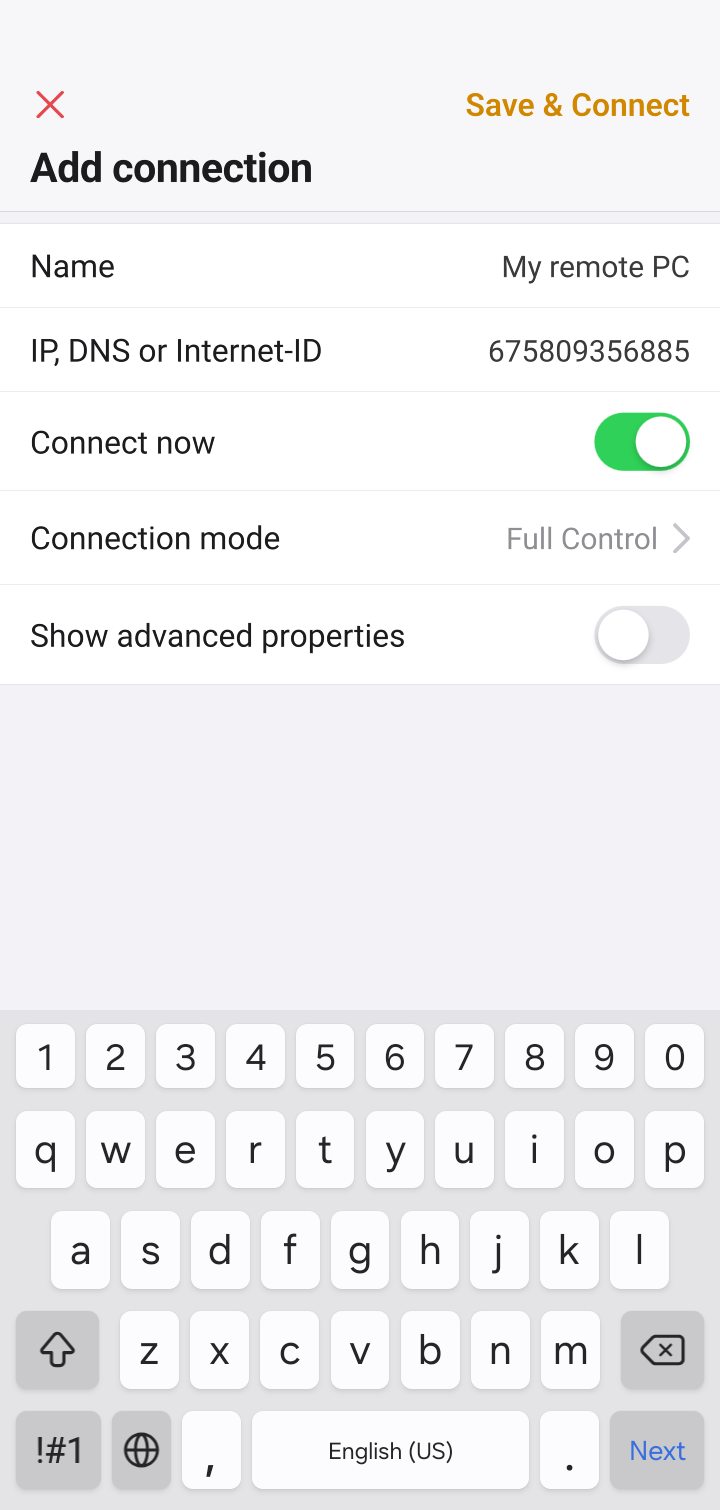
Adding a connection manually works the same way as on desktop. Tap "+", enter either the Host's IP address/hostname (Direct connection) or its 12-digit Internet-ID (Internet-ID connection) and save. Optionally, you can tap 'Connect now' and connect right away with the chosen connection mode—the address book record will be saved automatically.
Supported authentication methods:
- Single password—the Host's access password.
- Remote Utilities Security—a login/password pair defined on the Host, with per-user permissions.
- Custom Server Security—authenticate against your self-hosted RU Server, so user accounts and permissions are managed centrally.
Windows and Kerberos authentication are desktop-only for now.
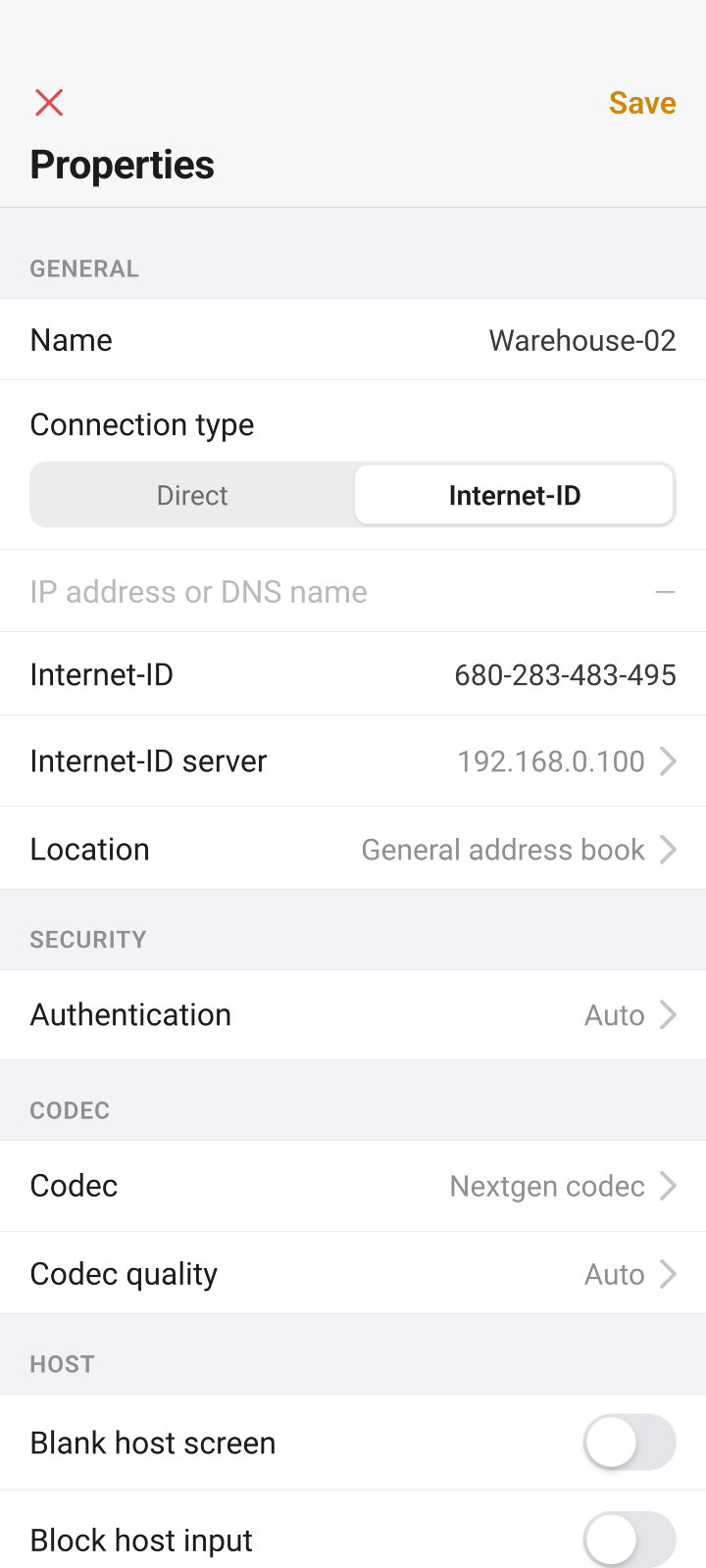
Internet-ID connections go through the public Remote Utilities relay servers by default. If you have a self-hosted server, set it in the connection properties.
Just like in the desktop Viewer, you don't have to be signed in to the self-hosted server to use it as a relay for your Internet-ID connections. Signing in is required only if you want to use Custom Server Security as your authentication method or sync your address books. There is one exception: if 'Permission-based Internet-ID access' is enabled in the server configuration, you must sign in for the Internet-ID relay to work as well.
Full Control and View Only
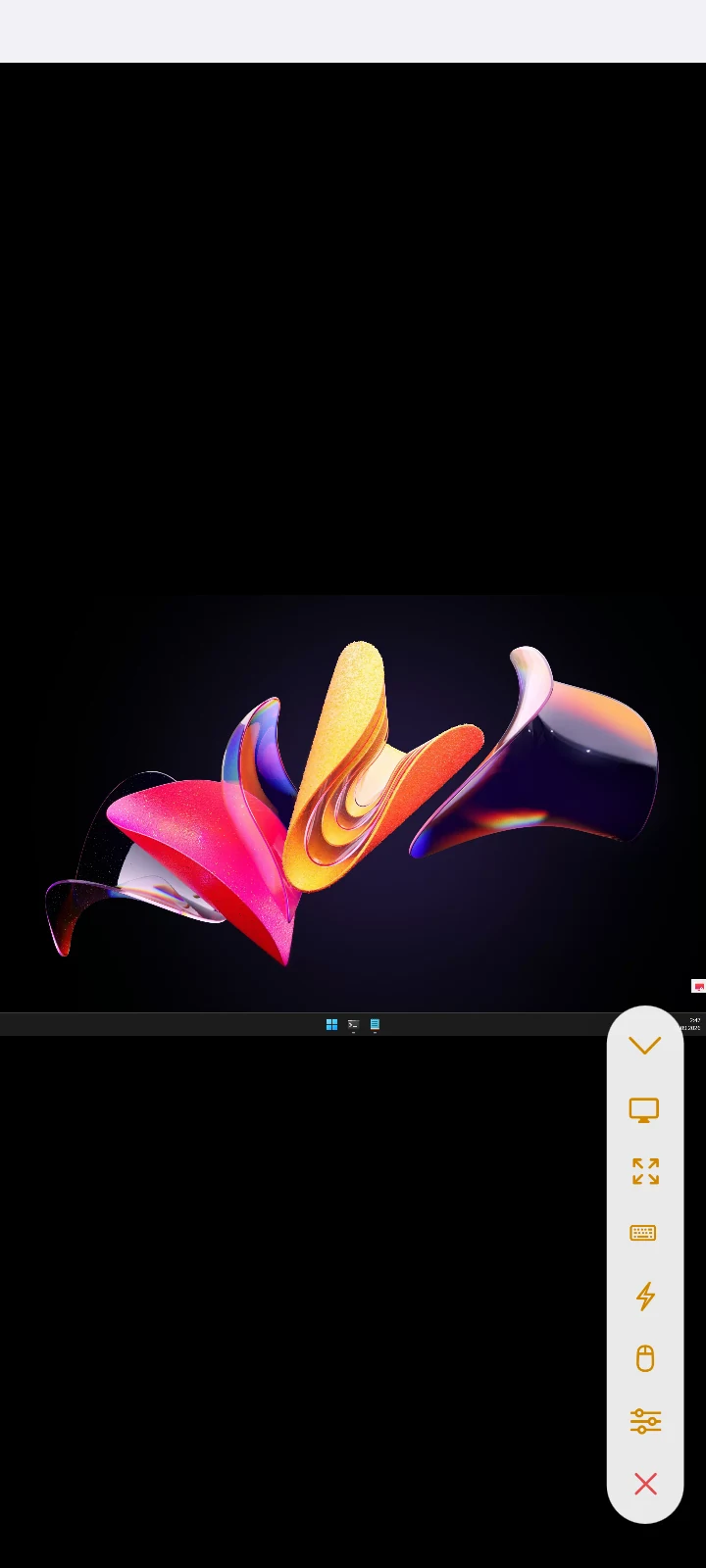
Once connected, the remote desktop fills the screen. The collapsible toolbar gives you access to the following commands:
- Monitor switch
- Quick zoom
- Keyboard
- Quick actions
- Interaction mode switch (Trackpad / Direct touch)
- Connection properties
Multiple monitors
If the remote machine has several monitors, the monitor switch lets you jump to a specific one or show all of them side by side in a scrollable view—the same options as on desktop.

Quick zoom
The first tap on this icon scales the remote screen to fit the height of your device; the next tap fits the width. Use it whenever you need to quickly reset your view.

Keyboard and special keys
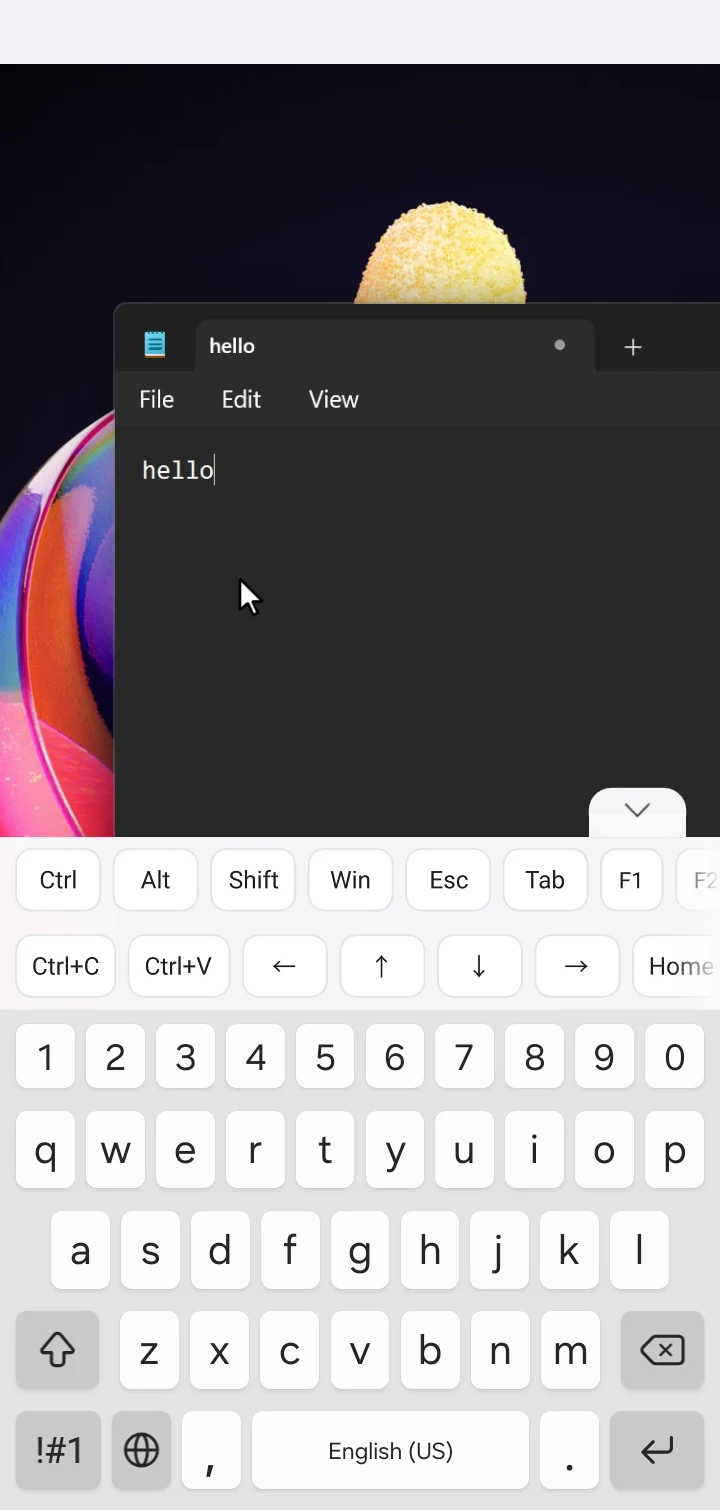
Tap the keyboard icon to bring up the on-screen keyboard. Modifier keys (Ctrl, Alt, Win) and function keys are available from an extra key row, so shortcuts like Ctrl+C and Ctrl+V work as expected. External Bluetooth keyboards are not supported yet but are planned for a future release.
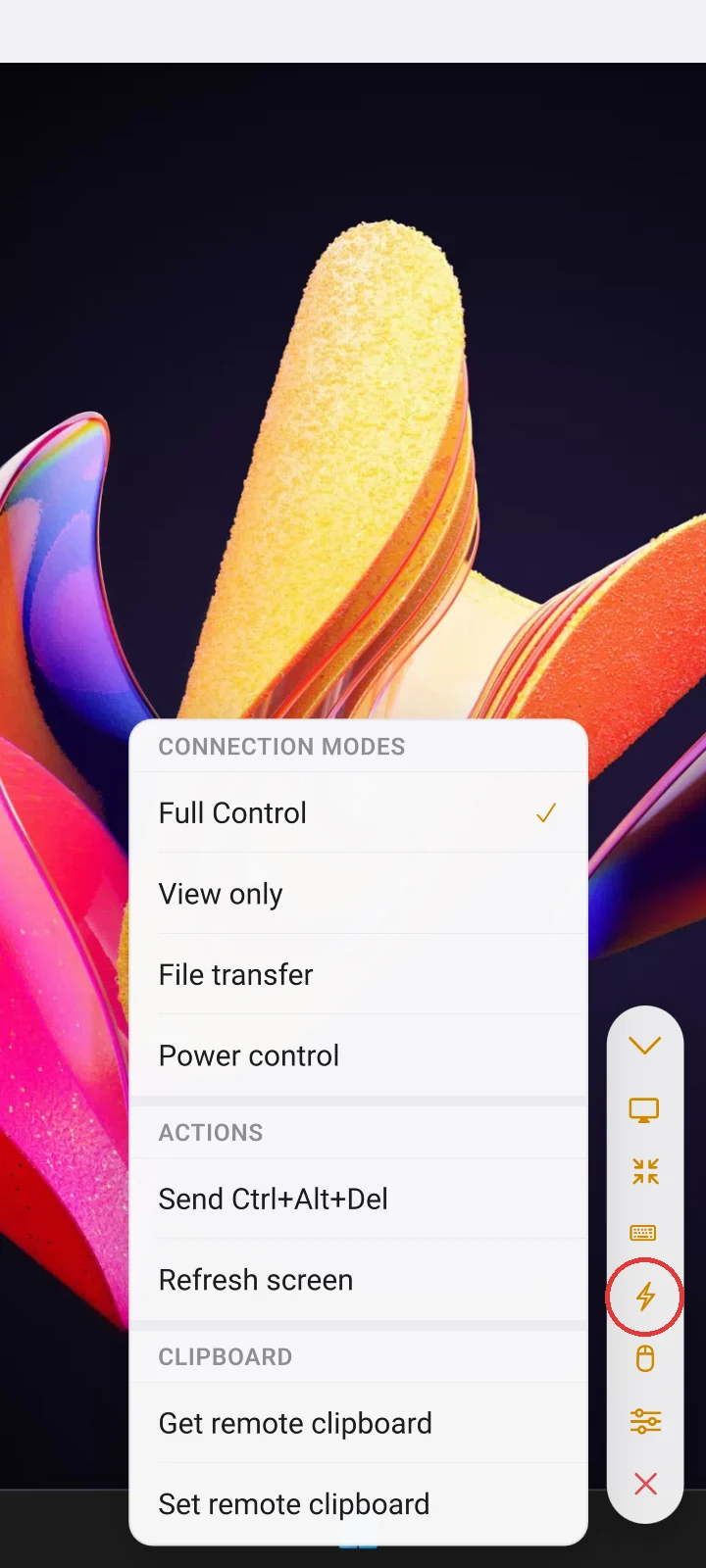
Quick actions
The Quick actions menu lets you launch other connection modes over the running session, including Terminal, and, in particular, switch from Full Control to View Only. View Only shows the remote desktop without passing any input—useful for watching a long-running process or for supporting a user without taking over their mouse.
The menu also includes commands to send Ctrl+Alt+Del to the remote computer, refresh the screen, and get or set the remote clipboard. The clipboard carries text in both directions (files and images are desktop-only); text you copy on the phone while the app is in the background is sent to the Host when you return to the session.
Trackpad vs Direct touch
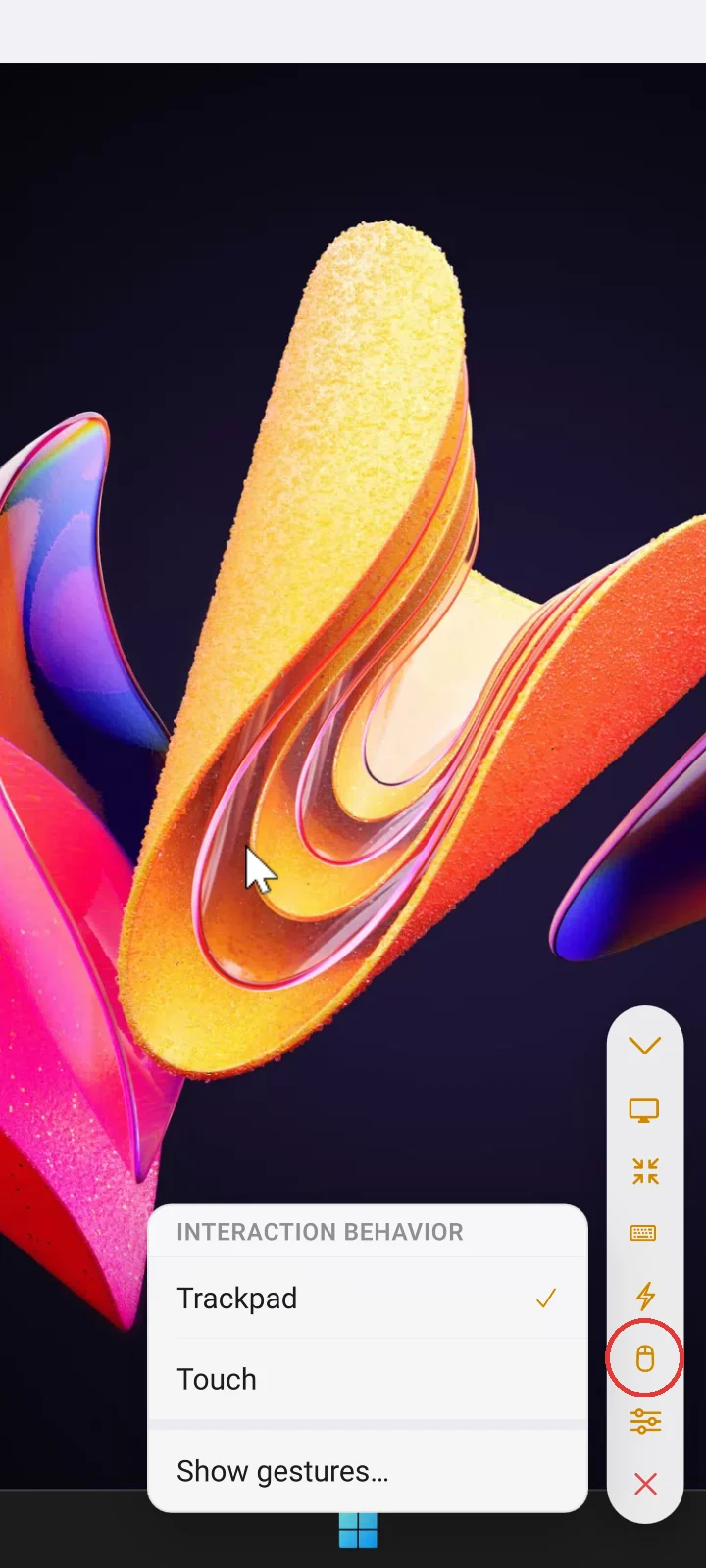
Controlling a Windows desktop from a touchscreen requires precision, so the app offers two interaction modes:
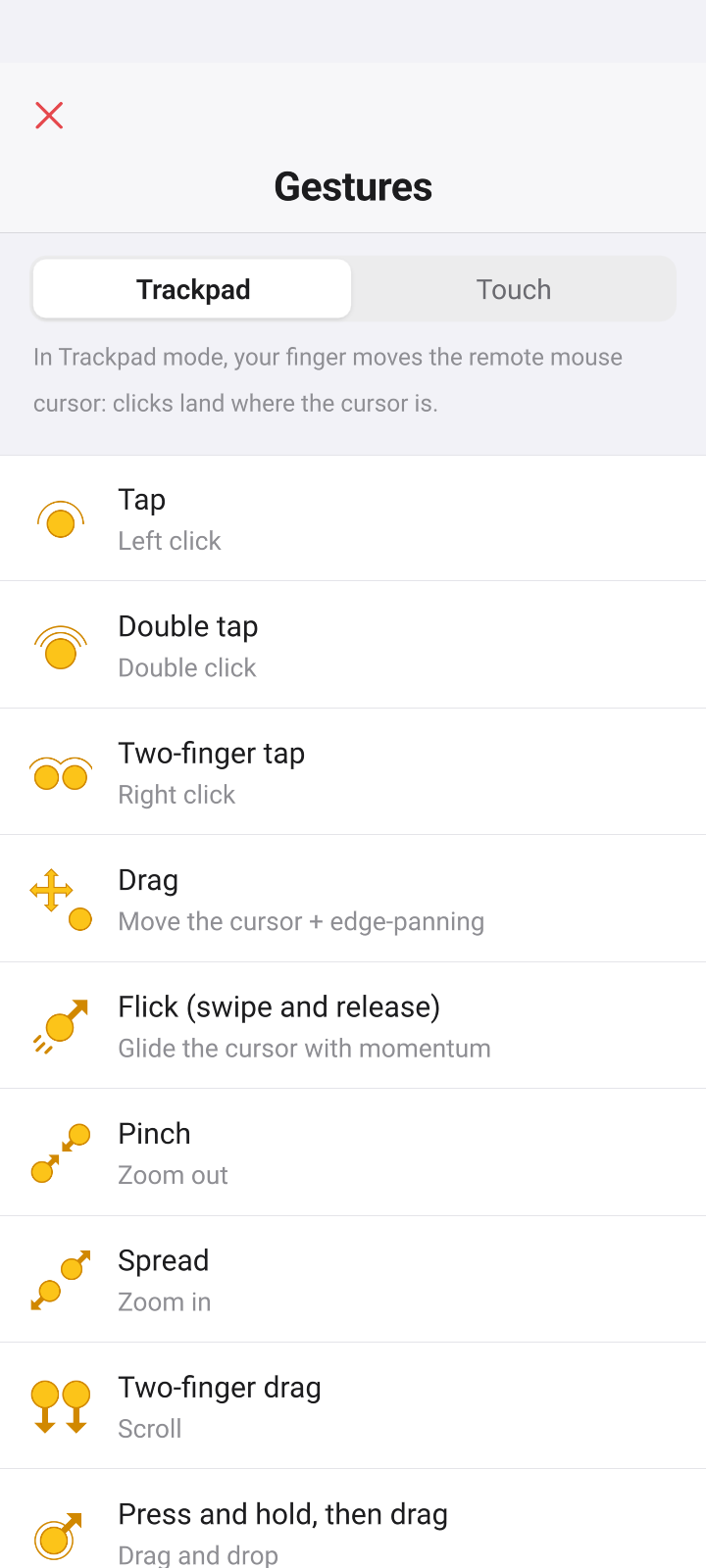
- Trackpad—the screen behaves like a laptop trackpad. Drag to move the remote cursor, tap to click, two-finger tap for right-click, two-finger drag to scroll, and so on. The cursor isn't directly under your finger, so you can see both the click target and the cursor—the right choice when you need to hit small controls on a large remote screen.
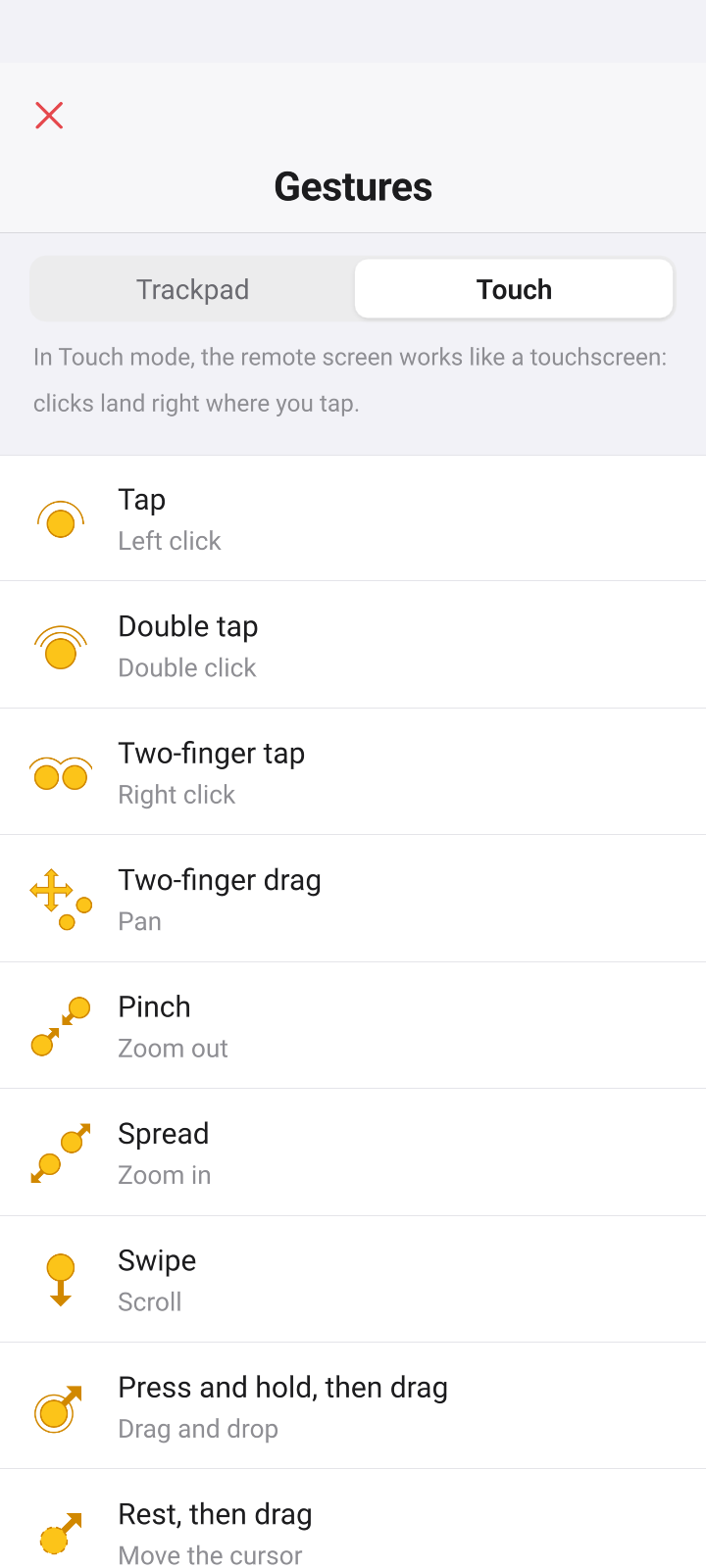
- Direct touch—the remote cursor jumps to wherever you tap, as if the remote screen were a touchscreen. Faster for large targets and for moving around, less precise for small ones.
You can switch between the two at any time during a session and set a global default. Pinch to zoom works in both modes. To make the mouse cursor in the Trackpad mode move without momentum, turn off 'Cursor momentum' in the Settings.
Each mode comes with its own gesture set—tap 'Show gestures' in the interaction mode menu for the full cheat sheet. The basics are shared (tap to click, two-finger tap for right-click, pinch and spread to zoom), while the rest follow each mode's logic: Trackpad has a flick that glides the cursor with momentum, and Touch has a rest-then-drag that moves the cursor without clicking.
Connection properties
Some connection properties can be changed on the fly during a Full Control session. For example, you can blank the remote screen or disable remote input (mouse and keyboard). You can also enable 'Connection info', which overlays technical details such as connection speed and the screen capture codec in use.
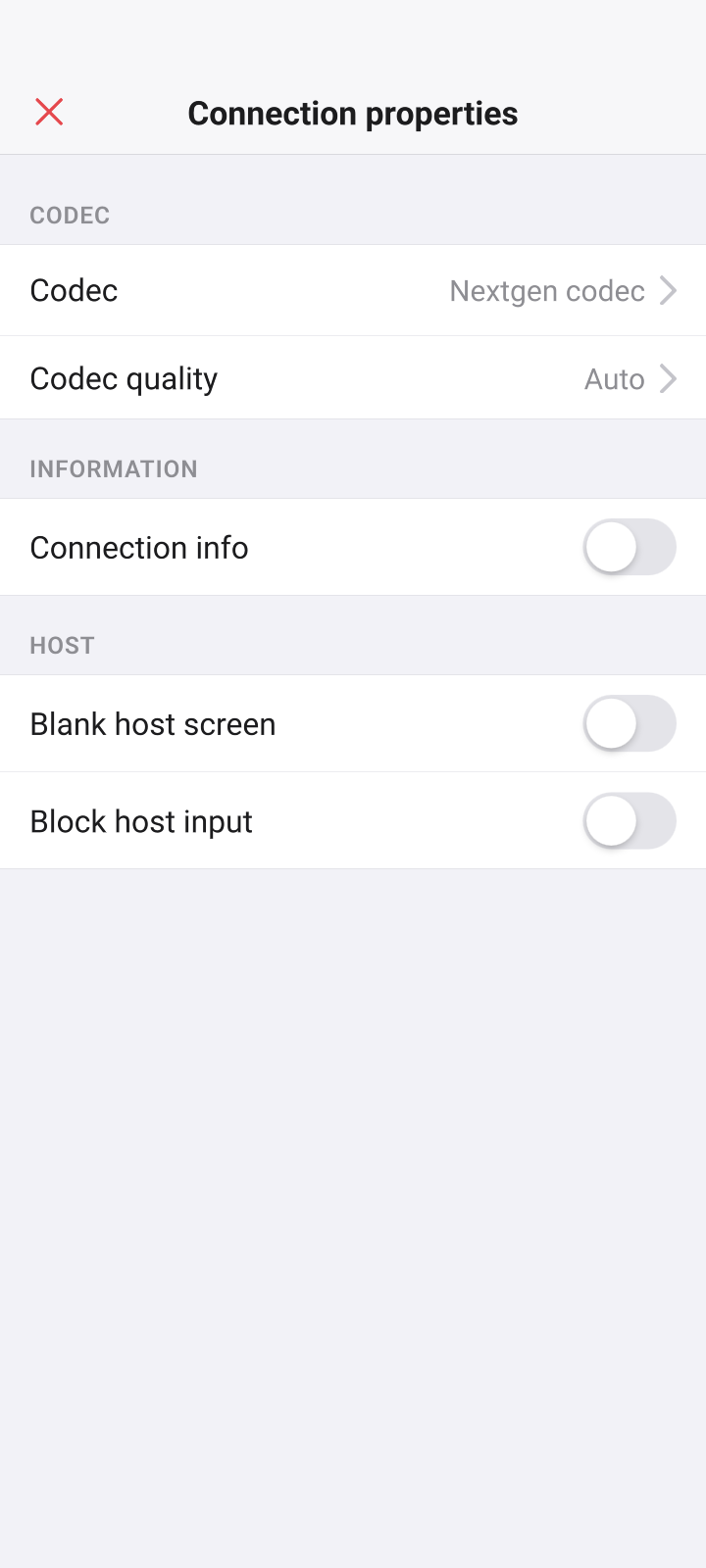
The in-session screen is a stripped-down version that only shows the properties worth changing mid-session. The full set—connection type, Internet-ID server, authentication method and more—is available when you open a connection's properties from the address book.
File Transfer
File Transfer mode shows a single pane with a Local/Remote switcher. You can browse the remote file system, download files to the phone, and upload files from the phone's storage.
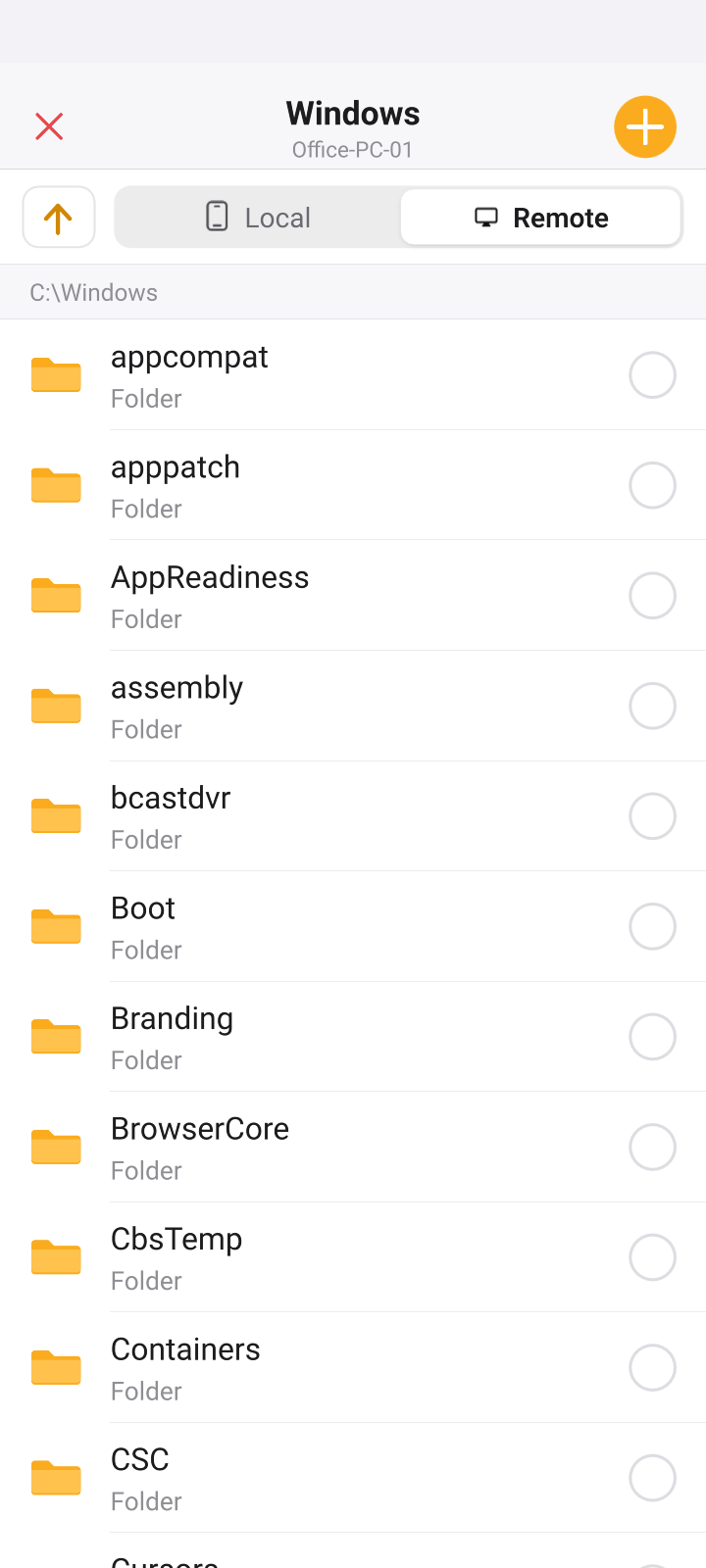
Downloaded files land in the folder currently selected in the 'Local' tab; uploaded files land in the folder currently selected in the 'Remote' tab. Transfers resume automatically if the connection drops.
Power Control
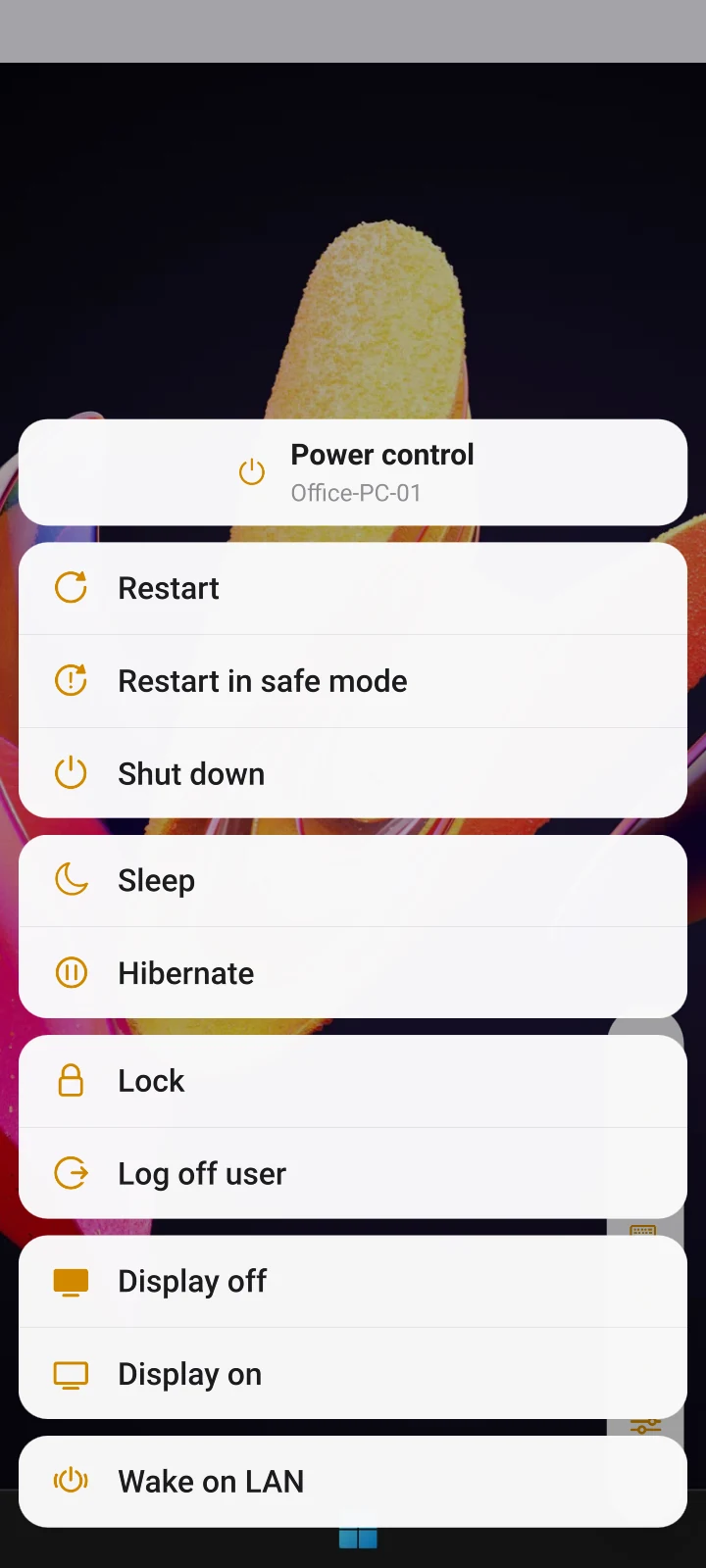
Power Control lets you shut down, restart, lock, log off, sleep, or hibernate the remote computer and turn the remote monitor on or off—all without opening a desktop session. It is the fastest way to reboot a stuck machine from wherever you are. The menu also includes Wake-on-LAN, which sends a magic packet to computers reachable directly on the network.
Terminal
Added in version 14.3.0, Terminal mode opens a command line on the remote computer: Command Prompt or PowerShell on a Windows Host (7.9 or later), and the shells installed on a Linux or macOS Host (2.1.1 or later). The Host reports the shells it has, so the list in the app shows bash, zsh, sh and whatever else is there, and you choose the user context: System, or the user logged on to the Host. Both choices are remembered per connection.
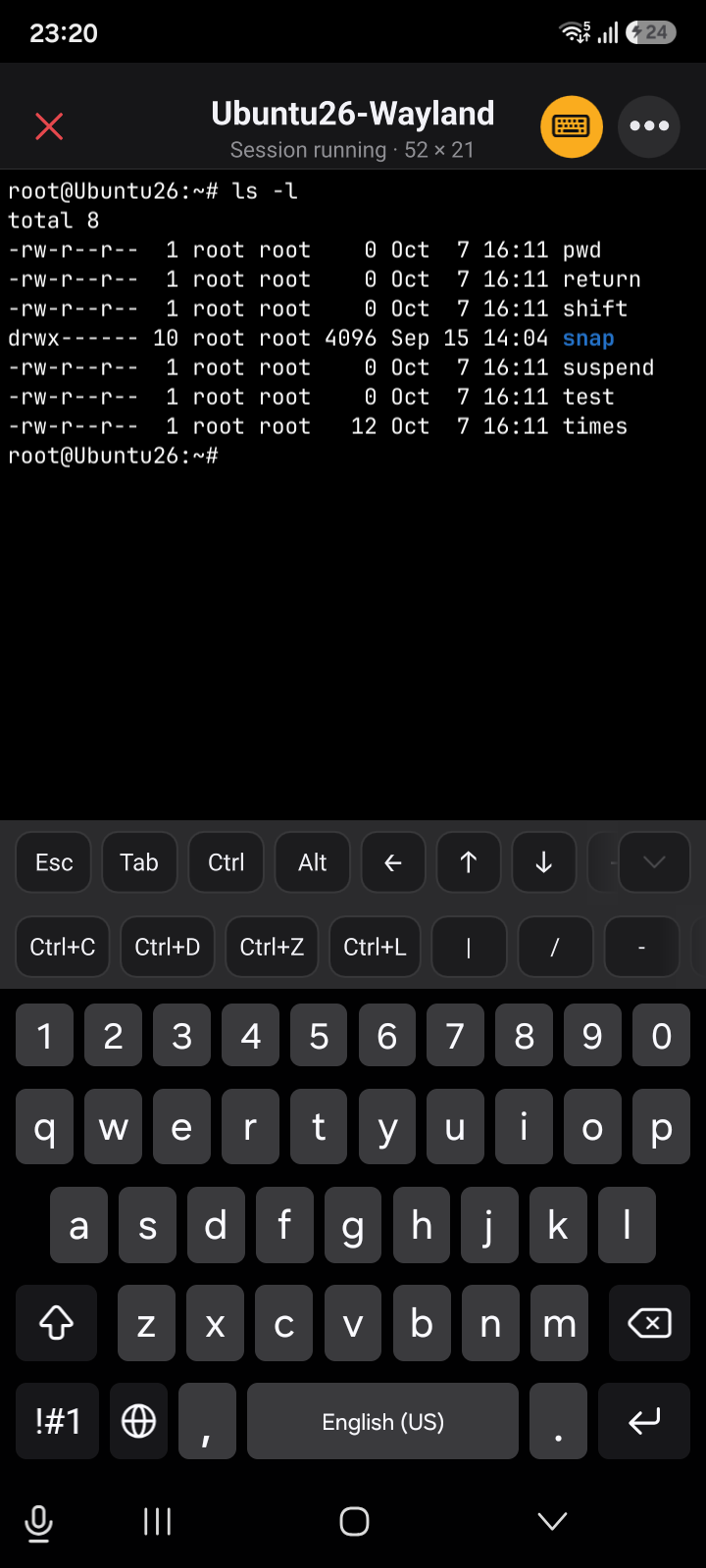
A key bar above the keyboard adds what a phone keyboard lacks: Esc, Tab, Ctrl, Alt, the arrows, Home, End, Page Up and Page Down, the common Ctrl combinations and the function keys. The output scrolls back, a long press selects text for copying, a long press on an empty spot pastes, and a pinch changes the text size. Full-screen programs such as top, htop, vim and mc draw correctly, and in landscape the terminal is over a hundred columns wide. Terminal is in the connection mode menu, can be set as the default tap action for a connection, and is one tap away from the toolbar of a running Full Control session; the terminal menu restarts or stops the shell. Signing in with a different OS account, which the desktop Viewer offers, is not in the mobile app yet.
Self-hosted server
The mobile Viewer has full support for self-hosted server. Signing in to your RU Server enables address book sync and the Custom Server Security authentication option.
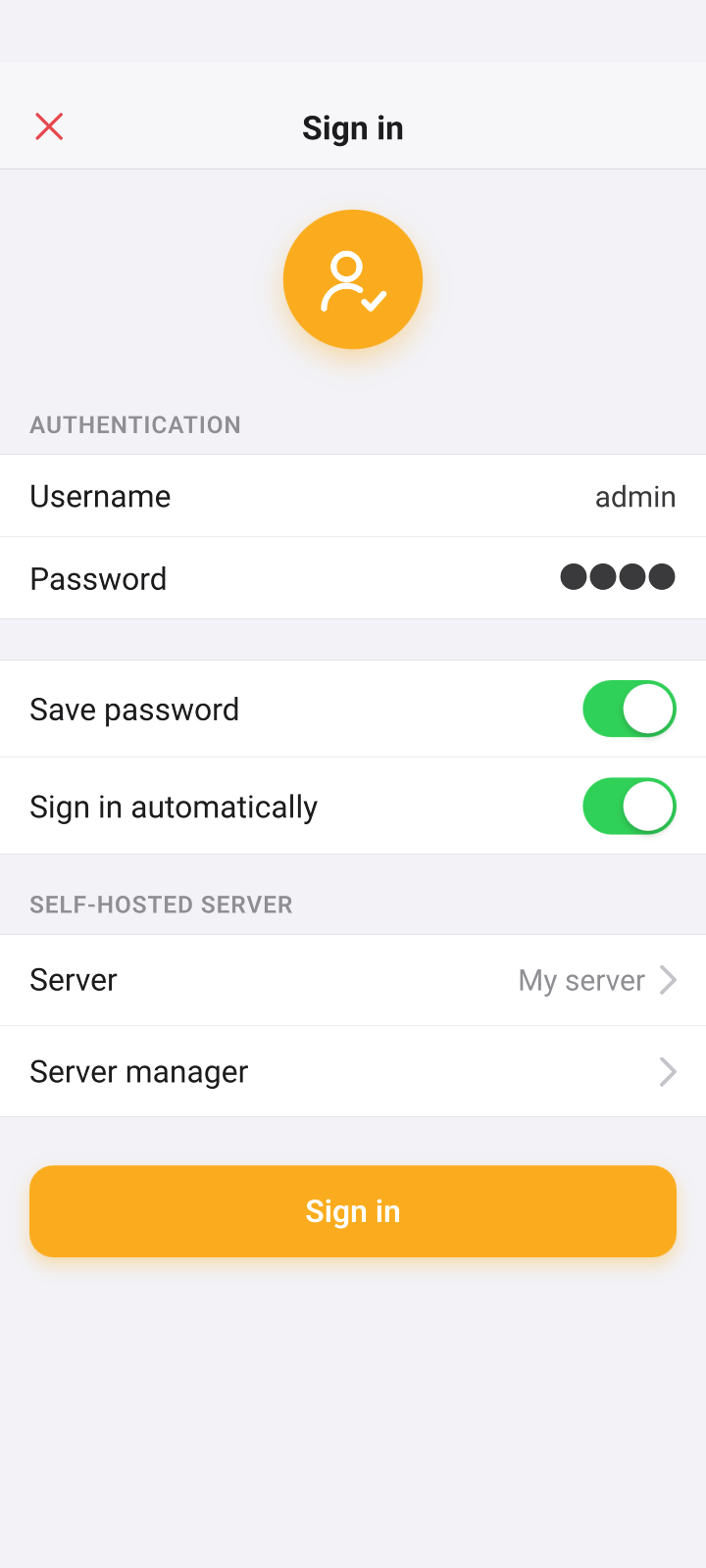
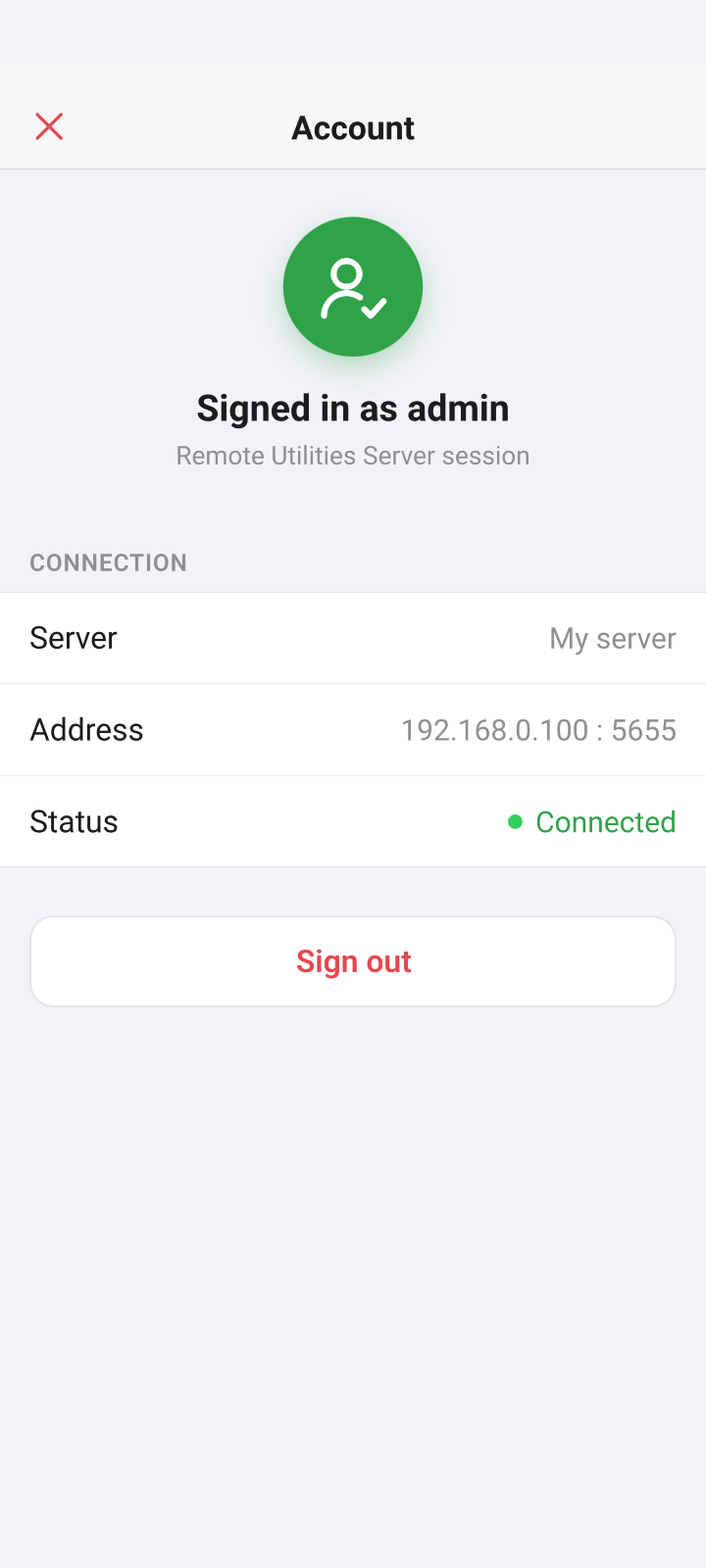
You can also add RU Server as a relay server in connection properties. With the default server configuration this doesn't require signing in.
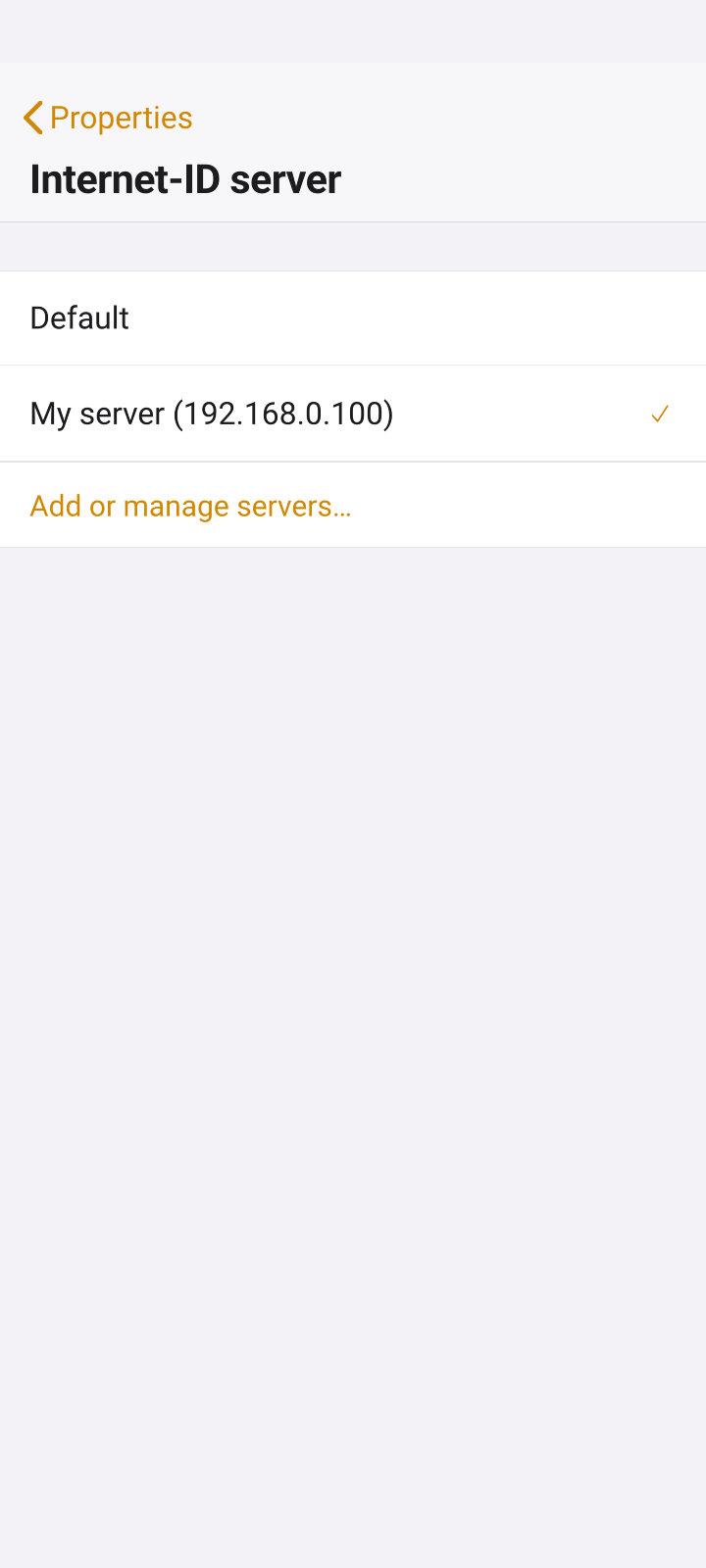
As mentioned above, if 'Permission-based Internet-ID access' is enabled on the server, you will need to sign in for the relay option as well.
What's not in the mobile app
The mobile app covers the everyday remote access tasks, but it is not a full replacement for the desktop Viewer. The following are desktop-only:
- Task Manager, Remote Registry, Execute, Inventory Manager, and the other specialized modes.
- Communication modes (Text Chat, Voice and Video chat, Send Message).
- Session recording and Screen Recorder.
- Windows and Kerberos authentication.
- Deployment tools: MSI Configurator, Remote Install, Network Scanner.
- RDP-over-Internet-ID.
- Files and images through the clipboard (the mobile clipboard carries text only), and signing in to the Terminal with another OS account.
Some of these are planned for future updates; this section will be revised as they arrive.
Security
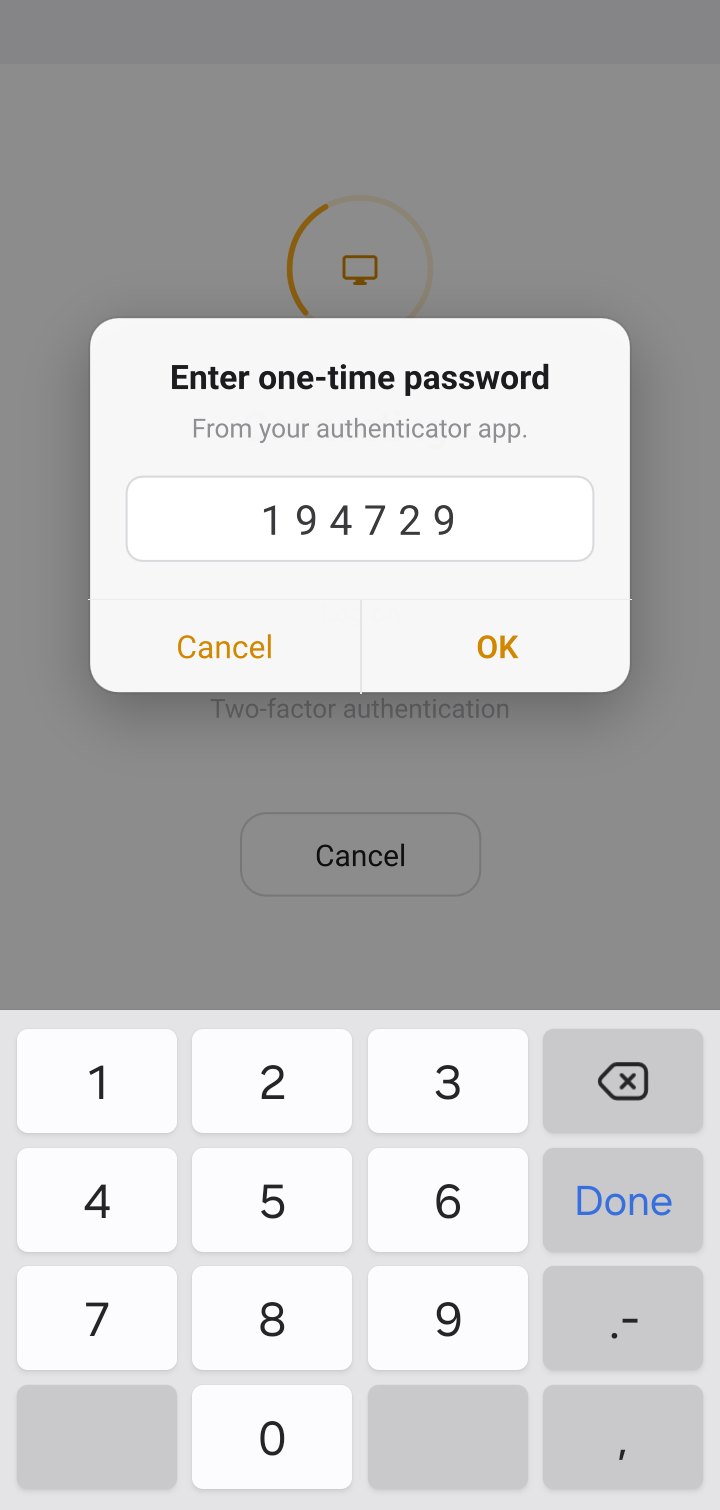
Every connection from the mobile app uses the same end-to-end TLS encryption as the desktop modules. It is always on and cannot be disabled, regardless of connection type or license. Two-factor authentication configured on the Host is honored: the app prompts for the one-time code at connection time.
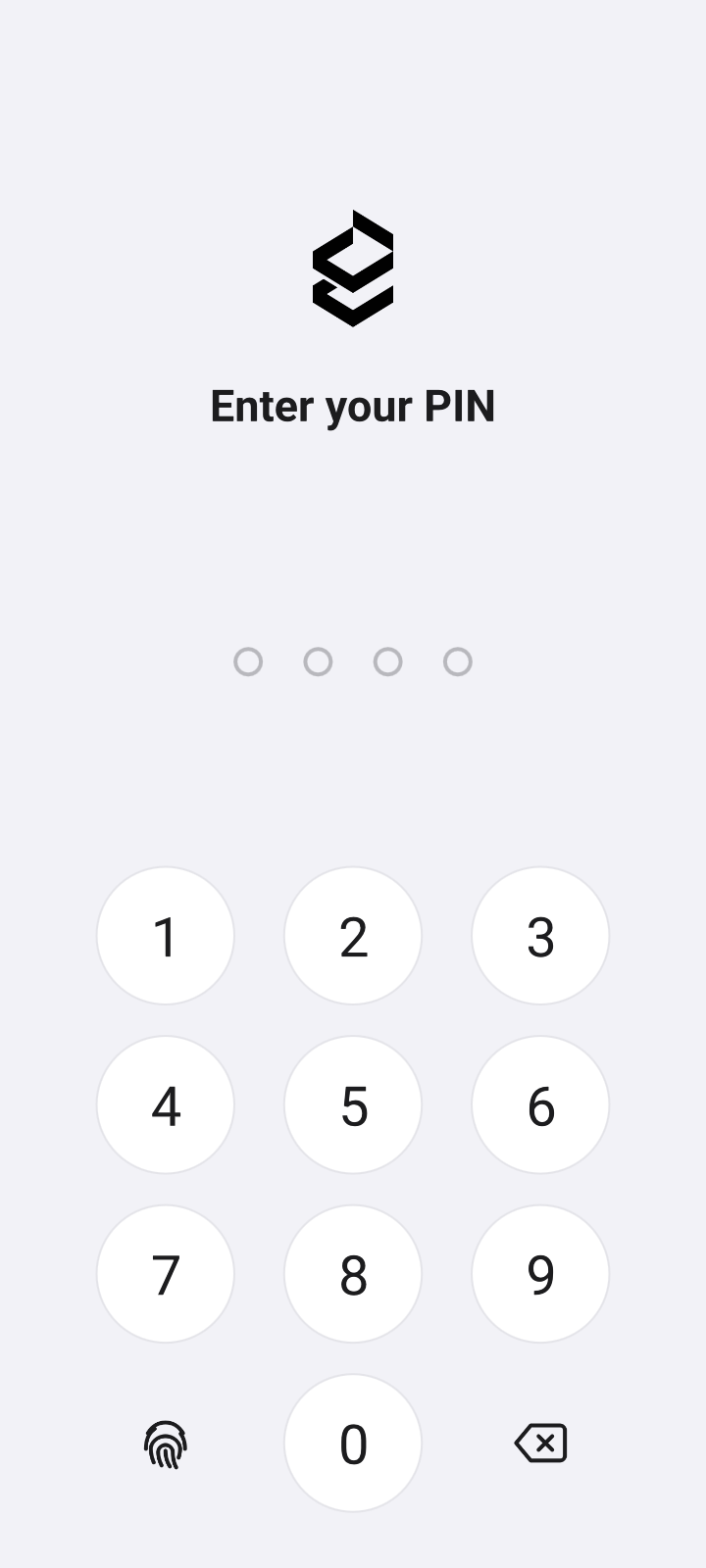
The address book stored on the device is not encrypted. This is deliberate—encrypting a book on a mobile device would unnecessarily complicate the implementation. Instead, the app itself can be locked: App lock in the settings asks for a PIN, or for Face ID, Touch ID or a fingerprint where the device has them, when you open the app or return to it after a delay you choose. With the lock on, a phone left unlocked on a desk does not give away your address book.
The Host-side privacy features—Ask user permission, the notification panel, IP filtering—apply to mobile connections exactly as they do to desktop ones, since they are enforced by the Host.
Performance
Screen updates use the same codec as the desktop Viewer, with the Nextgen codec's Auto / Quality / Balanced / Speed settings available in the connection properties. On Wi-Fi, responsiveness is comparable to a desktop Viewer over the same link; on cellular, the Speed setting and disabling the remote wallpaper in the Host's Additional properties make a noticeable difference.
As with desktop, Direct connections are faster than Internet-ID, and a self-hosted server usually outperforms the public relay.
Platform notes
- iOS: requires iOS/iPadOS 18.0 or later. Runs on iPhone and iPad; on iPad the layout adapts to the larger screen and landscape is supported.
- Android: requires Android 9.0 (Pie) or later. Listed in Google Play as Remote Utilities Viewer—the name distinguishes it from the planned Android Host.
- Both apps are free and identical in feature set, apart from platform-specific UI differences such as the Android system navigation bar.
Licensing
The app is free and has no usage limits or ads. It is a Viewer like any other, but it does not count against your license: you can use it on top of your existing license, so a licensed technician can use the phone alongside their desktop Viewer at no extra cost.
Conclusion
The 2026 mobile app turns Remote Utilities on a phone from a fallback into a genuine working tool. Address book compatibility means there is nothing to set up twice, the two touch modes make Windows usable on a small screen, and File Transfer and Power Control cover the quick fixes that make up most on-the-go work. With the Terminal mode, a quick command on a server no longer needs a laptop either. For deployment and the specialized modes you still reach for the desktop Viewer, but for "check it, fix it, reboot it" the phone is now enough.
Download: App Store · Google Play
Last updated: