Pauline's community posts
Exception: EIdSocketError Socket Error # 10060

Hello Alex,
Thank you for your message.
When using version 6.10.10.0 of Remote Utilities the TLS version for the SMTP is specified automatically, based on what versions are supported by both Remote Utilities and the email provider in use, including version 1.2 as well.
However, please note that we have implemented support of TLS 1.2 for SMTP feature starting version 7.0 of Remote Utilities. You can see the full list of improvements on the Release Notes page.
Hope that helps.
Thank you for your message.
When using version 6.10.10.0 of Remote Utilities the TLS version for the SMTP is specified automatically, based on what versions are supported by both Remote Utilities and the email provider in use, including version 1.2 as well.
However, please note that we have implemented support of TLS 1.2 for SMTP feature starting version 7.0 of Remote Utilities. You can see the full list of improvements on the Release Notes page.
Hope that helps.
Doesn't take keyboard input
Hello James,
Thank you for your patience.
I've checked on the issue with our developers - unfortunately, we couldn't reproduce the issue which means that it only manifests itself in some certain circumstances. In this case we can only recommend to reinstall Windows and try installing Remote Utilities on the clean system installation to see if the issue persists (alternatively, you can also use a virtual machine for such purposes). Sorry for the inconvenience.
Please let us know if you have other questions.
Thank you for your patience.
I've checked on the issue with our developers - unfortunately, we couldn't reproduce the issue which means that it only manifests itself in some certain circumstances. In this case we can only recommend to reinstall Windows and try installing Remote Utilities on the clean system installation to see if the issue persists (alternatively, you can also use a virtual machine for such purposes). Sorry for the inconvenience.
Please let us know if you have other questions.
Version 7.0.2.0. File launch not working
Hello Igor,
Thank you for your patience.
I've checked on the issue with our developers - this is expected behavior which occurs due to a number of fixes which were implemented in the latest versions of Remote Utilities. In this case, please continue running the program with the Use system account checkbox enabled. Sorry for the inconvenience.
Please let us know if you have more questions.
Thank you for your patience.
I've checked on the issue with our developers - this is expected behavior which occurs due to a number of fixes which were implemented in the latest versions of Remote Utilities. In this case, please continue running the program with the Use system account checkbox enabled. Sorry for the inconvenience.
Please let us know if you have more questions.
Error when moving a file
Hello David,
Thank you for your message.
Please note that in such cases you can select "Replace/Replace all" or "Skip/Skip all" options.
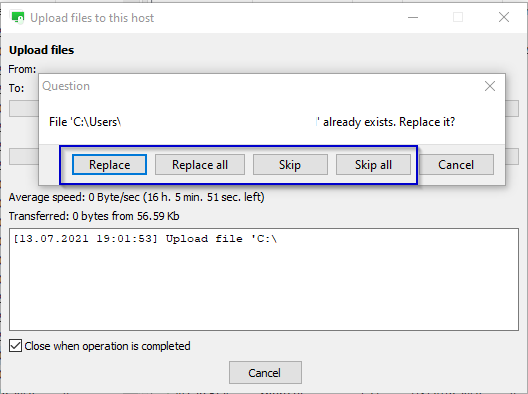
In case if the original file is getting deleted if you select "Cancel", please make sure that your Viewer and Host are of the same version, e.g. the latest version is 7.0.2.0 - the version mismatch might lead to some performance issues or some features not working, especially since the File Transfer mode was rewritten and improved in the most recent updates. You can see the full list of fixes for the File Transfer mode here.
The latest version 7.0.2.0 is available for download on this page or via the Self-Update feature.
Hope that helps.
Thank you for your message.
Please note that in such cases you can select "Replace/Replace all" or "Skip/Skip all" options.
In case if the original file is getting deleted if you select "Cancel", please make sure that your Viewer and Host are of the same version, e.g. the latest version is 7.0.2.0 - the version mismatch might lead to some performance issues or some features not working, especially since the File Transfer mode was rewritten and improved in the most recent updates. You can see the full list of fixes for the File Transfer mode here.
The latest version 7.0.2.0 is available for download on this page or via the Self-Update feature.
Hope that helps.
Bigger Additional Properties > Comment Section
Doesn't take keyboard input
integrated camera does not work on viewer
Hello Geoff,
Thank you for your message.
Could you please double-check if the video capture is enabled for both - local and remote sides? In addition, please make sure that you've selected the respective video device for both sides.
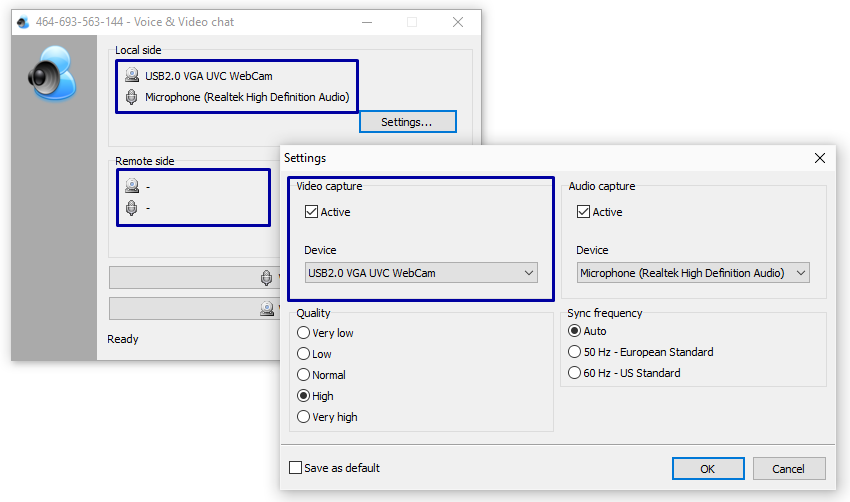
That is, the video device should be selected for both local and remote sides.
For more information please also see this page.
In case if you've enabled the video capture and selected the video device for both local and remote sides, but the issue still persists, please provide us a screenshot of the Voice & Video chat window where local and remote settings would be visible (for example please see the above screenshot).
Hope that helps.
Thank you for your message.
Could you please double-check if the video capture is enabled for both - local and remote sides? In addition, please make sure that you've selected the respective video device for both sides.
That is, the video device should be selected for both local and remote sides.
For more information please also see this page.
In case if you've enabled the video capture and selected the video device for both local and remote sides, but the issue still persists, please provide us a screenshot of the Voice & Video chat window where local and remote settings would be visible (for example please see the above screenshot).
Hope that helps.
Doesn't take keyboard input
Hello James,
Thank you for the clarification.
Could you please also let us know if you've had a chance to reboot the Host machine after installing Host? In addition, please let us know the following information:
1. Does the issue occurs when connecting to another Hosts from the same Viewer or to the same Host machine using another Viewer installation?
2. Do you have any software that might have access to the keyboard capture installed on any side of the connection?
Looking forward to your reply.
Thank you for the clarification.
Could you please also let us know if you've had a chance to reboot the Host machine after installing Host? In addition, please let us know the following information:
1. Does the issue occurs when connecting to another Hosts from the same Viewer or to the same Host machine using another Viewer installation?
2. Do you have any software that might have access to the keyboard capture installed on any side of the connection?
Looking forward to your reply.
Version 7.0.2.0. File launch not working
Hello Igor,
Thank you for the provided log file.
I've examined the log file, but haven't noticed any error entries in it. Since running the program using the system account works, then it might mean that running this program simply requires some elevated privileges, but since you've mentioned that you were able to run the same software in the previous versions of Remote Utilities, there might be something else causing the issue.
I will forward the log file along with the issue description to our developers and will ask for their input on this.
I'll get back to you with an update on this shortly.
Thank you for the provided log file.
I've examined the log file, but haven't noticed any error entries in it. Since running the program using the system account works, then it might mean that running this program simply requires some elevated privileges, but since you've mentioned that you were able to run the same software in the previous versions of Remote Utilities, there might be something else causing the issue.
I will forward the log file along with the issue description to our developers and will ask for their input on this.
I'll get back to you with an update on this shortly.