This release is one of the few where the version numbers do not tell the story. Windows went from 7.8.4.0 to 7.9.0.0, macOS and Linux from 2.0.1 to 2.1.1, the mobile app from 14.2.1 to 14.3.0, and all three were built together, around two features that only make sense when every platform has them. Here is what they do and how they work.
Terminal mode on every platform
The Terminal mode has been in Remote Utilities for years, but with one limitation: it worked from a Windows Viewer to a Windows Host only. As of this release, any Viewer opens a terminal on any Host:
- From: Viewer for Windows, macOS or Linux, and the mobile app for iOS and Android.
- To: Host 7.9 or later for Windows, and Host 2.1.1 or later for macOS and Linux.
There is no mobile Host, so the phone is always on the "from" side. Everything else combines freely: a Mac Viewer in a PowerShell session on a Windows server, a Windows Viewer in bash on an Ubuntu box, a phone in zsh on a Mac.
The shell is picked from what the Host has
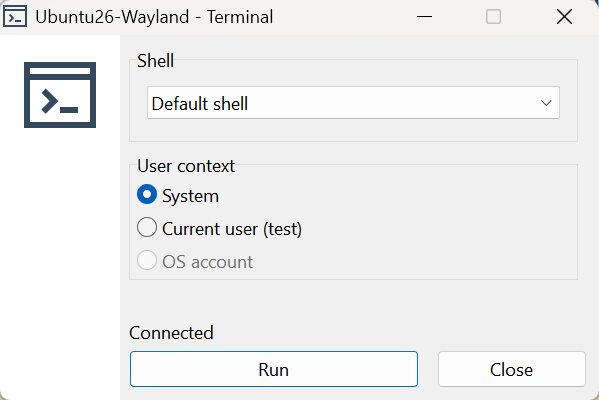
The Host now reports the shells installed on it, and the Viewer builds its menu from that list. On Windows that is Command Prompt, Windows PowerShell and, when it is installed, PowerShell 7. On Linux and macOS it is whatever the system has: bash, zsh, sh, fish and so on, with the account's default shell preselected. The choice is remembered per connection, so a server you always manage from PowerShell opens in PowerShell next time.
Three ways to run the shell
The User context menu decides which account the shell runs under:
- System: the account of the Host service itself (SYSTEM on Windows, root on Linux and macOS). Always available, even when nobody is logged on.
- Current user: the user logged on to the Host right now. The menu shows the name, and the option is greyed out when nobody is logged on.
- OS account, new in this release: enter the username and password of any local or domain account on the remote computer, and the shell runs under that account with its profile and environment, whether that user is logged on or not. This is the one to use when a script has to run as a specific service account, or when you want a session that leaves the same traces as that user would. It is off by default and is enabled on the Host under Settings → Modes → Terminal: allow signing in with an OS account. The Agent does not offer it, and the mobile app does not yet.
The terminal window
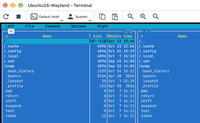
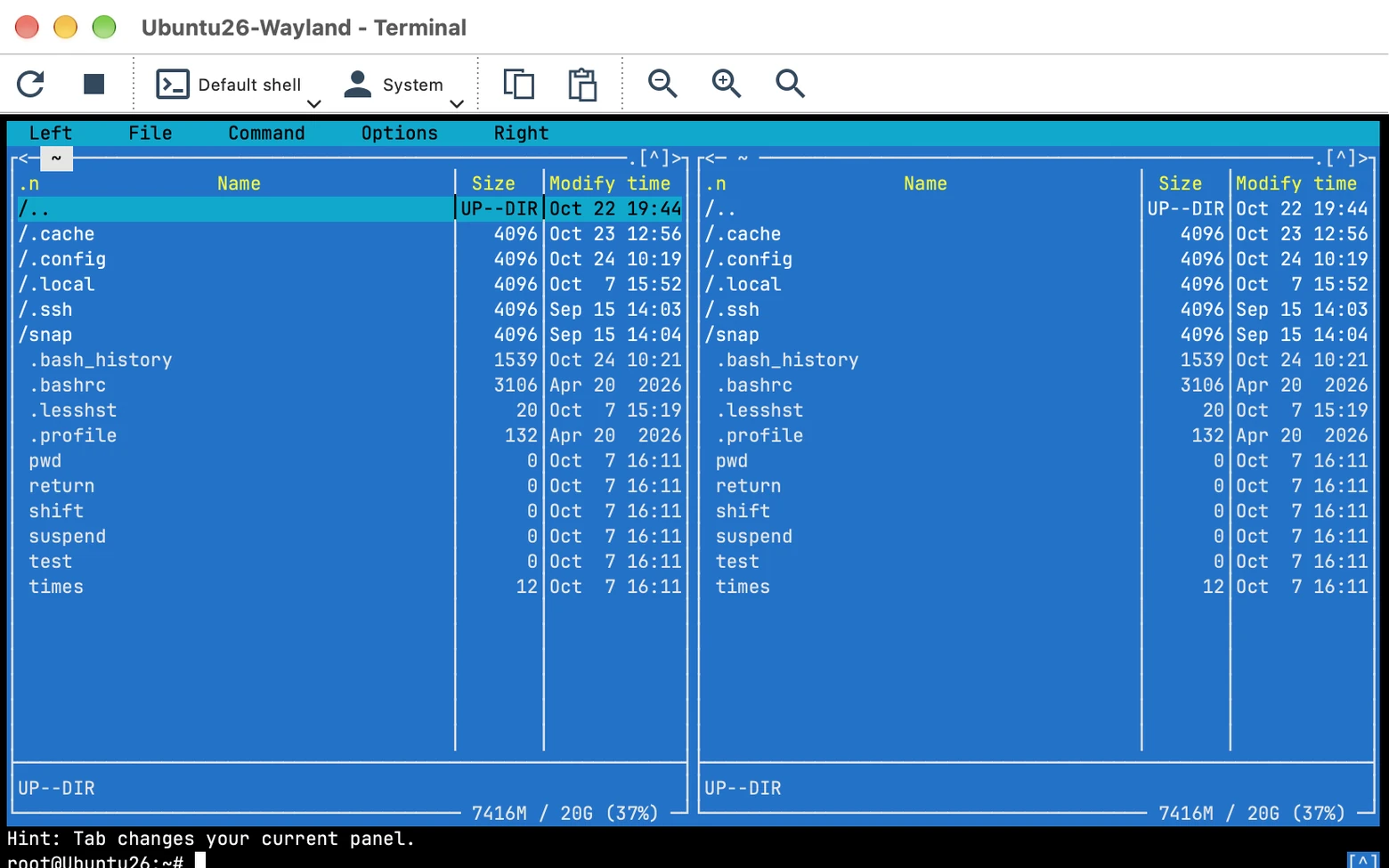
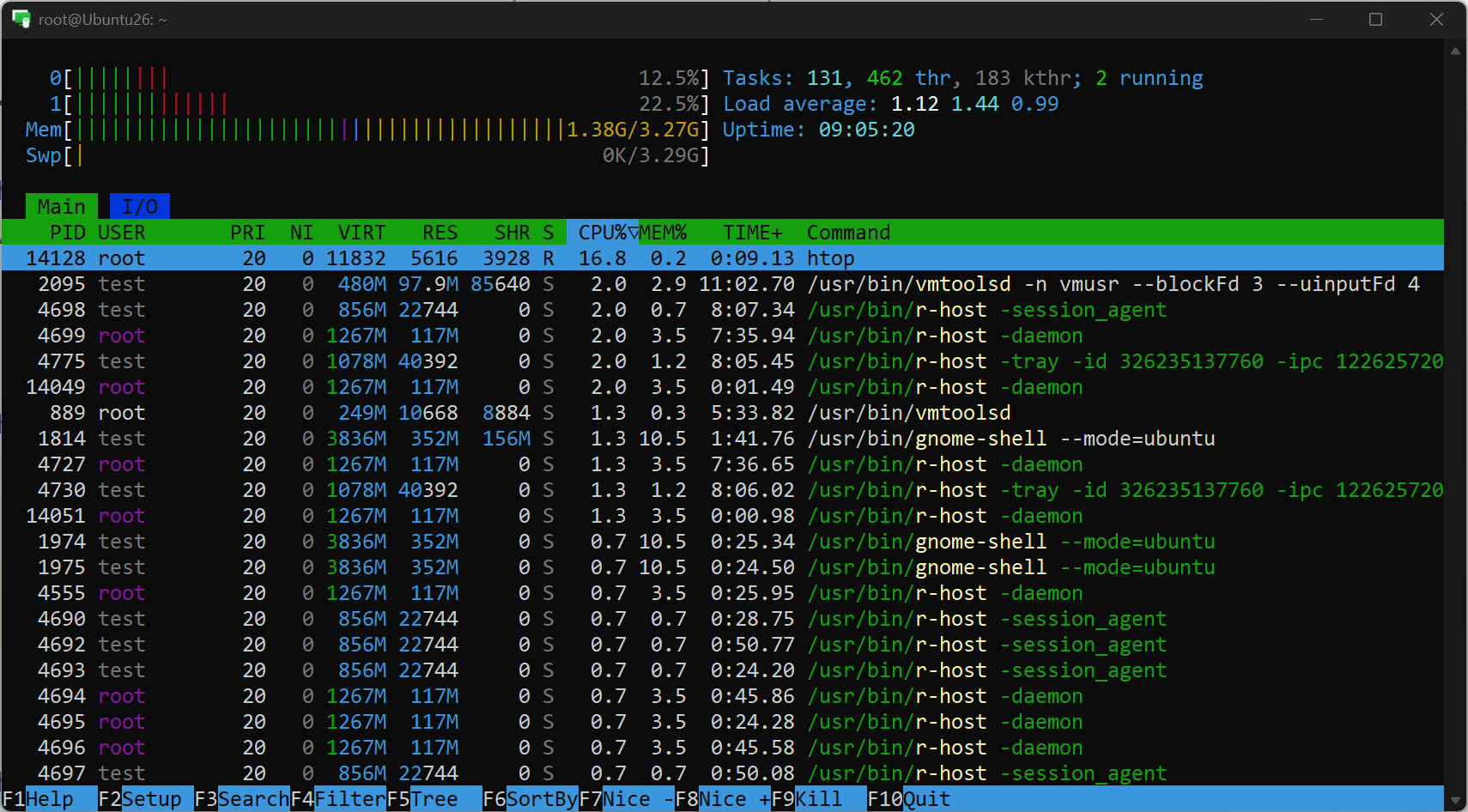
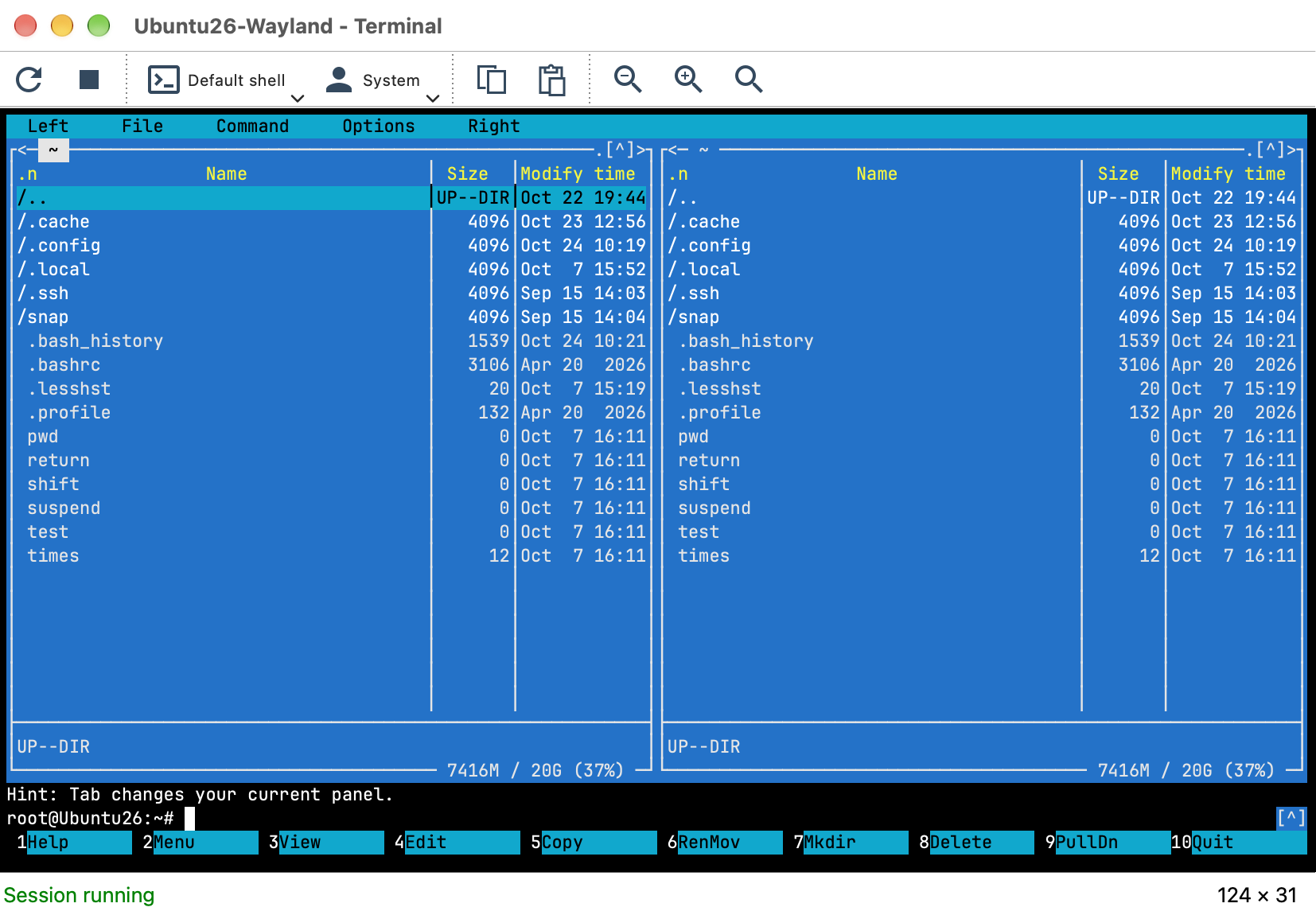
Viewer for macOS and Linux gets a built-in terminal window for this: Start, Restart and Stop, copy and paste, zoom with the text re-wrapped to the new size, 5000 lines of scrollback and mouse support, so console programs such as vim, mc and htop work as they would in a local terminal. On Windows, the Viewer now builds its shell and user menus from what the Host reports, and closing the Terminal window ends the shell on the Host; previously the shell kept running in the background until the Host service restarted.
On the phone
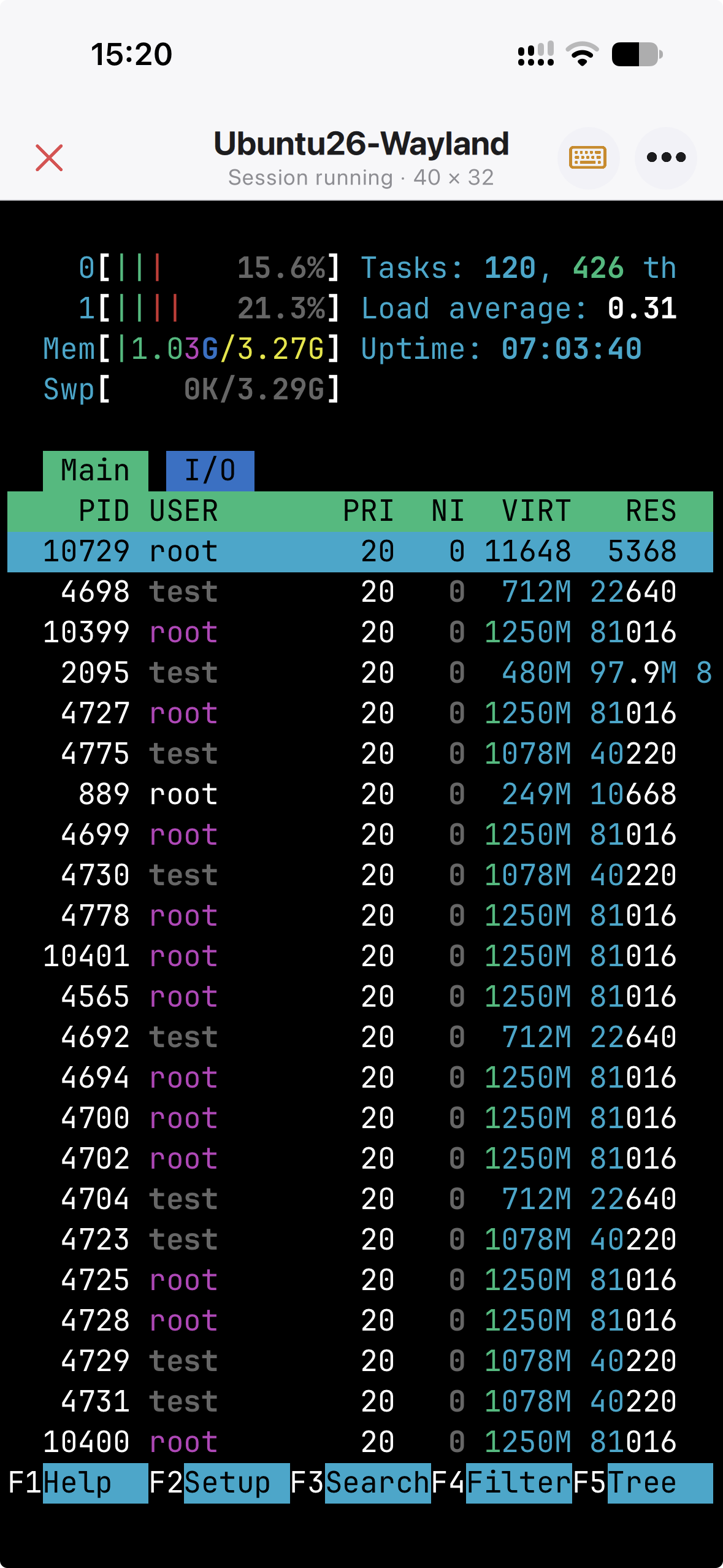
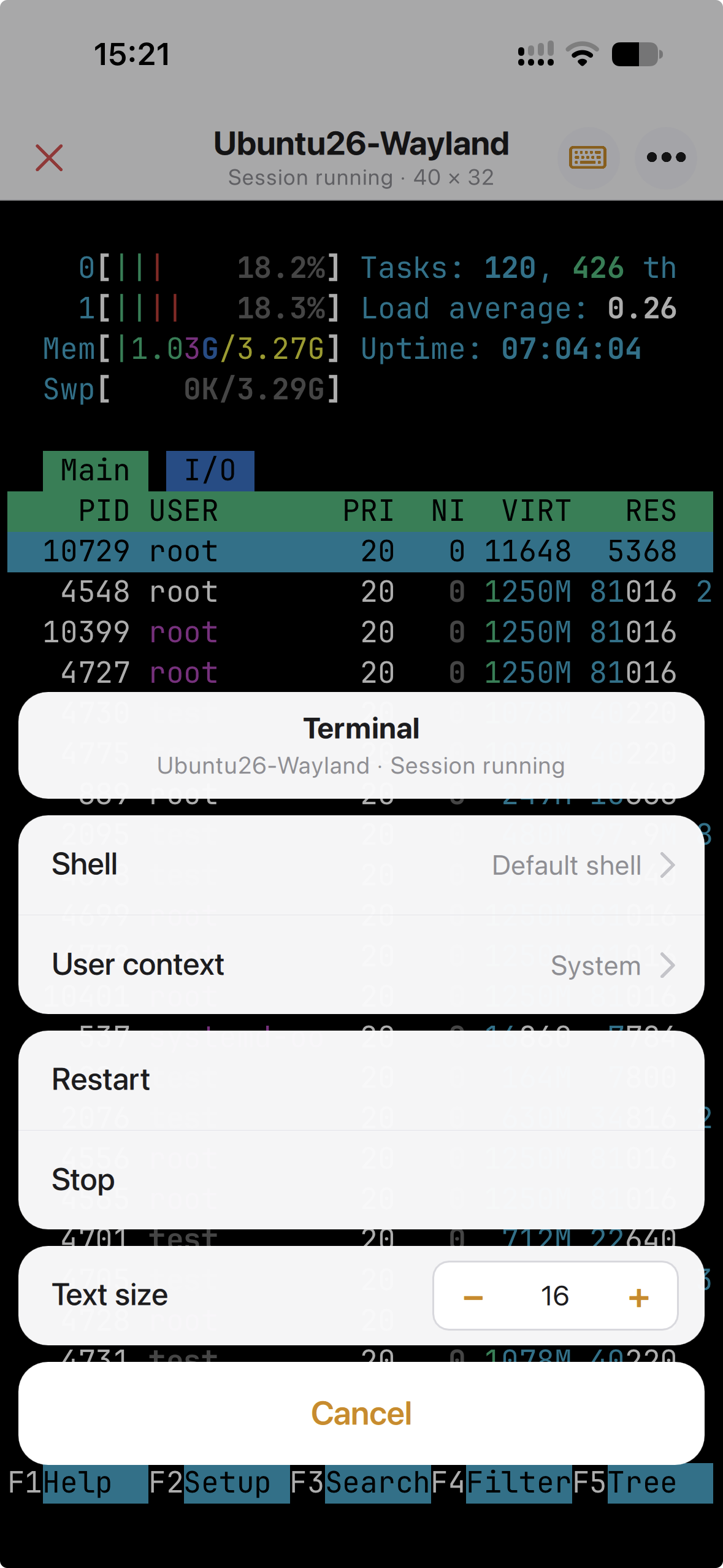
The mobile app has the same mode, adapted to a touch screen. A key bar above the keyboard adds the keys a phone does not have: Esc, Tab, Ctrl, Alt, the arrows, Home, End, Page Up and Page Down, Ctrl+C and the function keys. The output scrolls, long-press selects text for copying, pinch changes the text size, and landscape gives you a 100-column terminal. Terminal is in the connection mode menu, can be set as the default tap action for a connection, and is one tap away from the toolbar of a running Full Control session. The shell and the user context (System or the logged-on user) are remembered per connection here too.
Files through the clipboard
The second addition changes how you move a file during a session. Until now that meant opening the File Transfer mode, browsing to the folder on both sides and dragging. Now you copy the file where it is and paste it where you want it:
- In a Full Control session, select files or folders on one side, in File Explorer, Finder or your Linux file manager, and press Ctrl+C (Cmd+C on a Mac).
- Switch to the other side and press Ctrl+V in a folder.
It works in both directions, from the Host to your computer and from your computer to the Host, and in any combination of Windows, Linux and macOS on either side. Folders come with their contents. The file transfer permissions of the Host apply: if an account is not allowed to use the File Transfer mode, it cannot paste files either.
What travels, and when
Pressing Ctrl+C sends only the list: names, sizes and dates. Nothing else leaves the computer until you paste, and then only the files you paste. You can copy a folder of several gigabytes on a remote machine, change your mind, and nothing has crossed the network. When you do paste files from the Host, the content comes over the same connection the File Transfer mode uses, with the same encryption, the same permissions and the same entries in the Host log, and at the same speed. In the other direction the Host requests the files from the Viewer over the session connection, piece by piece, with the piece size adapted to the link so that the remote screen stays responsive.
Where you can paste
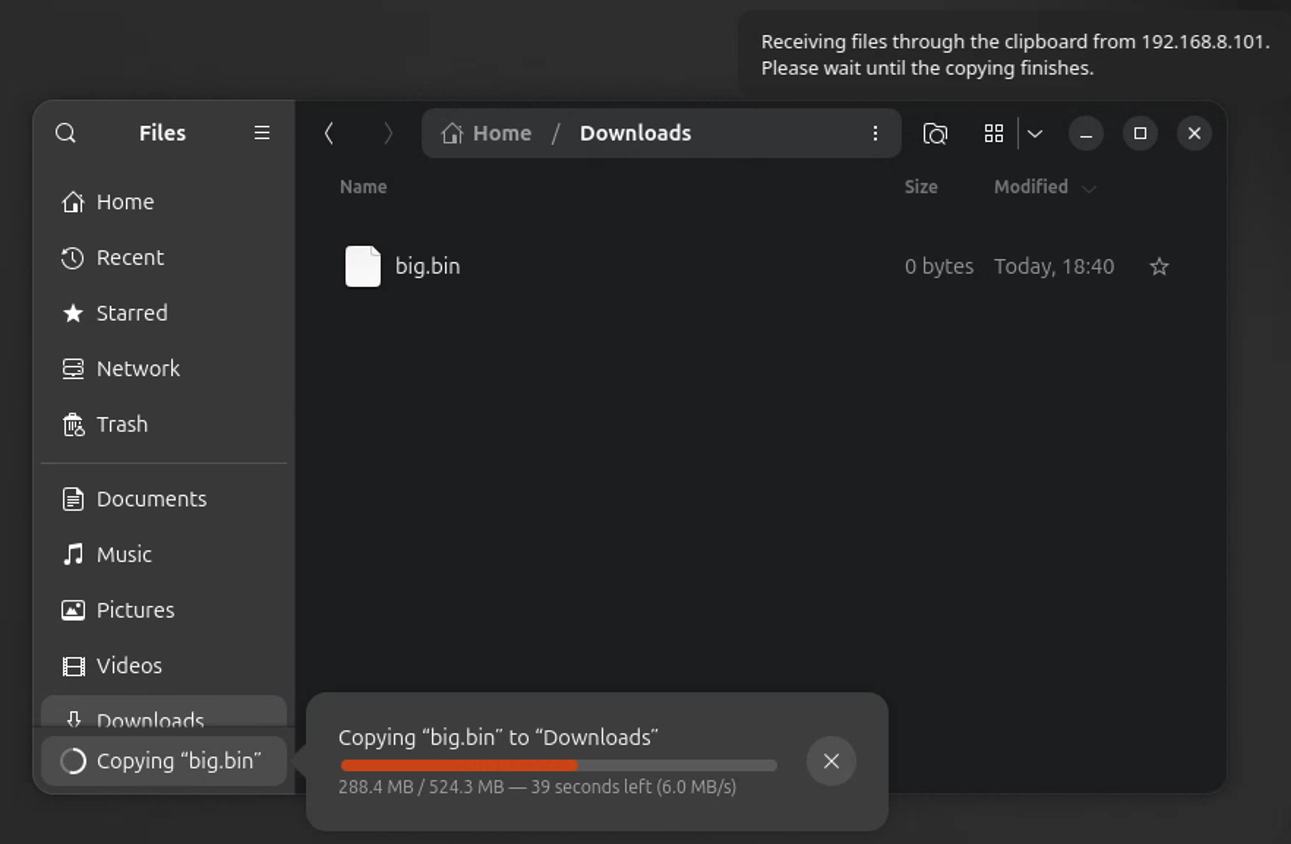
The receiving side does not get the files themselves at copy time; it gets a promise of them, which the operating system turns into real files at the moment of pasting. Each OS does this differently, and that decides where pasting works:
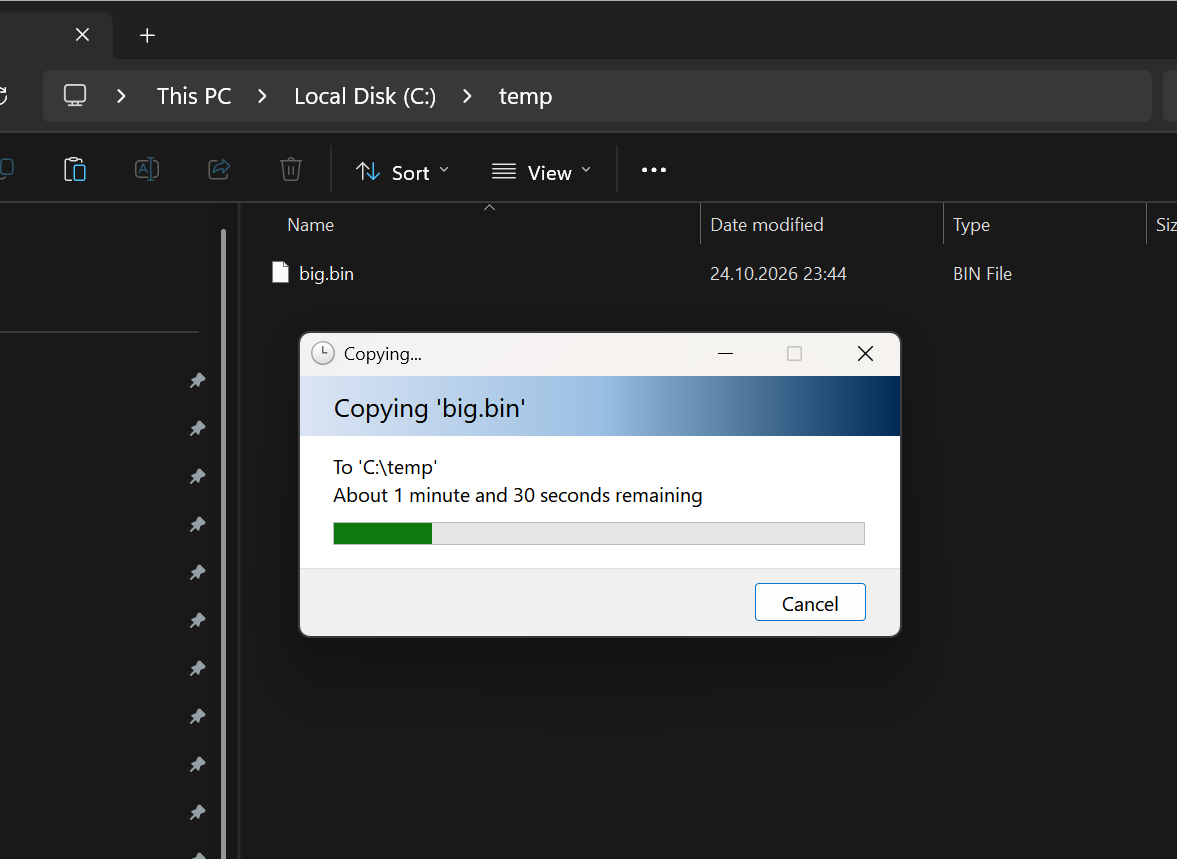
- Windows: paste in File Explorer, in a folder or on the desktop. Explorer shows its usual progress window. Programs that only accept files already on disk, such as Telegram or WhatsApp, do not see files from the other side; paste them into a folder first and attach them from there. This is the same behaviour you get with Windows Remote Desktop.
- macOS: paste in Finder. Finder shows "Preparing to copy" without a progress bar until the file has arrived; that is not a hang. A program that reads the pasted file by itself, such as Mail or a chat app, gets an empty file until the same files have been pasted in Finder once.
- Linux: paste in any file manager; Nautilus and others show progress themselves. The Viewer for Linux needs the
fuse3package to receive files from a Host; the installer recommends it.
A Linux or macOS Host shows a small notice in the corner of the screen while files are coming in from the Viewer, so the person at that computer knows why Finder is busy; on Windows, Explorer's progress window already does that job.
A few rules to know
- The clipboard is synchronized in Full Control mode only, not in View Only.
- Files copied on your computer are offered to the Host only while the session window is active. Otherwise every Ctrl+C on your PC would expose files to every connected Host. Copying while another window has the focus is fine: the files are offered when you return to the session.
- Cut (Ctrl+X) behaves as copy: nothing is deleted at the source.
- Pasting the same clipboard a second time takes the current state of the files, including changes made since you copied.
- Symbolic links inside a copied folder, file permissions and owners are not transferred. There is no resume after a broken connection: paste again.
- Both sides need the new version. An older Viewer or Host simply never sees files in the clipboard; text and images keep working as before.
- Files received from one Host are never passed on to another Host.
Images and formatted text
Files are the new part; the rest of the clipboard has been there for a while and works across the same platforms, in the same automatic way. Text copied on one side is in the clipboard on the other within a moment, and it keeps its formatting when it has any: bold text and links survive between Word, LibreOffice Writer, TextEdit and a browser, and HTML copied on a Linux or macOS Host now pastes correctly on Windows. Images go the same way: copy a picture in an image editor on one side and paste it into an editor on the other. We tested Paint, Photoshop and GIMP against each other in every direction, and Preview on a Mac (File → New from Clipboard).
Staying in control: Get and Set remote clipboard
Automatic synchronization is convenient, but it means that whatever you copy while a session window is active is offered to that remote computer. If you would rather decide case by case, tick Do not automatically synchronize clipboard in the Viewer options (Tools → Options → Remote screen). Nothing then moves on its own, in either direction, and the two commands in the session menu do the work on request: Get remote clipboard fetches whatever is in the Host's clipboard right now, Set remote clipboard sends whatever is in yours. Text, images and files alike.
The same two commands cover a less obvious case. Content copied before the session started is not synchronized, because only changes made during the session are. If the file or the text is still in your clipboard, connect and choose Set remote clipboard: it takes the current content of your clipboard and sends it. Get remote clipboard does the same for something copied on the Host before you connected.
The remote side keeps its own say, as with every clipboard feature: in the Host settings (Other tab) clipboard transfer can be disabled in one direction or in both.
And the mobile app?
The mobile app transfers text in both directions, not files. One improvement here: text you copy on the phone while the app is in the background is now sent to the Host when you return to the session.
Also in this release
- Agent → Host. A new Convert to Host button turns the portable Agent into an installed Host, keeping the Internet-ID and the password. Useful when a one-off support session turns into a permanent arrangement.
- Windows Viewer: refreshed ribbon and docking panels in the Windows 11 style, updated connection thumbnails and session tabs, and fixes for license keys synced from RU Server.
- macOS: a Send keys menu (Alt+Tab, Win, Win+D, Win+L, Alt+F4, Ctrl+Shift+Esc and more), a redesigned System access window that shows the status of each permission with step-by-step hints, and a Host that keeps running when its window is closed; it stops only via Quit in the status bar menu.
- File Transfer on macOS, Linux and mobile: a file the Host cannot provide (deleted, locked or changed during the copy) is skipped with a message and the rest of the task continues; previously the whole task stopped.
- Mobile: a password saved after it had been changed on the Host is now kept in synced address books; the session restores its zoom and position after an automatic reconnection; the iOS 27 edit menu works again in text fields; on Android the Back button on the main screen sends the app to the background instead of closing it.
- Interface translations completed in all 23 languages, including the new Terminal strings.
The full list is on the release notes page.
Getting the update
Both features need the new version on both sides, so update the Viewer and the Hosts. On Windows, the Viewer offers the update itself and can update the Hosts from your address book. On macOS and Linux, download the new version and install it over the old one. The mobile app updates from the App Store and Google Play.
Download Remote Utilities: Windows, macOS, Linux, mobile app.