Version 2.1.1, a month ago, was about what you can do inside a session: the Terminal mode and files through the clipboard. Version 2.1.2 is about looking after the computers themselves. If your Viewer runs on a Mac or a Linux machine and most of your remote computers run Windows, keeping their Hosts up to date no longer needs a Windows PC.
Update Windows Hosts from a Mac or Linux Viewer
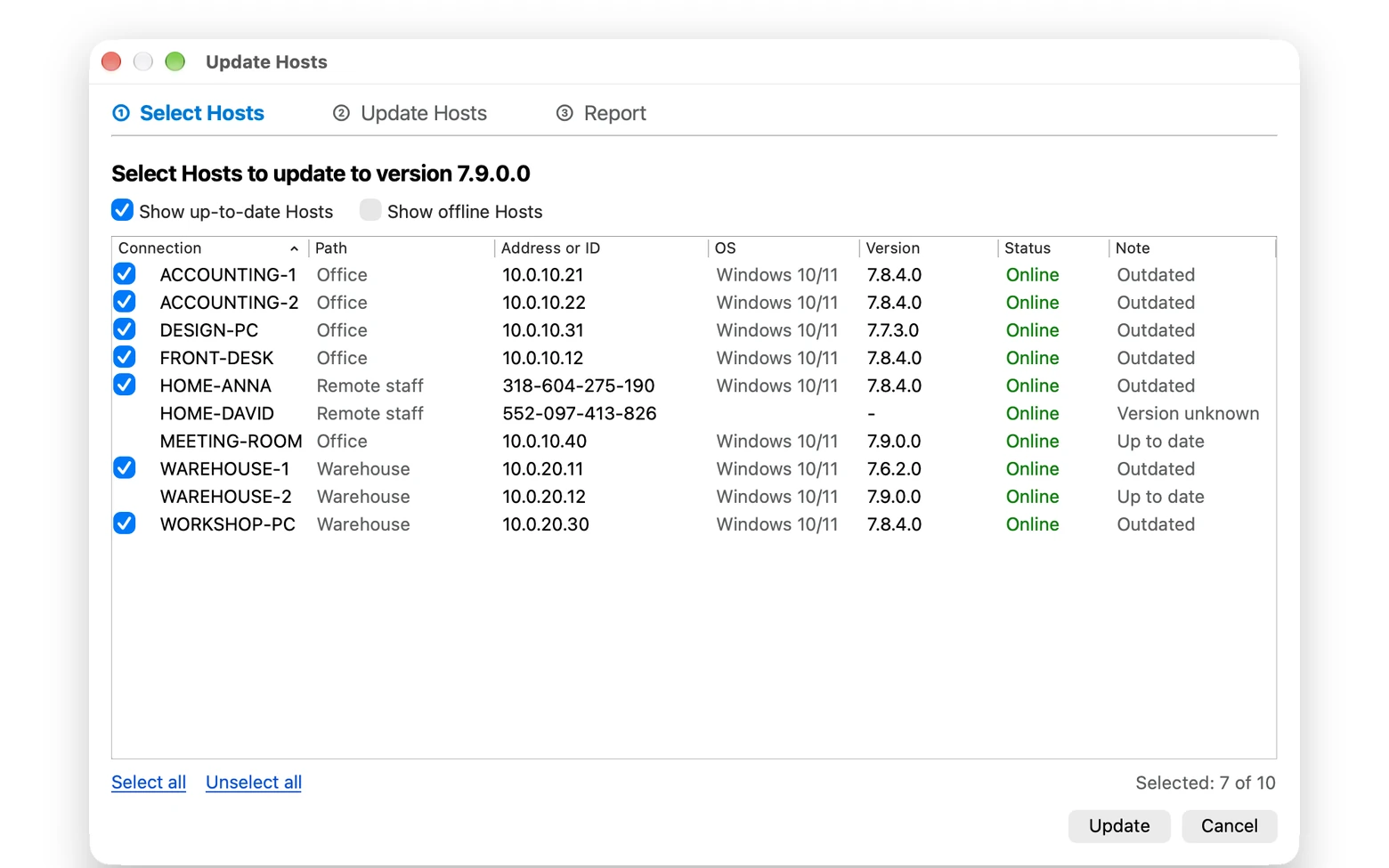
The Viewer for Windows has long been able to update remote Hosts from the address book with its Simple update command. The Viewer for macOS and Linux now does it too, in a new Update Hosts window that takes you through three steps: select the Hosts, update them, read the report. The same window is coming to the Viewer for Windows soon, where it will replace the plain list that Simple update shows today.
- Open Manage → Update Hosts..., or right-click connections in the address book and pick the command from the menu.
- Tick the Hosts to update. The list shows the version, the operating system and the status of each Host, and a note: Outdated, Up to date or Version unknown. The heading names the version the Hosts will be updated to.
- Click Update.
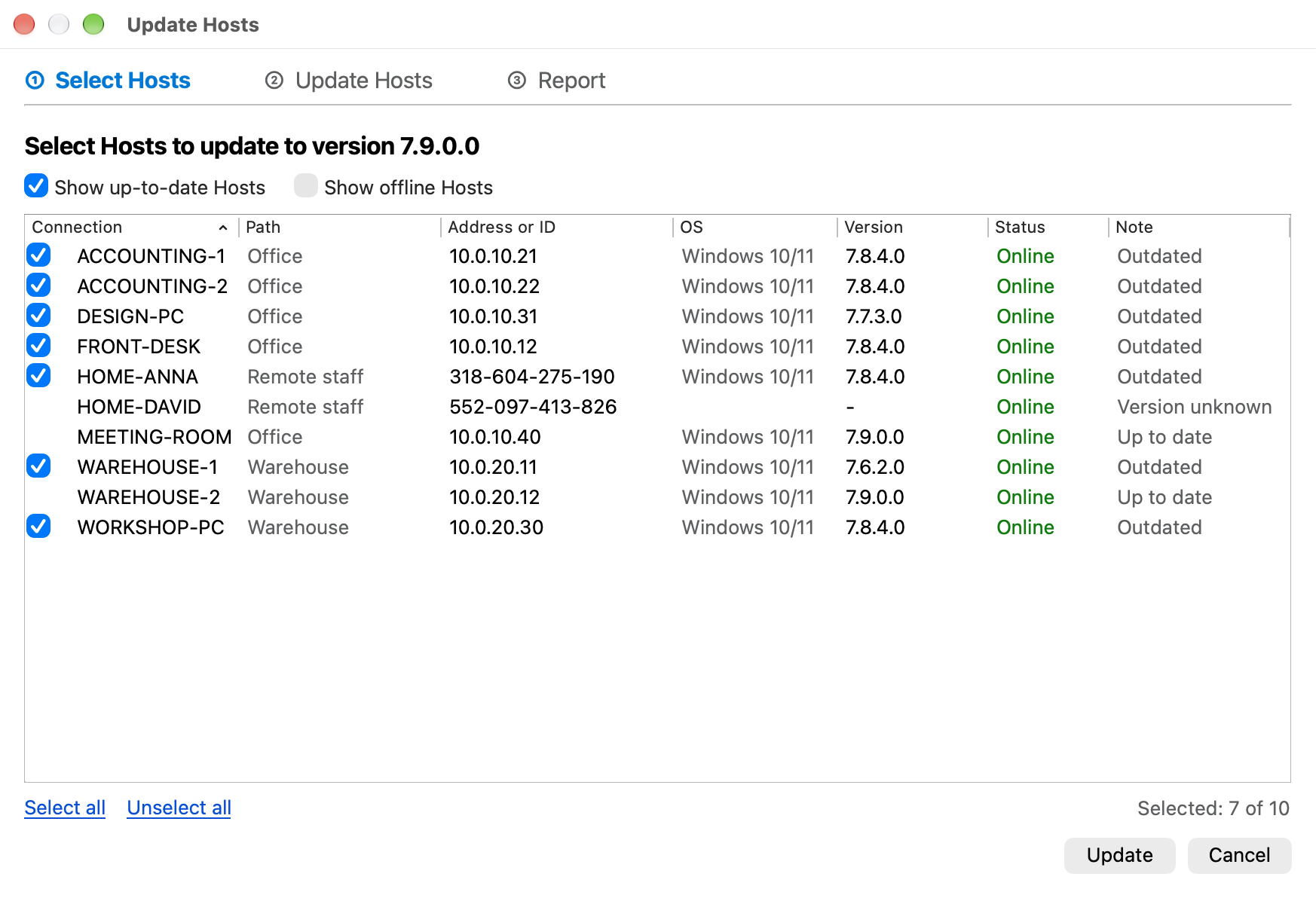
Two checkboxes above the list decide what is in it: Show up-to-date Hosts and Show offline Hosts. With both cleared you see only the computers that can be updated right now.
The Viewer checks the result itself
Sending the command is the easy part. What you want to know is whether each computer really ended up on the new version. So the Viewer keeps watching after the command is delivered: the Host downloads the new version, installs it and restarts, and the Viewer waits for it to come back online and report its new version number. Each Host gets a few minutes for that, and the window shows where every one of them is: queued, sending, waiting for the Host, updated.
The report at the end sorts the Hosts into three groups:
- Updated: back online with the new version.
- Skipped: already up to date, or an Agent. An Agent is a single file and is updated by downloading a new one.
- Needs attention: everything else, each with the reason. The Host was offline and the command was not sent, the sign-in failed, or the Host is still online with the old version, in which case the Viewer suggests checking the remote update permission and the Internet access on that computer.
From the report you can retry the failed Hosts with one click, copy the report or save it as a text file. The update does not depend on the window: close it, and the update continues.
What to keep in mind
- Only Hosts for Windows are updated this way. A Host for macOS or Linux is updated by installing the new package over the old one.
- The Host downloads the new version itself, so the remote computer needs Internet access.
- Remote update must be allowed on the Host. In the Host settings the option is called Remote upgrade in version 7.9 and earlier.
- Update the Viewer first, and update a large fleet in groups of 5 to 25 Hosts rather than all at once.
The address book knows more about each Host
Two columns of the address book changed along the way:
- OS is new. It shows the operating system of each Host and is filled in after you sign in to the Host.
- Update required now compares the version of the Host with the latest released Host version for its operating system. Until now it compared it with the version of the Viewer, which says little when a Viewer 2.1 on a Mac looks at a Host 7.9 on Windows.
Daily backups of address books and settings
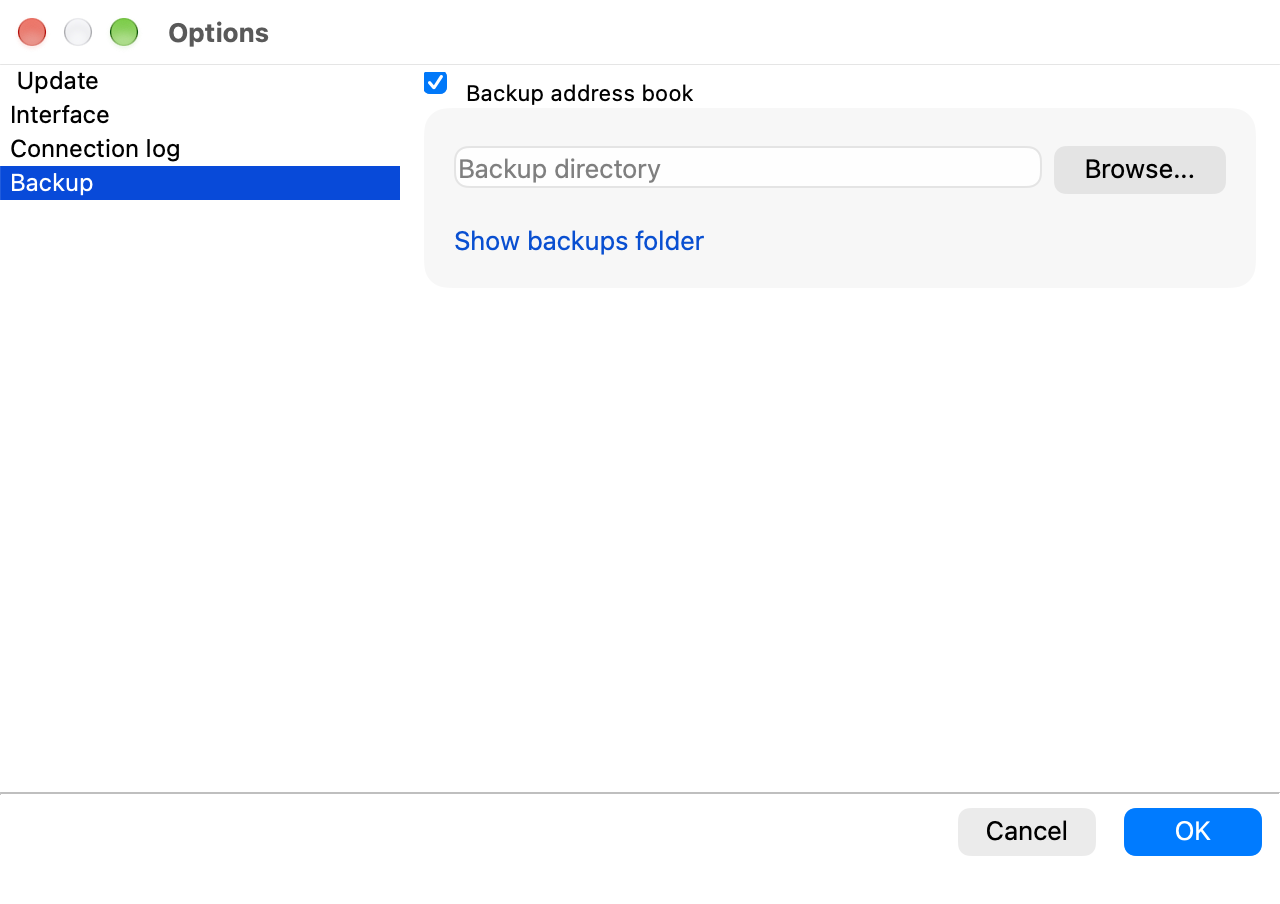
An address book takes years to build and one bad afternoon to lose. The Viewer for macOS and Linux now does what the Viewer for Windows has always done: once a day it saves a copy of its address books and settings as a zip archive. Backups are on by default. The new Backup tab of the Viewer options has the switch, the backup folder, which you can move to another disk, and a link that opens the folder.
Dark theme
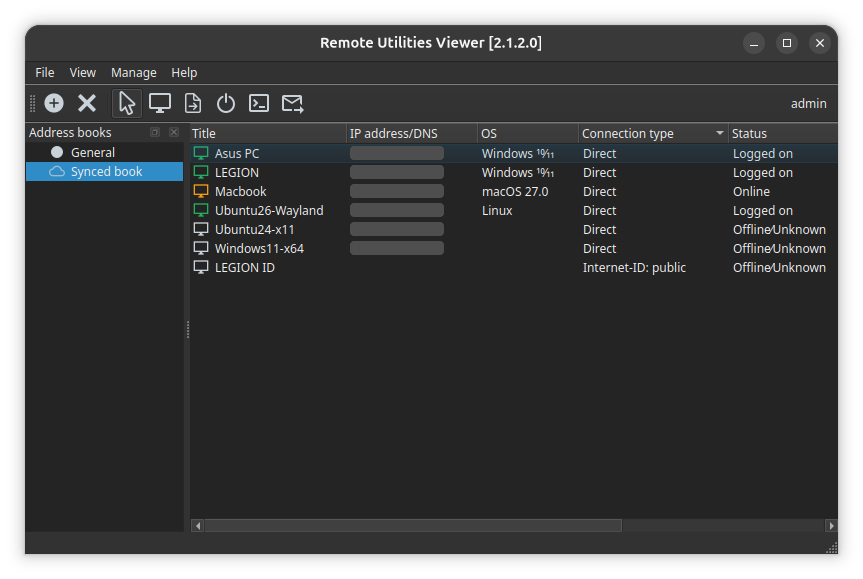
The Viewer, the Host and the Agent have a new Theme setting with three choices: System, Light and Dark. With System the program follows the appearance of macOS or the color scheme of your Linux desktop, so it changes together with everything else on the screen. In the Viewer the setting is on the Interface tab of the options; in the Host and the Agent it is under Settings → General → Interface.
Fixes
- Linux Mint (Cinnamon) and other X11 desktops: the remote session window could not be moved or resized, and on Cinnamon it shrank to a tiny size right after opening.
- Viewer: double-clicking a connection that was already selected started renaming it while the session was opening.
- Host for macOS: it reported its operating system to the Viewer as Linux. It now reports macOS and its version, and Finder shows the full version number of the Host and the Agent.
The full list is on the release notes page.
Getting the update
Download the new version and install it over the old one; your settings and address books stay where they are.