A small update this time, with three additions. Each of them came out of watching people use the app, and each solves one concrete annoyance. Here they are, in the order you are likely to meet them.
Send files and photos from your phone
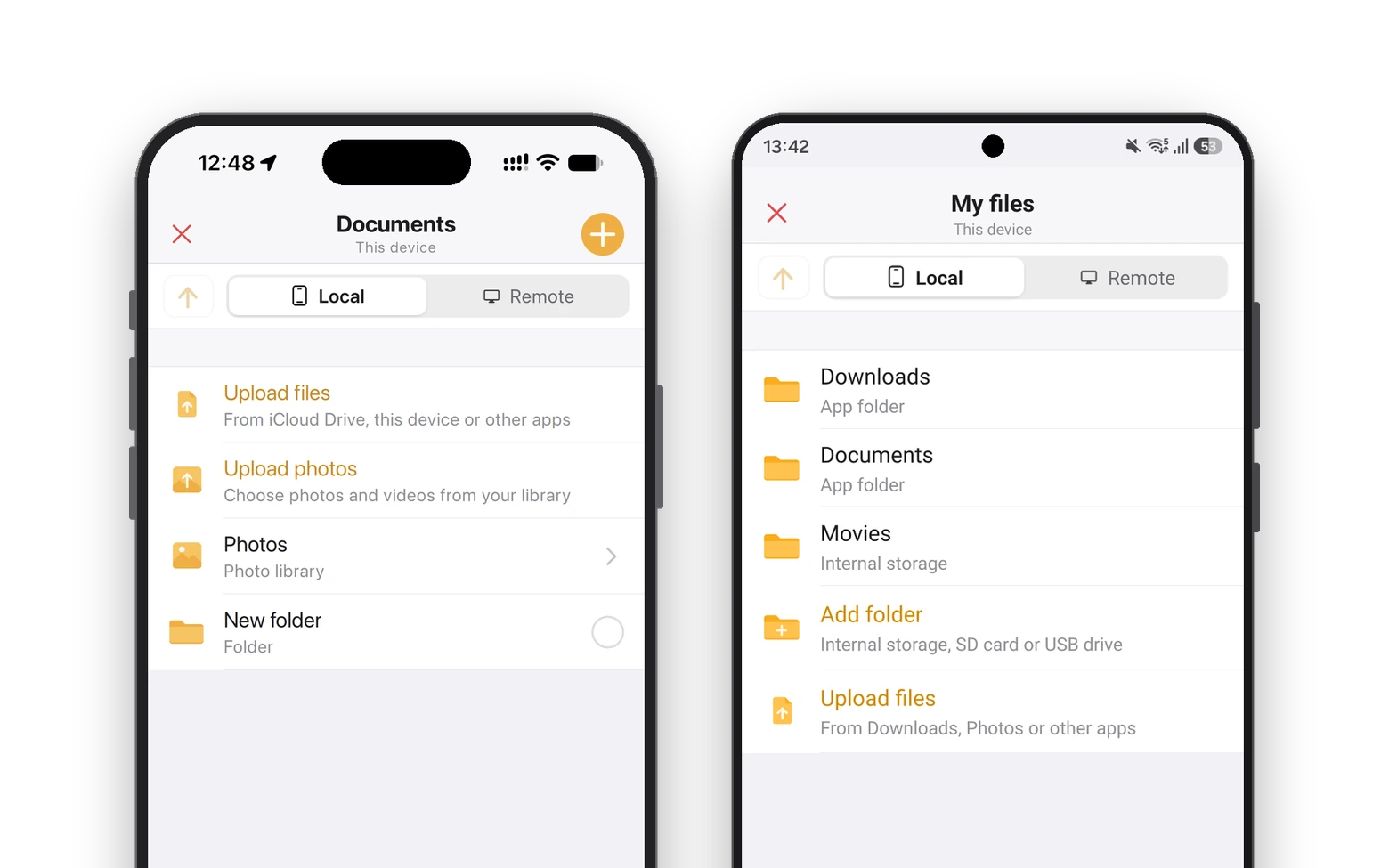
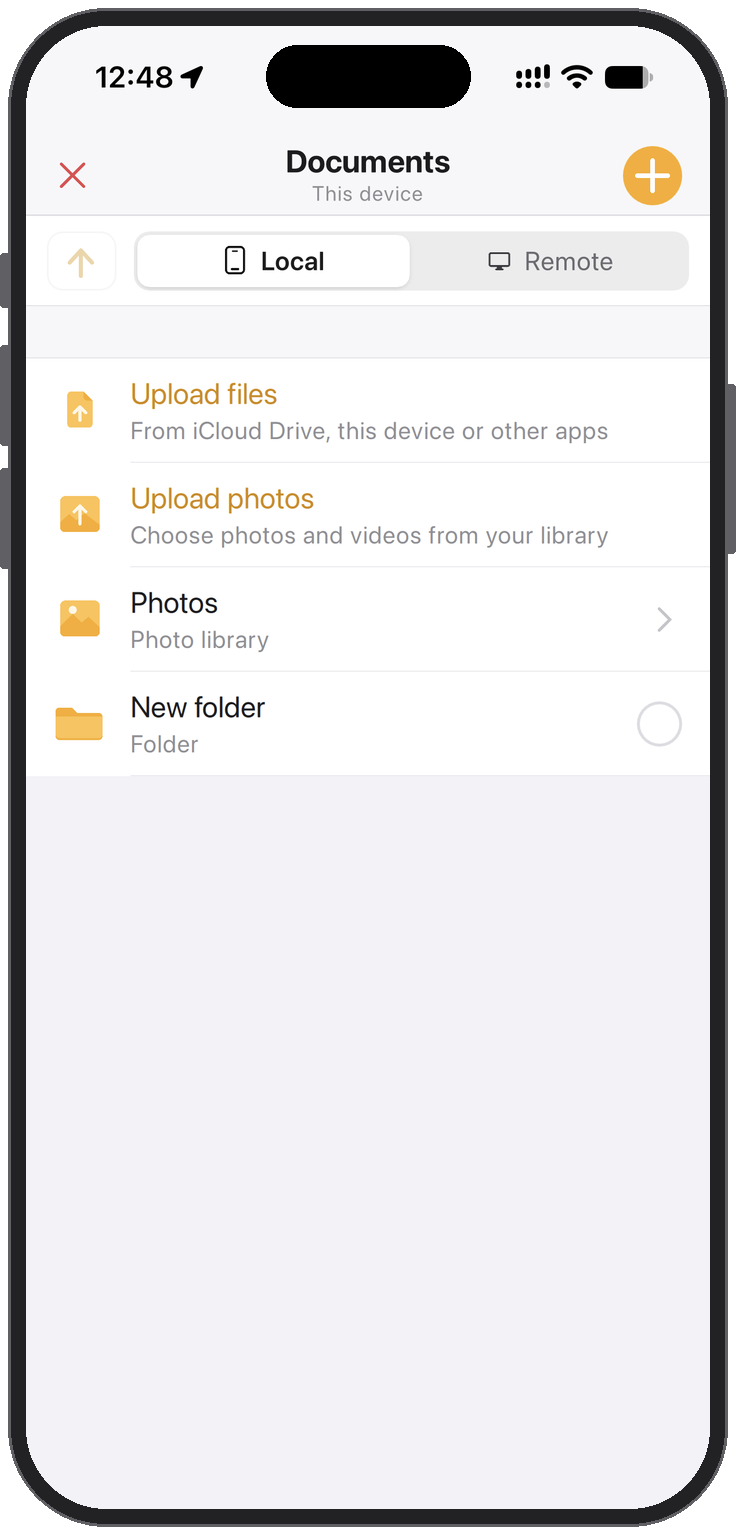
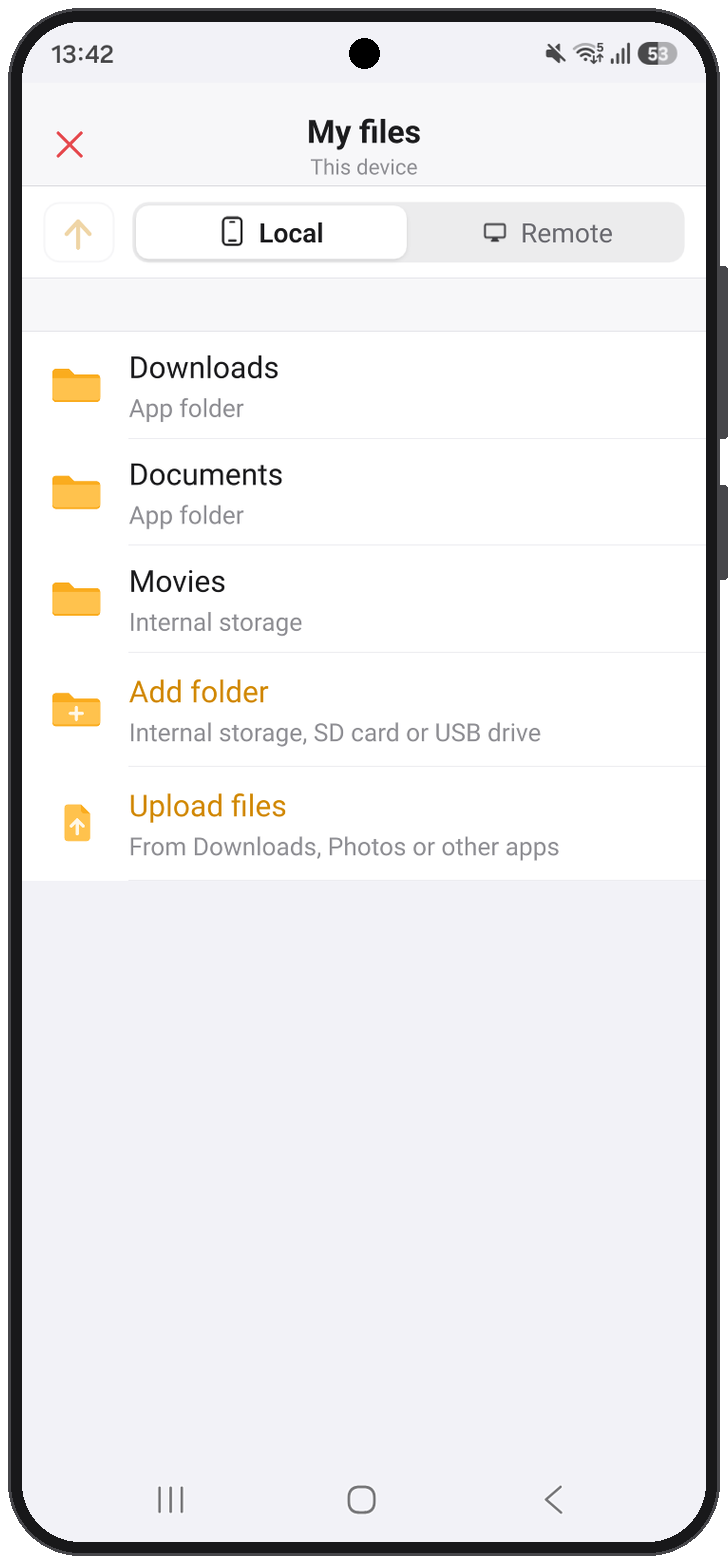
The Local tab of the File Transfer mode has new Upload commands. Upload files opens the system file picker, on iOS Upload photos opens the photo picker, and whatever you select is sent to the remote computer. A screenshot of an error message, a PDF someone sent you in a chat, a photo of a serial number plate: pick it and it is on the remote machine.
The pickers are the ones your phone already has, which is the point. The app receives only the items you pick, so it needs no permission to read your files or your photo library, and never asks for one.
- iOS: Upload files takes files from iCloud Drive, from the device and from other apps. Upload photos takes photos and videos from your library in their original format, without recompression.
- Android: you can add folders from the device, an SD card or a USB drive to the Local tab, and upload files from Downloads, Photos and other apps.
Lock the zoom
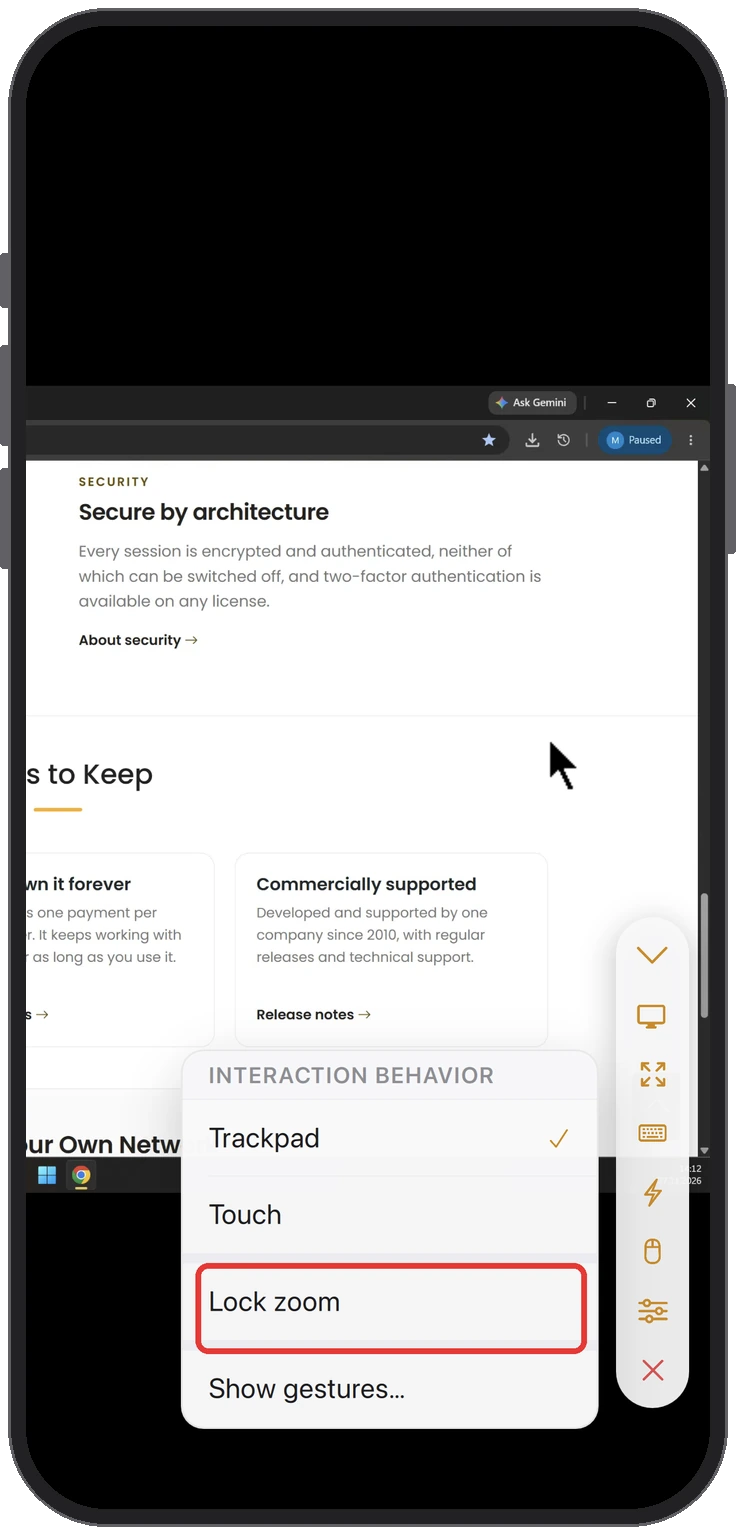
This one we noticed in our own tests. In Trackpad mode you often end up reading something on the remote computer, a web page or a long log, and you scroll it with two fingers. Pinch-to-zoom is a two-finger gesture too, and the two keep getting in each other's way: the page scrolls a little, then jumps closer or further away, and you spend more time restoring the zoom than reading.
So the session toolbar's Interaction behavior menu now has Lock zoom. Turn it on, and two fingers only scroll or pan; the zoom level stays where you set it. It is meant as a temporary switch for the moments when you read rather than click: turn it off again when you need to zoom in on a small button. The setting applies to the current session only.
Save a screenshot of the remote screen
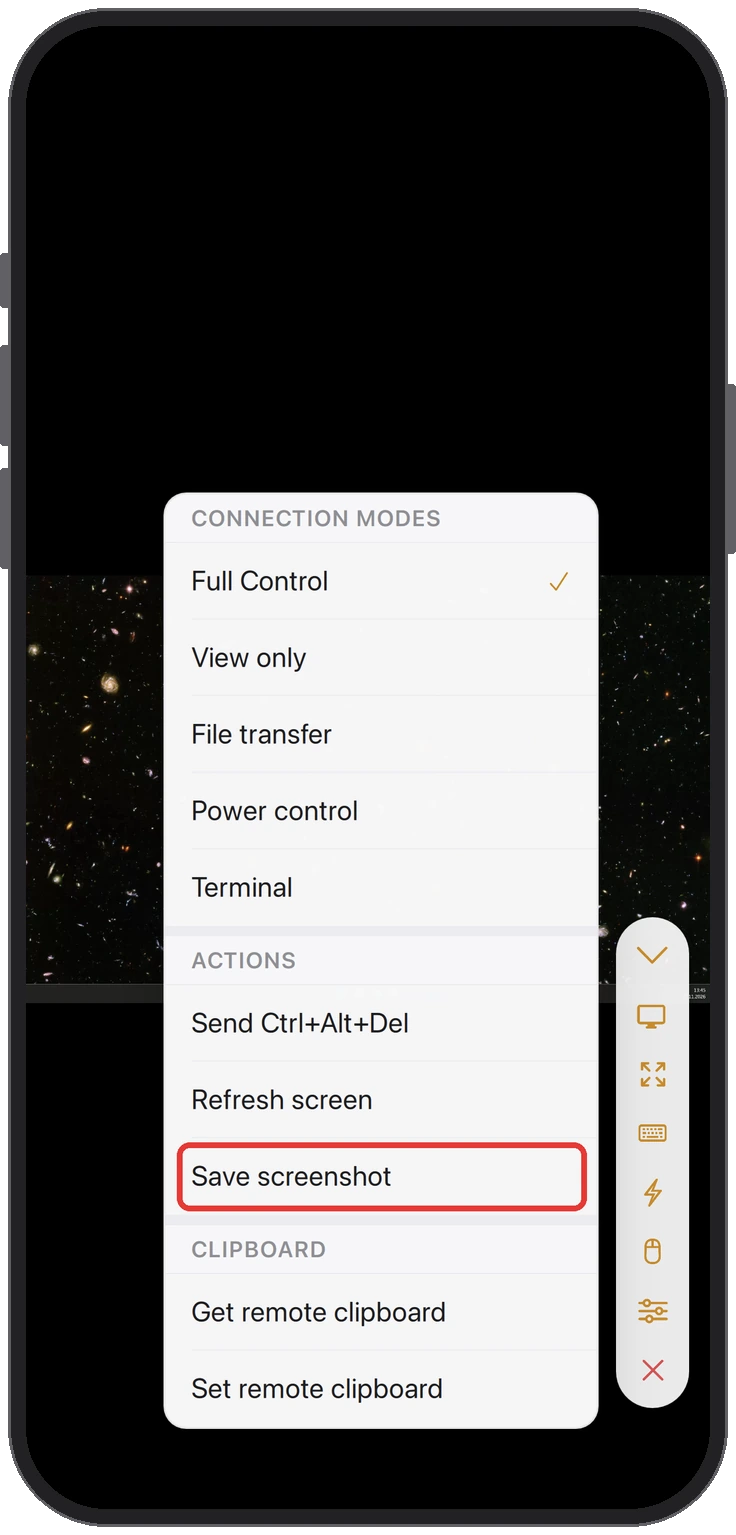
The session actions menu has a new Save screenshot command. It saves the entire remote screen, not just the part visible on your phone, at the remote computer's own resolution, to Photos on iOS and to the gallery on Android. Handy for keeping a record of an error message or a settings page, or for sending the picture to a colleague from the phone without taking the long way round through a file transfer.
Also in this version
- File Transfer returns to the same side and the same local folder after an automatic reconnection.
- An Internet-ID connection could keep failing after the phone changed networks until the app was restarted. Fixed.
- Blank host screen and Block host input are restored after a reconnection.
- A port number typed in the settings was lost if you tapped Save right after typing it. Fixed.
- The Default connection template keeps the settings of a custom Internet-ID server and of the proxy server.
The full list is on the release notes page.
Getting the update
The app updates from the App Store and Google Play. Nothing changes on the Host side: the new features work with the Hosts you already have.