Text Chat
Use the Chat mode to exchange text messages with remote users.
Start Chat mode
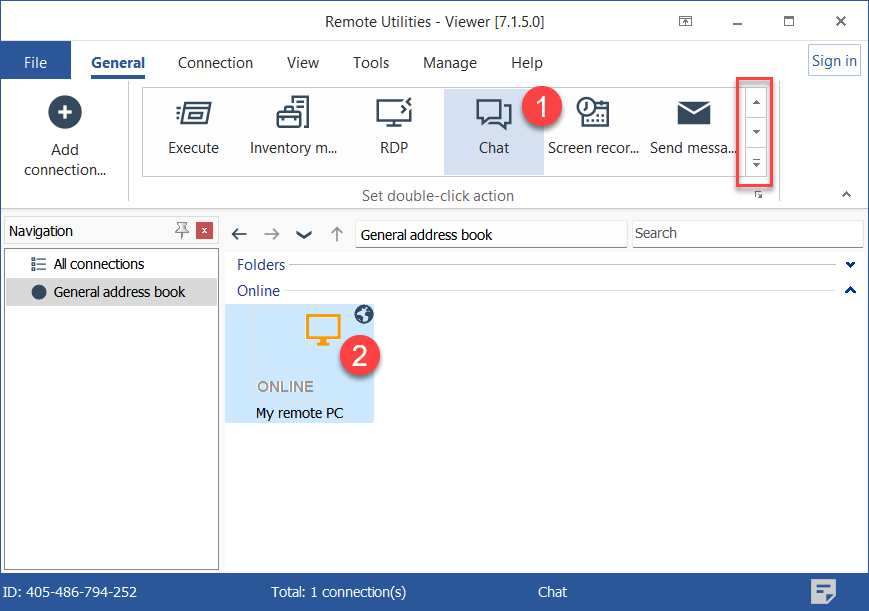
- On the General tab select Chat and double-click on a connection in your address book:
Hint: Use the scrollbar on the right to reveal additional connection mode icons.
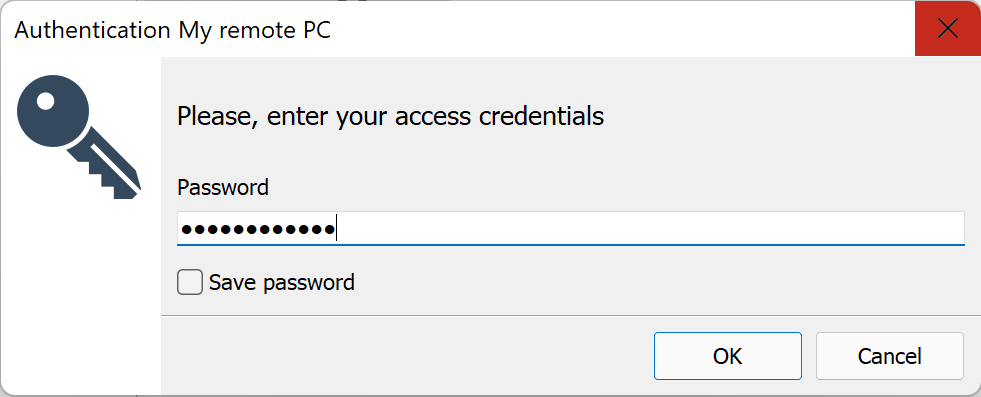
- Enter the access password and click OK:
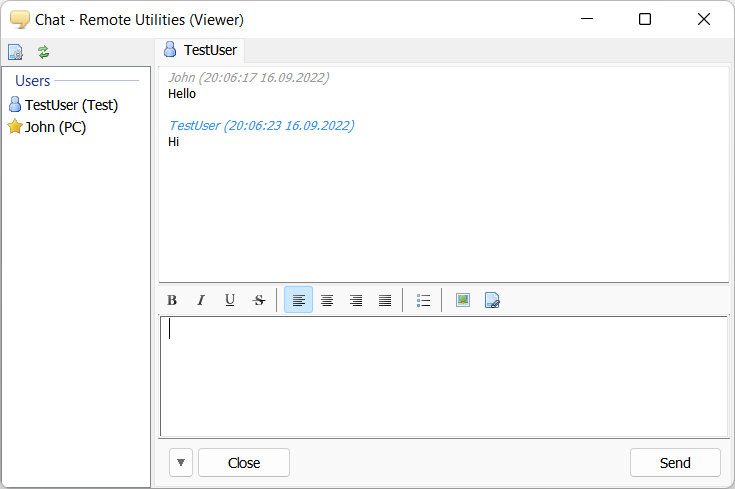
- A chat window will open. Enter your message and click Send or press Enter.
Change nickname
To change your chat nickname:
- Click the Settings icon (
 ) at the top of the Text Chat window.
 - Deselect the Current user name as nickname option and enter a nickname:
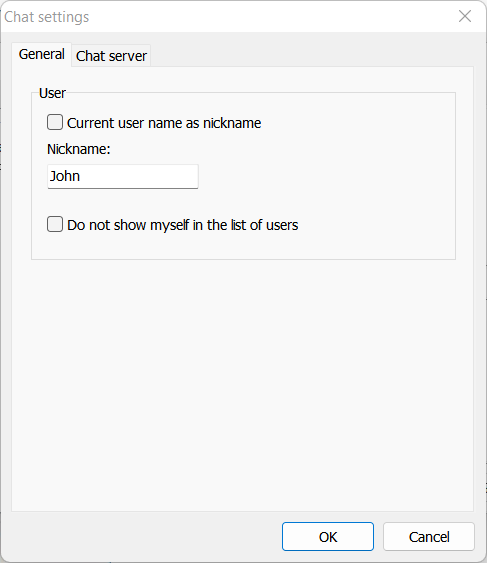
- Click OK.
Users and channels
There are two kinds of users a Chat mode window:
 —Administrators who enter the chat on the Viewer side. Administrators can initiate a chat session.
 —Regular users who enter the chat on the Host or Agent side.
Channels are one-to-one chat sessions with individual users. Each channel opens in a separate tab.
A special channel called #General allows to broadcast messages to all users:
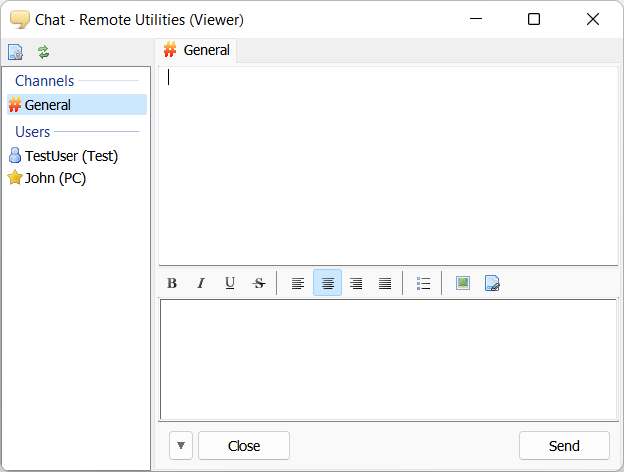
To start a chat session with an individual user in the same Chat window, double-click the target user name in the list. A new tab with an individual chat session will open:
To close a specific channel (tab), select it and click the Close button at the bottom of the Chat window.
Mini-chat
A stripped-down version of the chat window called Mini-chat can be used on the Viewer side. See Full Control and View mode.
