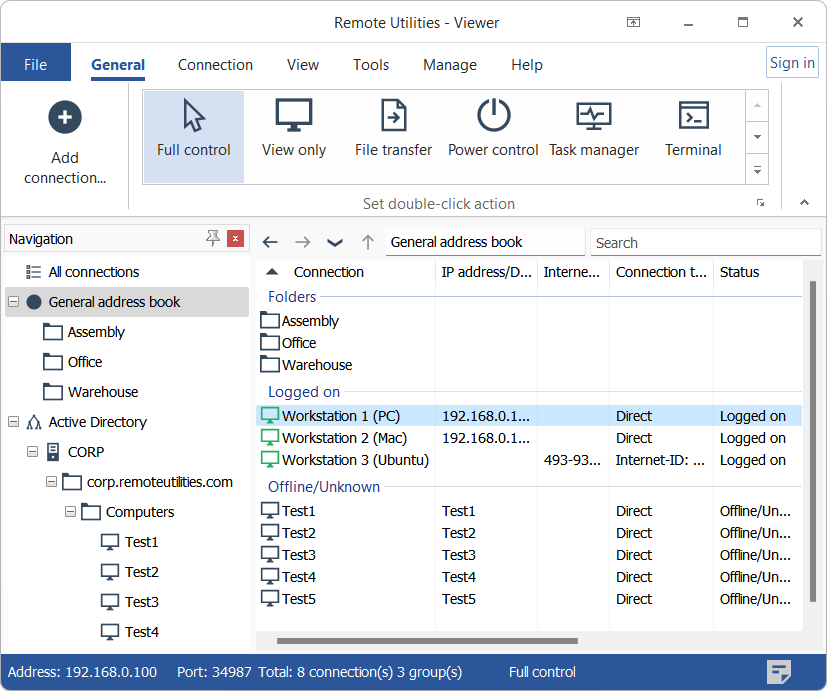

Full Control and View
Connect to a remote desktop from anywhere over a secure connection using the Full Control and View mode. View the remote screen, move the remote mouse pointer and send keystrokes. Use the toolbar at the top of the remote control window to run other tasks.
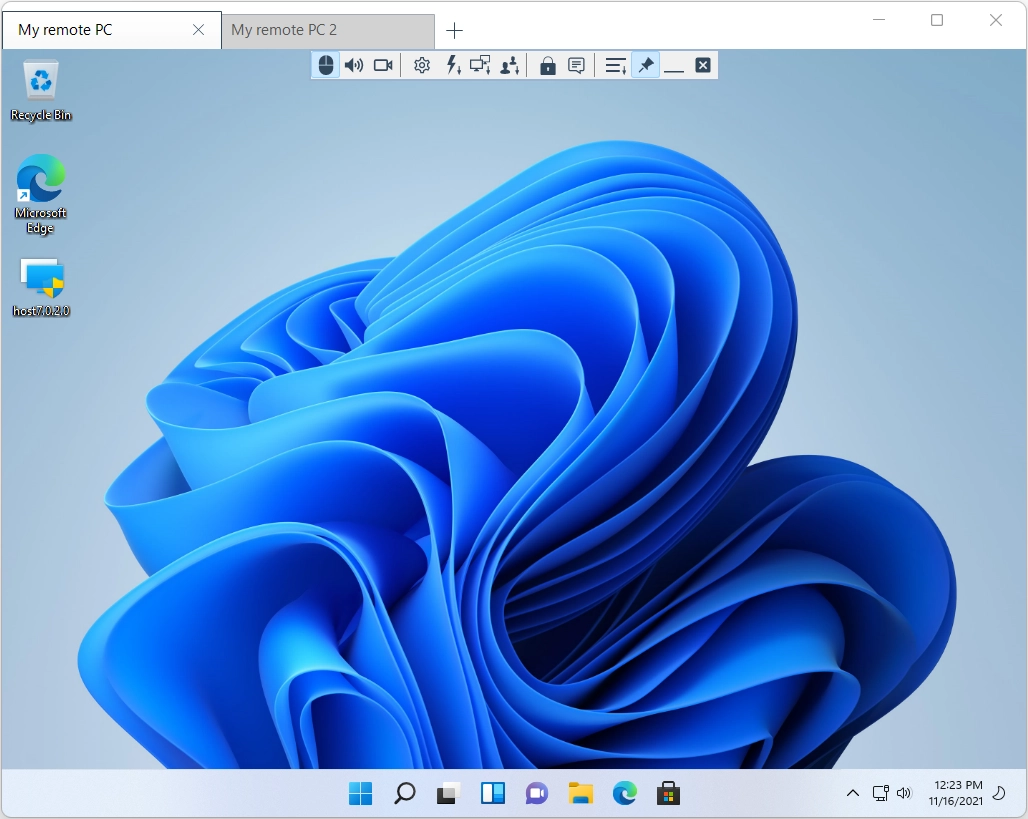
File Transfer
Send and receive files to/from a remote desktop using the File Transfer mode with a classic two-pane file manager interface. You can open multiple remote computers in tabs. Drag and drop is also supported.
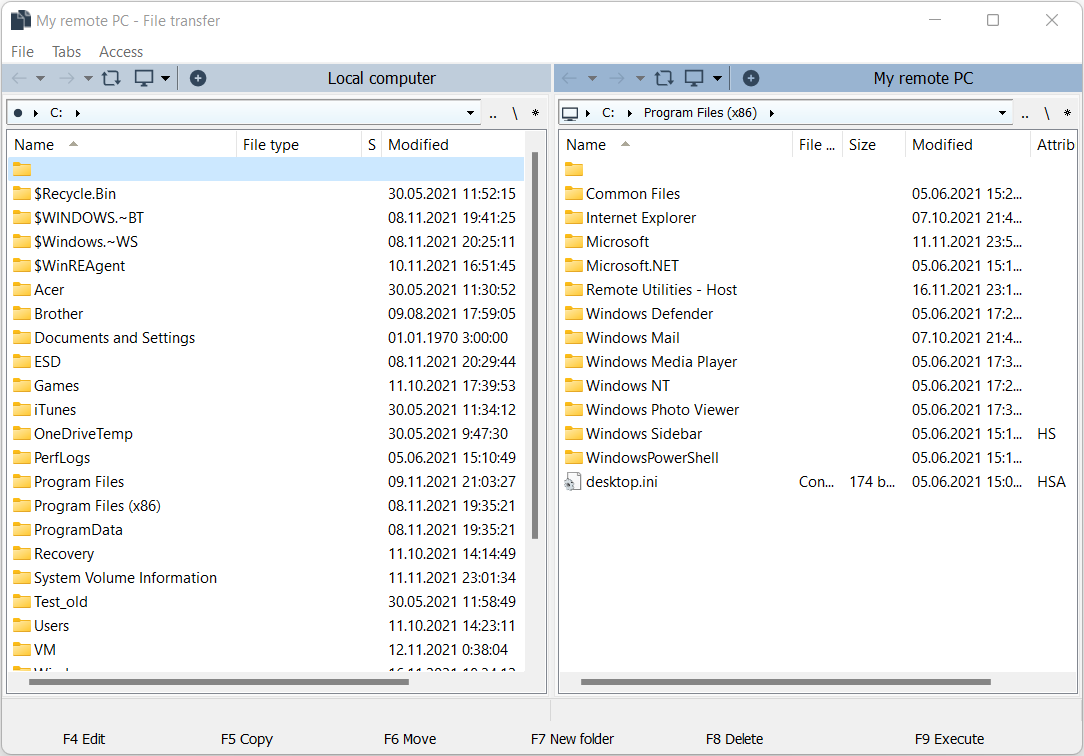
Two-factor Authentication
Enable two-step verification for ultimate protection. You can generate a time-based token and add it to Google Authenticator or a similar app. When you start a remote session Remote Utilities will ask you for a one-time password (OTP).
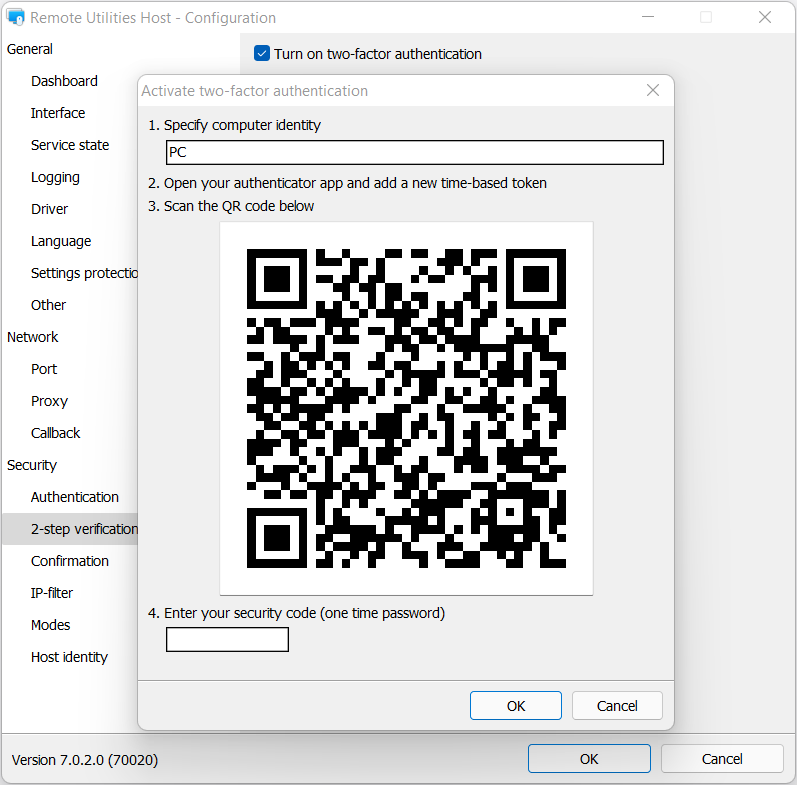
Active Directory Support
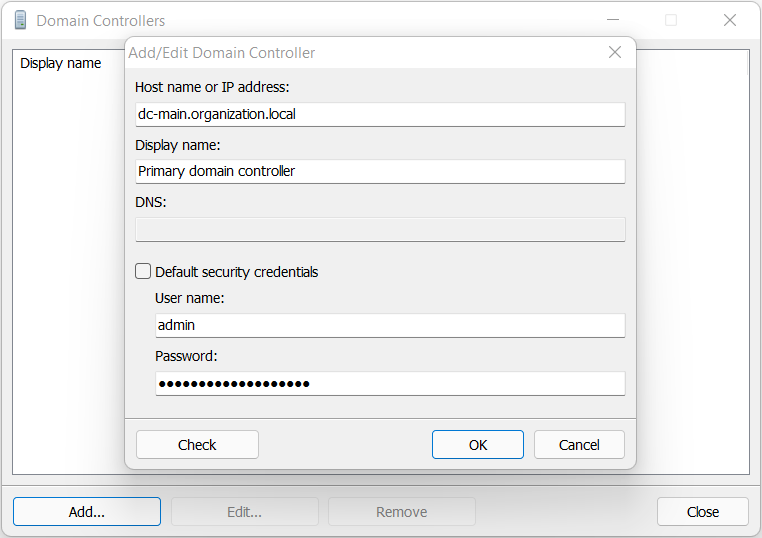
Easily integrate Remote Utilities into your AD environment. Add domain controllers, push-install Host across your AD network and create a schedule for importing AD computers into Remote Utilities address book.
MSI Configuration
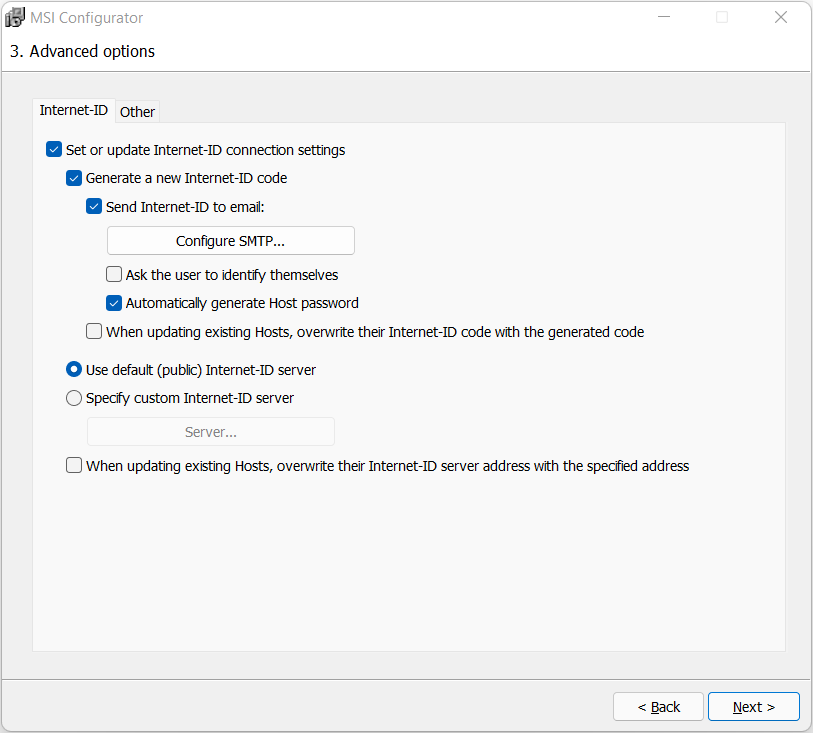
Use the built-in MSI Configurator to create a custom Host installer for further deployment across your network. For spontaneous support, configure Agent module and customize it with your logo and welcome text.
Self-hosted Server
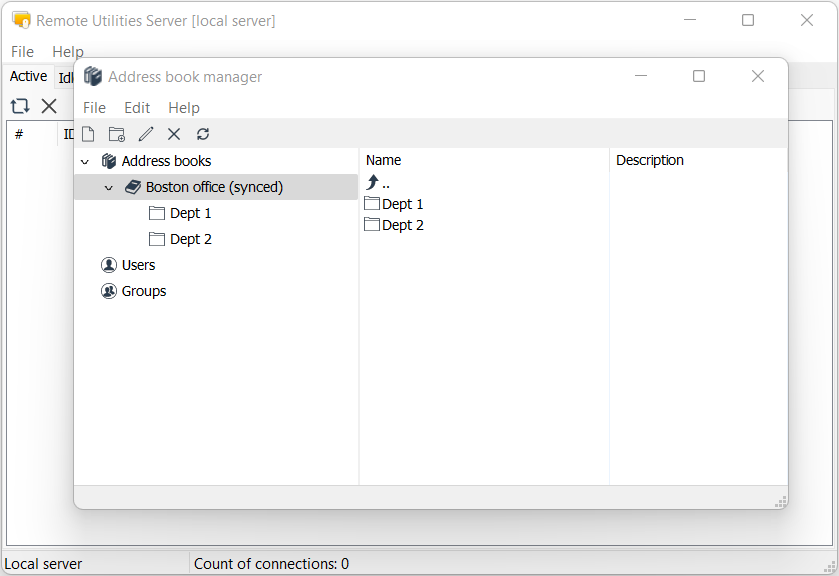
Enhance Remote Utilities capabilities with an on-premises server and build a 100% autonomous remote support solution to comply with strictest security requirements.
Our customers
Our customers








What our customers say
-
I am not tech savvy
Pros: This was extremely easy to set up. It is the perfect remote in solution for small businesses, because it is free for the first 10 endpoints. We didn't have any hiccups getting this installed and running. It worked exacly as you would expect.
Cons: It feels a bit old thoughout the UI, but don't think for a second that it's outdated. This thing is packed with the features you would need to access other computers, servers remotely.
Dan V.
Owner
July 24, 2018

-
Frankly, it just can't get much better than this!
Overall: Close to perfect!
Pros: Remote Utilities does it all! With playing around with many remote access maintenance apps for years I finally found the perfect solution to my support needs. My last solution was VNC but looking at the logs I realized that VNC was under constant hacking attempts. Remote Utilities is very secure and full-featured and flawless in its operation...
Cons: The only down side I have seen is when a customer who is a complete computer novice tries to install the software. The ID# is sometimes hard for them to find.
John H.
Owner
Information Technology and Services, Self-employed
April 20, 2019
-
Last Hope for Linking Older OS
Pros: Remote Utilities is now, from my research, the only remote app that accomodates users of older operating systems. I downloaded all of them, and they all warned, that their program does not support the OS I am still using. I desktops with Windows 11, but need to maintain files and programs using the Microsoft Vista OS. ONLY Remote Utilities has supported users like me.
Cons: I believe the purchase price is a high for the nature of the program, but, since I need the features, I paid the price.
Reasons for Choosing Remote Utilities: The only one supporting Microsoft Vista.
Arthur B.
PRESIDENT, CEO
Real Estate, 1-10 employees
September 29, 2023
-
Great value for money remote management software
Overall: Being able to offer my customers a remote support solution for minimal to no cost as a startup business, until I can afford a more expensive solution with better feature sets. I can still offer the features of the big guys for little to no additional cost to my business.
Pros: Free option for startups for supporting up to 5 computers that are stored in the remote client. This is a great product for startup computer repair companies or used on a small business network. Has a great feature set, and love being able to package up the remote endpoint with my own white labelling.
Cons: Some instabilities, and dropouts. often find it re-connecting. A scale feature to match the connection speed would be handy that changes the quality of the view based on connection speed.

Sean J.
Labour Hire Employee
11-50 employees
June 27, 2018
-
Remote Utilities
Overall: Great!
Pros: Ease of use / functionality/ free for small users / good documentation
Cons: None that I can see so far. It meets my needs.
Alternatives Considered: TeamViewer
Reasons for Choosing Remote Utilities: Superior for small users... ie affordable!
Erica D.
Senior Technical Writer
Writing and Editing, Self-employed
May 21, 2019
-
Good for monitor and controll other PC
Overall: It is a very use full apps since i can operate other PC remotely. It is not only for office use but also for parents who want to monitor their children computer activities.
Pros: This small apps is easy to install and use. Very suitable for various networking type such as home, small office and enterprises. It has almost complete feature that you need such as remote desktop, file transfer, keyboard/mouse lock and even shutdown/restart the remote PC.
Cons: It only allow a few remote PC for a trial version.
Muhamad Yusman B.
Assistant Manager
E-Learning, 501-1,000 employees
July 11, 2023
-
One of the best remote support softwares, full of useful add-ons
Overall: It allowed me to work from home with the small business that I have in my mother's house that is in another city, because by this means we can work together on the same PC and see together our administration and HR software, live chat and even record the work session
Pros: We know what we are looking for in remote support software but "Remote Utilities" offers a wide range of options that highlight it over others, such as: + possibility to record in video the entire remote session + possibility to manage which type of session to use according to the quality or speed of the internet connection (even lower the video quality to 2bits or in black and white) + different modes of connection, from total control, only see, control of the windows registry, tasks and services, inventory manager (see features of the pc only, that is, the session will only bring this information and nothing else) + the so required drag and drop function to access the clipboard in a simple and easy way
Cons: to be so complete I only saw a fault and that is that the installer comes separately, one for who will make the connection and another for who will receive it, although this allows to maintain a scheme of "support-end user" can become cumbersome to install and configure for an inexperienced end user.

Ígor S.
Consultor independiente SQL
Information Technology and Services, Self-employed
July 12, 2018
-
Very Satisfied Customer
Overall: It's made a huge difference to our operation at a minimal cost.
Pros: For US$99 for a lifetime licence this software is extremely beneficial. Probably repaid my saved travel costs in the first couple of months. Has added a few layers of convenience and flexibility to our operation.
Cons: the User Interface is very basic in terns of graphics display but that also means it's easy and uncluttered.
Alternatives Considered: LogMeIn and MyPCBackup
Reasons for Choosing Remote Utilities: Initially on price comparison. It has proven to be excellent value for money.
scott L.
Radio Station President
Broadcast Media, 11-50 employees
September 16, 2022
